
Advanced Settings
Trusting a New ClearPass Authentication Certificate
ClearPass authentication certificates are renewed annually.
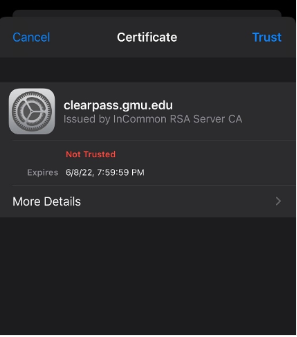
Devices that are not configured to trust the root certificate authority may prompt the user to trust the new certificate when connecting to campus Wi-Fi networks after the update. If you are prompted to trust the Certificate, click on Trust.
Remove the current eduroam configuration
If you have previously set up your eduroam connection without certificate validation, you may be unable to connect. To reconnect, you’ll need to remove the current configuration for eduroam and manually install a GMU Root CA certificate. To remove any current configuration for eduroam, follow these steps:
- Open Settings and then access Wi-Fi options.
Tap and hold eduroam. If the option to “Forget network” appears, then select it and continue.
If the option to “Forget network” does not appear, you can continue with the steps below to manually install a GMU Root CA certificate.
Manually install GMU Root CA certificate
To reconnect to eduroam, you must manually install a GMU Root CA certificate on your device (this is a one-time step). To do this, make sure your device is connected to the internet and follow these steps:
- Download the GMU Root CA certificate (GMU-root.cer) on your device
- Follow Google’s instructions to add a certificate
- Configure the eduroam settings as follows:
- When prompted to choose the uses for the certificate(s), select both VPN and apps and Wi-Fi
- When prompted to enter a name for the certificate, use GMU Root