
Team Owners & Contacts
Requesting a quota increase can be completed only by Owners and MyHub Contacts in MyHub. Most workspaces have a minimum of two Owners and two MyHub Contacts. When the current usage is above 75% of the current limit/quota, and the new quota is under 1,000 GB (Gigabytes), users may request an increase via option 1 below. If you do not know who the Owners or Contacts are for your workspace, members are still able to initiate the process, but will require an owner/contact or ITS involvement as described in option 2 below.
Storage Quotas
Shared file collaboration storage quotas (the limits in place for Microsoft workspaces such as Teams, Groups, and SharePoint Document Libraries (SPDL) are set to a default 100 GB as described in the Microsoft 365 Storage Roadmap.
Checking and Reclaiming Storage
Checking the current storage use and reclaiming available storage of your workspace can be accomplished in several ways, as described in Managing Microsoft Storage Use.
Increasing Workspace Quotas
Starting in MyHub (on the website or in MS Teams), the system will guide you through a series of questions to complete your request to update the storage quota for workspaces. Select the service “Increase Storage Quota of Microsoft Workspaces”.
Option 1: Increase Quota by 100 GB (Gigabytes)
Step 1
After accessing MyHub (on the website or in MS Teams) and selecting the service “Increase Storage Quota of Microsoft Workspaces” choose “Increase Quota by 100 GB (Gigabytes)” if you are an Owner or MyHub Contact, your current storage usage is at least 75% of quota, you require an increase of 100 GB or less, and the new quota will be under 1 TB (1,000 GB). Complete the questionnaire regarding the management of your workspace. Explain the reason for your request in the event approval is required to increase your workspace quota.
When prompted, enter the URL of the workspace:
- Find your MS Teams URL: On the Microsoft Teams page or in the desktop Teams app, click on the Files tab near the top. Click Open in SharePoint to go to the SharePoint site for this Team, and copy the address.
- Find your SharePoint Document Libraries and Groups for Apps URL: Copy the URL from your web browser. If required, log in to Office 365, open the appropriate SharePoint URL, and copy the address.
Step 2
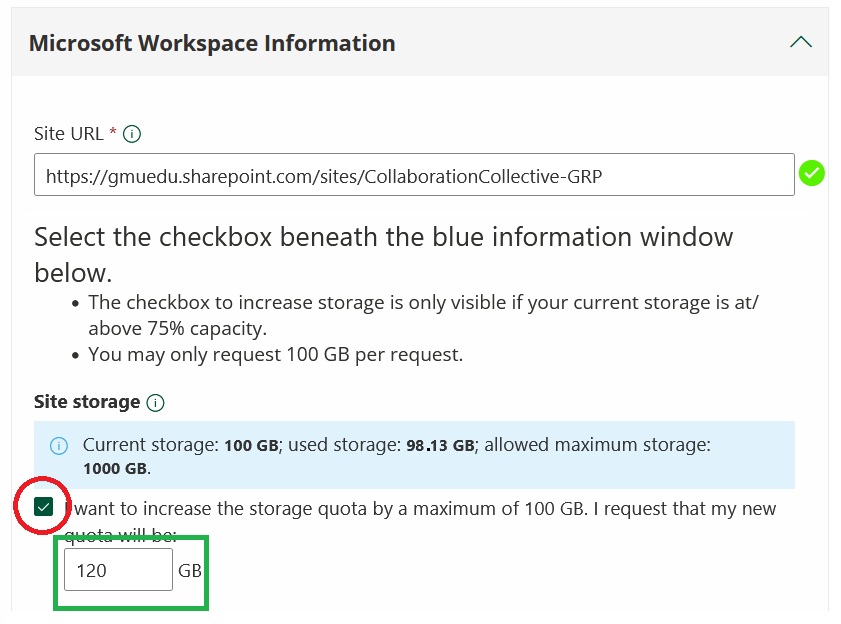
Select the checkbox beneath the blue information window.
Step 3
Type in the new quota of the workspace as shown in the green rectangle of the screenshot above. You may only increase quota by a maximum of 100 GB per request. If you require a quota increase larger than this, or your new quota is larger than 1,000 GB (1 TB), please start over and choose “Other Request” for ITS (and in some cases your college/departmental representative) to review your use case. The “Other Request” option is outlined in “Option 2” below.
Step 4
Confirm that you have reviewed the following policies:
- Responsible Use of Computing - University Policy 1301
- Data Stewardship - University Policy 1114
- Data Classification and Storage Requirements
Step 5
If the new quota you are requesting is 500-1,000 GB, you will be prompted to pick the college, department, or organization with which your workspace most closely aligns.
- Example 1: Users in “Registrar” would choose “Division of Enrollment Management”
- Example 2: Users in “Mason Korea” or “Honors College” would choose “Cross Functional” or, if better aligned, select a different unit such as “College of Science”
One or more departmental approvers in your school or unit will review the request and the details you provide. If multiple departmental approvers exist, all will be notified, but only one approver will need to take action. If you (the requester) are also one of your own departmental approvers, the request will automatically be approved.
Note: The email address listed in this step can receive emails should you inquire about the status of a request.
Step 6
Await MyHub email communication of the completion of your storage increase. Requests are only completed successfully when Step 2 is correct and the original storage was at least 75% of the quota. If in step 5 an approver rejects your request, you will be notified via MyHub with the reason (if entered by the approver). If an approver does not act on your request within 30 days, MyHub will notify the requester that the request was rejected.
Option 2: Other Request
In MyHub’s service to “Increase Storage Quota of Microsoft Workspaces”, the “Other Request” forwards you a TDX request for Data Storage Consultation.
- Under “Reason for consultation,” select ‘New or Existing Microsoft Storage Space’ and in the description, thoroughly explain why more space or a consultation is requested.
This option requires manual intervention and is a longer process. Complete the questionnaire regarding the management of your workspace. Please thoroughly explain the purpose of this request. Examples may include:
- Requesting a consultation with ITS regarding the best use of your storage
- Requesting over the 1 TB (1,000 GB) quota limit
- Require more than 100 GB of increase
- Require more quota, but workspace Owners and Contacts are no longer at the university or unknown
Completing this option will create a ticket in the ITS ticketing system (TeamDynamix) and will be assigned to the ITS Microsoft Storage Consultation group. ITS will reach out if more information is needed.
The Approval Process
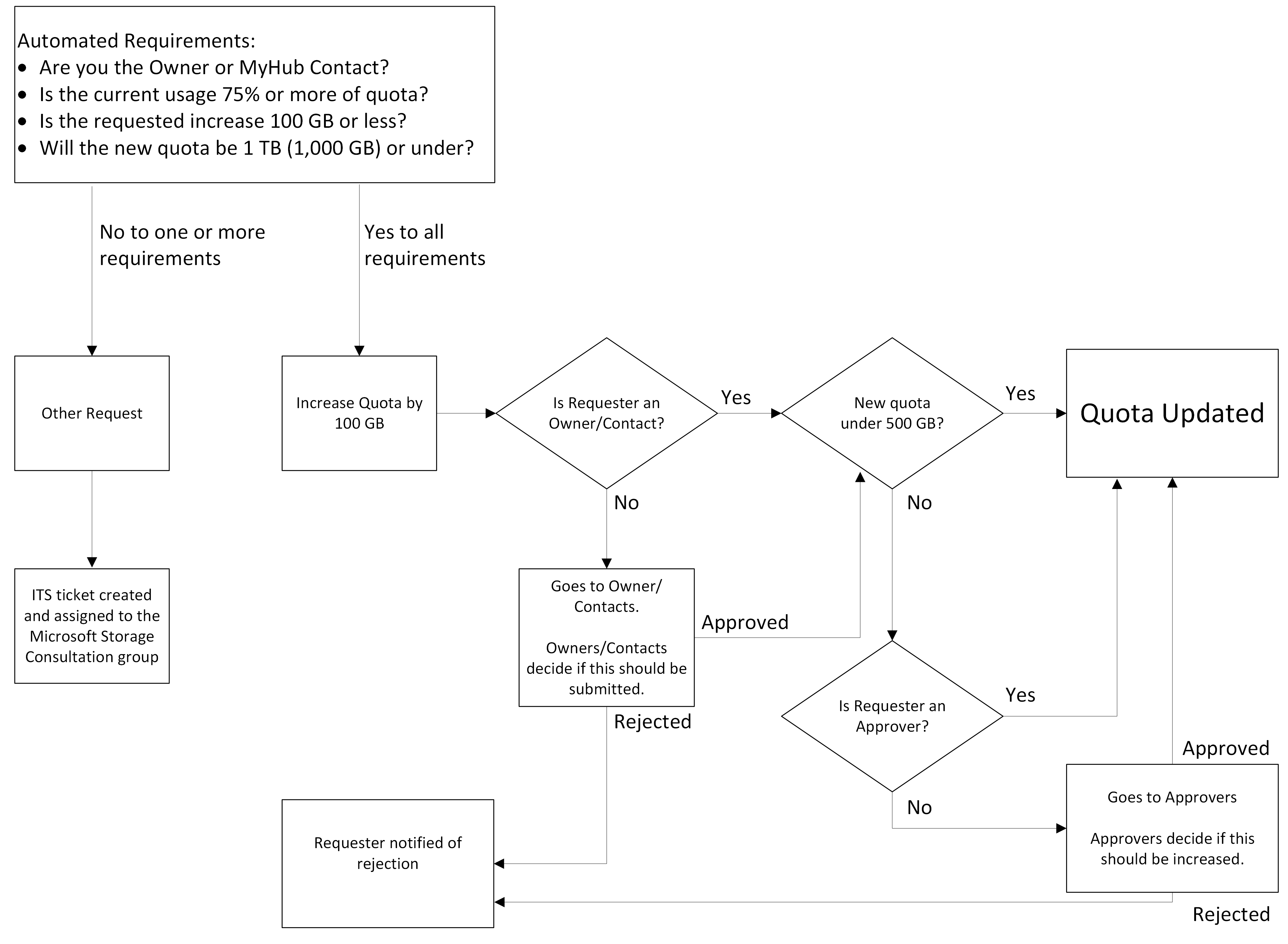
Requests to increase quotas should be submitted by the Owners or MyHub Contacts of the workspace. Requests for storage updates are automatically approved if the submitter is an Owner or MyHub Contact, the current usage is 75% of the assigned quota, the increase is of 100 GB or less, and if the new quota is under 500 GB.
- When submitted and the requester is not an Owner or MyHub Contact, the Owners and MyHub Contacts will be notified to escalate or deny the request.
- The Owners and MyHub Contacts have 7 days to escalate or deny the request. If no action is taken by them, the request will be rejected.
- Use the “Other Request” (Option 2 from above) if you require an increase and the current Owners and MyHub Contacts are unavailable.
- The automated workflow will not work if the current usage is under the 75% quota or if the requested amount is over 100 GB, or the new quota is over 1 TB (1,000 GB).
- Use the “Other Request” (Option 2 from above) if you require an increase and cannot submit the request because of these limits.
When the new storage quota is over 500 GB, the request will require departmental approval. Departmental approvers should review the information provided in the questionnaire and consult with the individual or workspace Owners to determine if Microsoft is a suitable environment for the data, assist with cleanup, and then approve or reject the request. During this stage, only one departmental approver is required to approve or reject the request. The requester (and other departmental approvers) will be notified of the final status of the request via MyHub. Departmental approvals have a 30-day limit to take action and will receive email reminders. Failure to approve or reject the request by the departmental approvers will result in auto-rejection. Requesters will be notified via MyHub of the overdue task being rejected.
Departmental Approvers Methodology and Changes
Departments that are available in MyHub originate from the university’s official Chart of Accounts (COA) and the ITS-managed Technical Point of Contact (TPOC) list. Any questions on departmental approvers, including requests to update who should (or should not) be an approver, can be submitted via this form.