
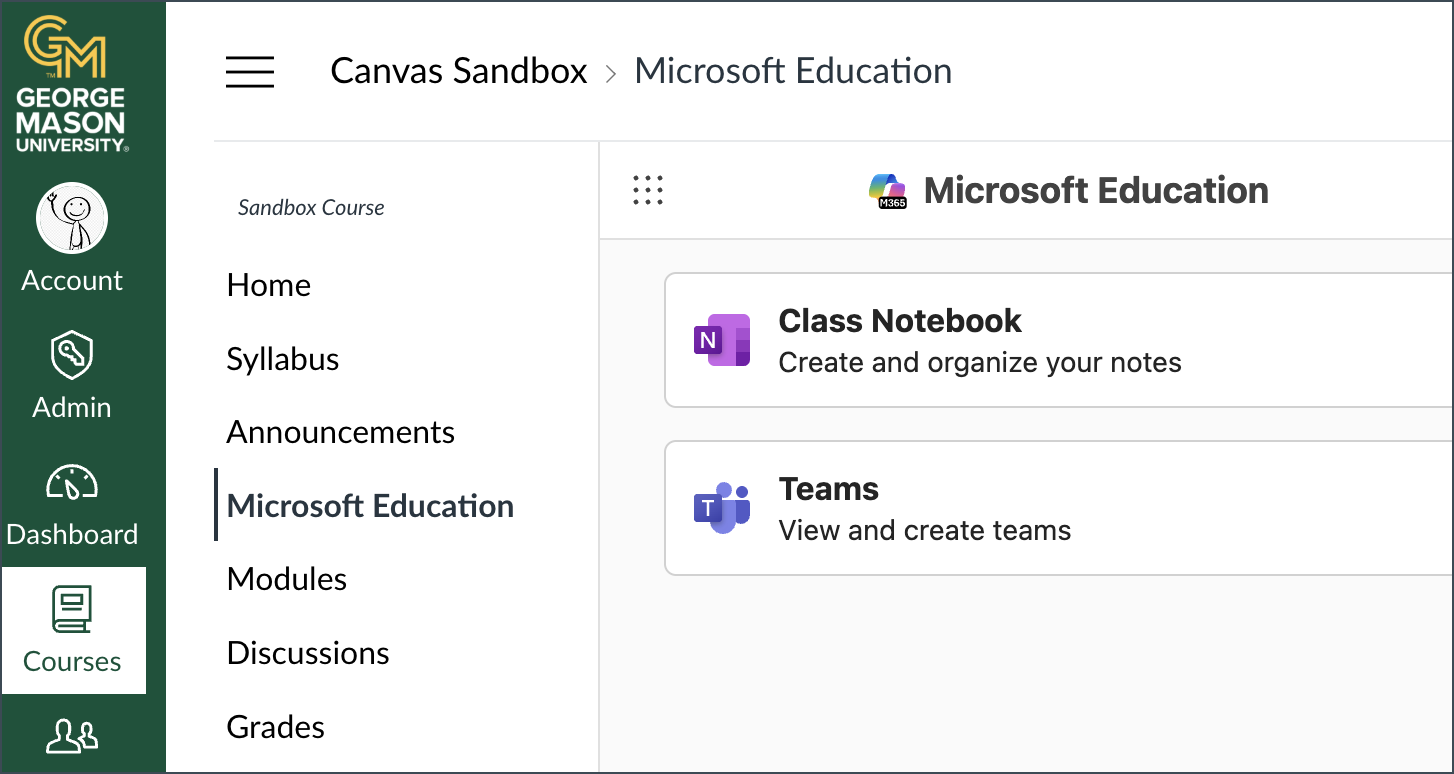
 The Microsoft 365 LTI app brings Microsoft 365 Education experiences like Microsoft Assignments, OneDrive/Microsoft 365 files, Teams for collaboration, OneNote, and more to Canvas. Student enrollments are automatically added and updated. Note: This tool requires that faculty and student browsers have third-party cookies enabled to work properly.
Follow the steps below to enable the selected apps using the course menu link to Microsoft Education. If you access Microsoft Education elsewhere in your course before following these steps, the system will automatically launch into setting up your course as described below.
All uses of Microsoft Education create a Microsoft workspace that will be managed using MyHub. For issues relating to MyHub, such as retention and renewal, read the MyHub FAQs.
Enable Microsoft Education
Step 1
Add Microsoft Education to the course navigation menu (Settings > Navigation)
Step 2
Find Microsoft Education in your course menu and select to access it.
Step 3
Log into Microsoft if prompted, and then select Continue setup.
Note: This will bring you to the General Course Settings page. You can return to this page later by selected your profile picture in the upper right and Course Settings. Course Settings will also give you access to the Advanced and Notifications tabs.
Step 4
Select apps you would like to enable by toggling individual items listed. Your course is now set up. When you access Microsoft Education in the future, you will see tiles for each of your selected apps as shown above.
Additional Considerations by Tool/App
OneDrive (required for the Canvas Collaborations tool)
OneDrive is your personal file storage with Microsoft. This will let you access your OneDrive workspace within Canvas.
- Once enabled, this will allow you to create Collaborations using the new Microsoft Education option.
- Files stored in Microsoft Education do not count against the Canvas file storage limit.
- Until an instructor sets up Microsoft Education, students can only use OneDrive to submit assignments.
Class Notebook (OneNote)
Class Notebook can be used to distribute content, provide individual workspaces for students, and collaborate in real time.
- The first time you Open Class Notebook in Microsoft Education, you will be taken through the set up process:
- Click Set up a OneNote Class Notebook
- Click Next
- Optional: Customize the sections of your Class Notebook; Section types include:
- Collaboration space: teacher and student can edit
- Content library: teacher can edit and student can view
- Teacher-only section: private space for teachers
- Student-only section: private space for students
- Click Create.
- You and your students can access OneNote via Canvas or directly in Microsoft 365.
Teams
Teams is a digital hub that centralizes conversations, files, and video meetings to foster a collaborative learning environment.
- The Team will be created when you toggle Teams on in your Microsoft Education Course Settings.
- The Teams site will have the same name as your Canvas course.
- The roster syncs every time you open Teams from within Microsoft Education.
- You and your students can access Teams via Canvas or directly in Microsoft Teams.
Assignments
Microsoft Assignments allows instructors to create assignments using OneDrive documents where a copy is automatically created for each student to edit and submit back for review. This allows instructors to used advanced features of Microsoft products directly inside Canvas, such as track changes in Microsoft Word.
- This feature does not need to be toggled on/off like others listed on this page. It is on by default.
- To create a Microsoft Assignment, follow the instructions at How do I create a cloud assignment with a Microsoft Education file? (Note: There are other ways to create Microsoft Assignments, but the process outlined in these instructions offers the best integration with Canvas.)
- When viewing files in the Assignment interface, you can launch the desktop app for full feature access by going to File > Info > Open in desktop.