
Canvas Admin access provides a user with full access to all course sections (past, current, and future) at a certain level – course, department/subject (undergraduate, graduate, or both), or school/college. A Canvas Admin can also create resources available to all course sections at their level, such as shared rubrics and outcomes.
How to Become an Admin
Users who need elevated admin access to courses (often a course coordinator, chair, or instructional technologist) can request Admin access via the Canvas Request form. Your supervisor will receive an email notification to approve the request. You will receive an annual email notification to confirm you still need access.
The Admin Dashboard
Once you are an admin, you will have an admin icon in your global navigation menu. Opening the admin panel will show all sub-accounts where you are an admin. A sub-account refers to the level of access (e.g. the course level) and includes all levels below as well, such as accessing a single course sub-account as a department admin.
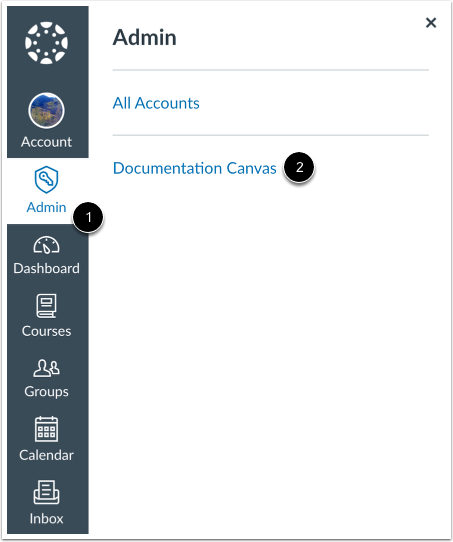
In Global Navigation, click the Admin link [1], then click the name of the sub-account [2]. This will open a list of all courses within the selected sub-account.
How do I use the Courses page in an account? goes into detail on navigating the Admin Courses page. As an admin, you will be able to go into any course, published or unpublished, without having to enroll. You will also be able to modify course content, enrollment, and settings.
Analytics and Reports
There are many areas where you can view data on courses in your sub-account.
- Admin Analytics includes dashboards at many levels including overview, courses, and students. All dashboards can be filtered, as well.
- Sub-Account Reports create downloadable spreadsheets of data. Be sure to click the help icon next to report names for a preview of the output before running.
- Since you can open any course, you also use the Course Analytics and other tools available to instructors.
Global Announcements
Global announcements allow you to contact all or specific users within a sub-account using one message. Announcements appear at the top of a user’s Dashboard page at the time you specify. You choose what course roles you want to see the announcement (teacher, student, etc.). You decide if you want the chosen users to also receive the announcement as a notification to their email. The functionality is mostly the same as course announcements. There are a few additional considerations.
- Never select “Only show announcement on current account domain,” as this setting is not compatible with the structure of our Canvas environment.
- When posting a global announcement, you can restrict it to Course Roles, such as Student, Teacher, etc. Do not use the Account Roles options.
- Announcements are only for users who are active at that account level. For students, this roughly corresponds to being enrolled in published courses in the current semester.
- Be cognizant of the account level you use to post. If you want to post to three courses, you would have to post to three course sub-accounts. If you post in a department/subject level account, then it will be posted to everyone with an active class in that area.
Blueprint Courses
As a Canvas admin you can manage Blueprint courses. Blueprints allow admins to copy a course into multiple sections, lock selected content to prevent instructors from editing, and sync changes throughout the semester. There are other ways to duplicate course material that you should consider in addition to blueprints. More information including how to request blueprint courses is available in Canvas Course Types.
Considerations for Panorama
Panorama is an accessibility tool that integrates seamlessly with Canvas. It is designed to help institutions improve the accessibility of digital media and course content. To access Panorama in a course you are not enrolled in, you can add it to the course navigation menu. Once you open the Panorama tool from the course menu, the system will authenticate you as an instructor, but you may need to give the system a few minutes the first time. Additionally, you could submit a request with the Canvas ITS Help form to be added as a Panorama Sub-Account admin. This will give you additional access analytics.
Connect with Other Admins
The collective is a team for Mason’s faculty and staff instructional technology users to communicate with their peers and discuss new features, best practices, and other topics of interest. The collective is moderated by members of the Mason community and ITS. To become a member of the Canvas & Instructional Technologies Collective, go to https://go.gmu.edu/canvasteams. Within the Canvas Collective is a Canvas Admins ONLY private channel to facilitate connection among Canvas admins. Once you’re in the Canvas Collective, send a message to the MS Team owners requesting to be added to the private channel.