
Background and Approach
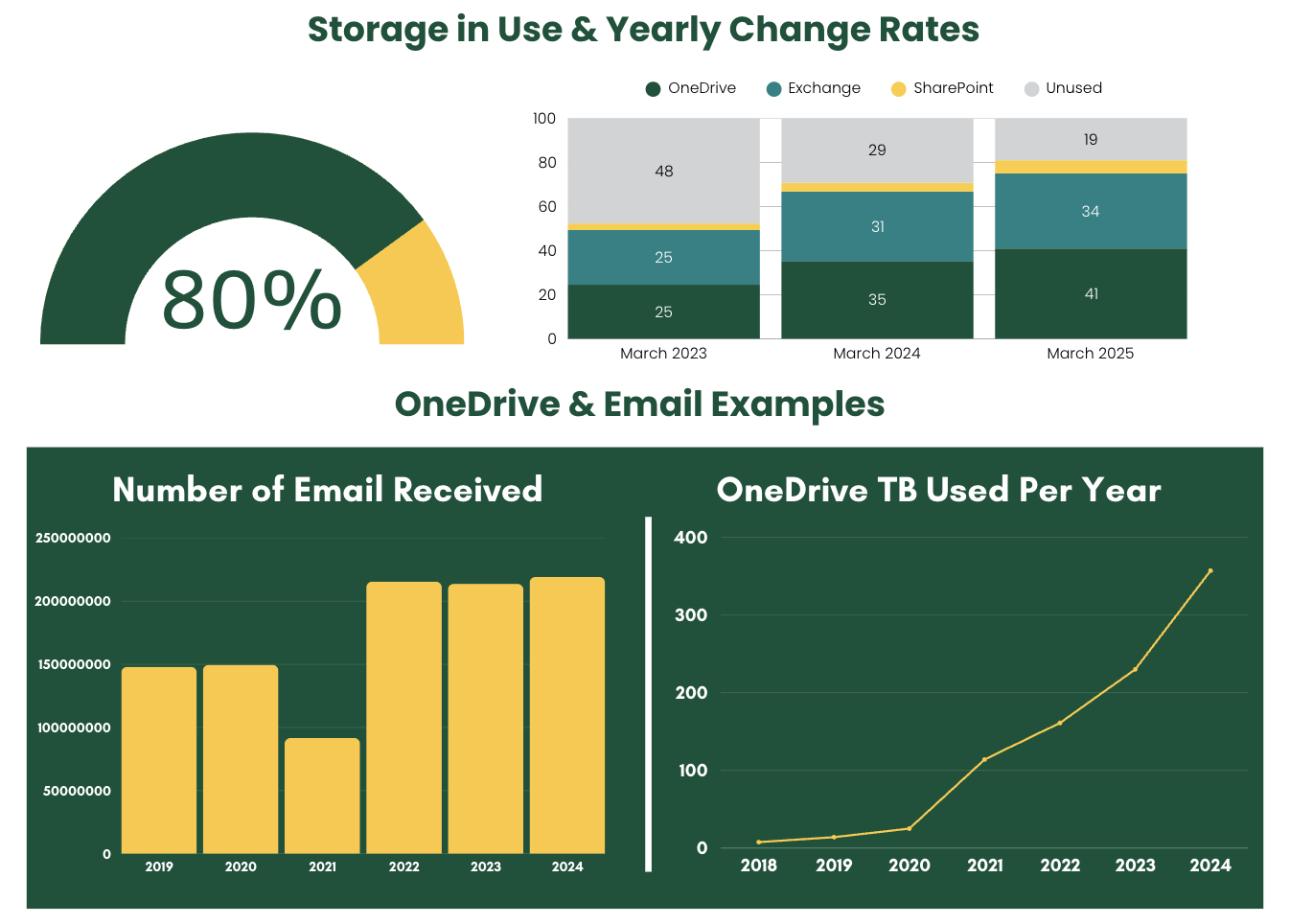
As cloud storage utilization has increased, vendors have responded by re-configuring their service offerings and storage pricing, making providing free storage no longer sustainable for higher ed institutions. To better manage our storage growth, ITS conducted a formal review of our Microsoft 365 (M365) system storage and will be implementing changes this year.
The educational, research, and business needs of the institution were considered in the approach to ensure that the service continues to be configured in a way that enables users to create and maintain their data to meet their needs. The analysis of our Microsoft environment found the following:
- Over 90% of OneDrive, Exchange (email), SharePoint, and MS Teams spaces are using less than 5GB of space
- The consumption of storage has accelerated drastically in recent years
- Retention of data beyond the appropriate duration outlined by George Mason and the State of Virginia is a security risk
- Storage options outside of M365 may be more appropriate for certain types of data
- There is a need to educate the community on the MS Office suite, best practices for using the tools, and taking ownership of data
Implementation
In-Scope
- George Mason M365 environment (OneDrive, MS Teams, SharePoint, Exchange) assessment
- M365 retention and deletion policies, storage limits, and management tools
- Identification of storage options provided by ITS
- Potential purchase of additional Microsoft storage
Out-of-Scope
- Purchasing additional external storage
- Manual file clean-up of customer files
- Microsoft Azure storage management
Timeline
Completed
- OneDrive, Exchange, and SharePoint/MS Teams Storage Quota Changes
- Reduce File Version Default Limit
- MyHub Storage Increase Request Process
- Investigate and Determine Microsoft Storage Options
- Refine Lifecycle for MyHub Workspaces
In Process
- Investigate and Implement Retention Policies
- Provide Updated Resources for OneDrive, Exchange, and SharePoint/MS Teams
Upcoming
- Document Retention Lifecycle Policies (April – May 2026)
- Project Closeout (Summer 2026)
What to Expect
How to Prepare
Retention Policy Change for Outlook Deleted Items
Beginning Monday, May 18, Outlook emails that are 90 days old or more located in the Deleted Items folder will be tagged for permanent removal on a rolling basis. This change is being implemented to improve data security, optimize data storage management, and enhance email performance.
To prepare for the change:
- Review your Deleted Items folder and evaluate your data with the following information provided by University Records Management:
- Training and Resources
- Approved Retention Schedules
- Contact [email protected] with any records-related questions
- This change will not impact any other folders in your Outlook account. If there are items you want to keep in the Deleted Items folder, please move them to another Outlook folder or other appropriate storage space, such as OneDrive or SharePoint.
Storage Quota Changes
Users who fall under the following established quotas will not be impacted:
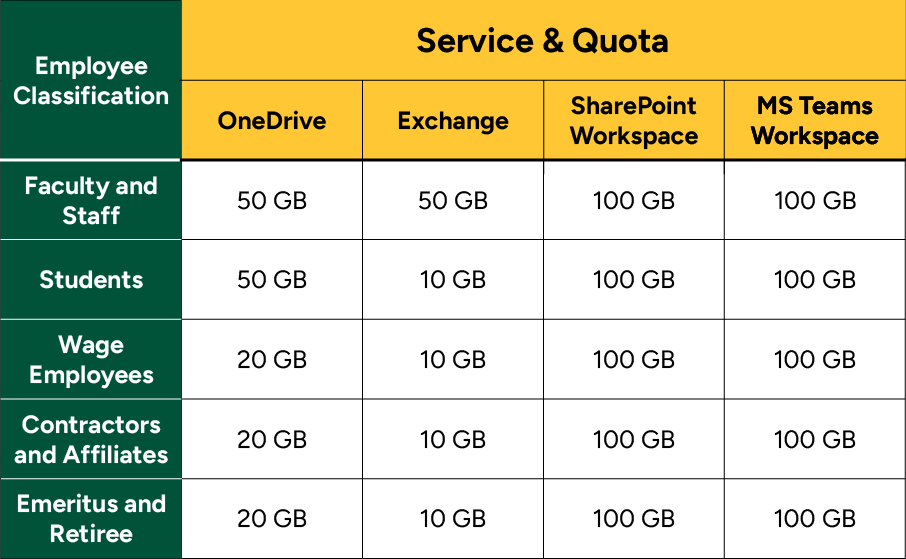
Open for accessible-friendly overview of users who fall under the following established quotas will not be impacted:
Faculty & Staff
- OneDrive: 50 GB
- Exchange: 50 GB
- SharePoint Workspace: 100 GB
- MS Teams Workspace:100 GB
Students
- OneDrive: 50 GB
- Exchange: 10 GB
- SharePoint Workspace: 100 GB
- MS Teams Workspace: 100 GB
Wage Employees
- OneDrive: 20 GB
- Exchange: 10 GB
- SharePoint Workspace: 100 GB
- MS Teams Workspace: 100 GB
Contractors & Affiliates
- OneDrive: 20 GB
- Exchange: 10 GB
- SharePoint Workspace: 100 GB
- MS Teams Workspace: 100 GB
Emeritus & Retirees
- OneDrive: 20 GB
- Exchange: 10 GB
- SharePoint Workspace: 100 GB
- MS Teams Workspace: 100 GB
Users whose storage exceeds the above limits will be assigned a quota just above the amount currently in use to prevent further growth. When a user nears the limit, they will get an automated warning message from Microsoft.
If the quota limit is reached for OneDrive, or a SharePoint or MS Teams workspace, your documents will be put in read-only mode, and you will be unable to save, edit, or create documents until data is deleted. If you reach the quota limit for Exchange, sending and receiving email will be unavailable until the existing email storage is deleted.
Users are encouraged to review the data in their George Mason email, OneDrive, and any managed SharePoint or MS Teams spaces. If possible, begin to delete old data, duplicates, versions, or documents that are no longer needed.
Frequently Asked Questions
How will I know when and what changes impact me?
The majority of the George Mason community will not notice any change. If you receive messages regarding changes from ITS, please read and follow any instructions given to ensure you retain the necessary data. Visit this roadmap page frequently for project updates and the Microsoft Changes page for general updates related to Microsoft services at George Mason.
How should I prepare for storage changes?
Review the data in your George Mason email, OneDrive, and any SharePoint or MS Teams spaces you manage. Visit the Office of Records Management website to review data retention policies and understand what types of documents need to be maintained, for how long, and what is eligible for deletion. Delete old data, duplicates, or documents that are no longer needed.
What if I’m currently using more storage space than the new quota limit?
To prevent disruption users whose storage exceeds the above limits will be assigned a quota just above the amount currently in use. Users are encouraged to review the data in their George Mason email, OneDrive, and any managed SharePoint or MS Teams spaces. See Managing Microsoft Storage Use for more information.
What happens if I reach my quota limit?
If the quota limit is reached for OneDrive, or a SharePoint or MS Teams workspace, your documents will be put in read-only mode, and you will be unable to save, edit, or create documents until data is deleted. If you reach the quota limit for Exchange, sending and receiving email will be unavailable until the existing email storage is deleted.
Are Microsoft storage consultations available?
Yes, a Consultation Team has been established to support users in effectively navigating and utilizing the Microsoft Office suite, while promoting best practices for data management within the environment. Consultations involve an intake form and meetings with the team to determine needs and available options before implementation. To get started, email the project team at [email protected].
What should I do if I want to recover a deleted email?
Emails can be located in “Recoverable Items” within 14 days of deletion. After that, they can no longer be retrieved.
Will the retention change to the Outlook Deleted Items folder impact any other email or email folders?
No, this change only impacts the Deleted Items folder. The emails in Deleted Items will be tagged to show the assigned expiration date (90 days) for when they will be deleted.
How do I save emails in my Deleted Items folder?
Review your emails in the Deleted Items folder. You can use filters to sort emails by size, age, etc., then recover and restore deleted items that you want to keep.
What if I am concerned about losing sensitive data or important records?
Review the following to understand the kind of data that needs to be retained and moved out of your Deleted Items folder:
Get Support
If you have questions about the project, contact the project team at [email protected].
To provide further support, the Collaboration Collective MS Team – Microsoft Storage Project channel is available as a forum for collaboration with peers regarding changes to M365 cloud storage.
If you have other questions or need assistance, please contact IT Support anytime at 703-993-8870, live chat, or submit a ticket.