
Welcome to George Mason!
We’ve put together this Getting Started resource guide to get you up and running as quickly as possible here at George Mason. In addition to this page, you can:
- Search our Knowledge Base for how-to articles and FAQs.
- Search our Service Catalog to learn what services we offer and how to get them.
Whether you’re a new faculty or administrative staff member at George Mason, the information below will help familiarize you with George Mason IT services, resources, and support to help you settle into your new role. Download the PDF version of our Employee Technology Services guide by clicking or tapping on the image.
How to Get Help
ITS Support serves as a central point of contact for the George Mason community to request IT support or information. Go to the ITS Support information page for contact information.
Quick Links




Quick Support Reference
Access the Network
One of the first things you will need to do is access George Mason’s network. For more information on George Mason’s wired and wireless networks, please see the following information:
- Go to the Wireless Network service page
- Go to the Network Access service page
Enroll in Two-Factor Authentication (2FA)
2FA is required to access most George Mason applications and the Virtual Private Network (VPN). Students are also required to use 2FA. Go to the Two-Factor Authentication service page for more information.
Activate Your Patriot Pass Account
- Go to password.gmu.edu
- Select Activate Account
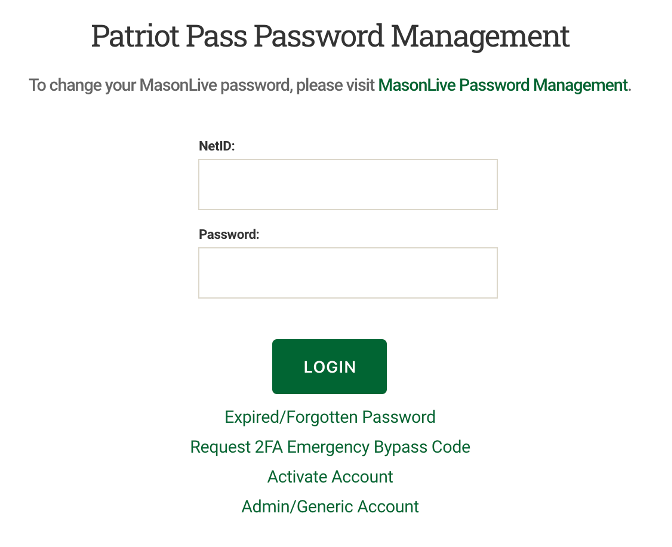
- Follow the instructions to get your George Mason NetID and Patriot Pass Password
- More information on accessing your Patriot
Protect Your Security
Antivirus Software License
Faculty and staff have antivirus software installed on their George Mason-owned equipment. George Mason suggests specific free antivirus software for use on personal computers. See Does George Mason provide antivirus software? for more information.
Be Aware of Phishing Messages
Never give out your Patriot Pass Password or other personal information via email. George Mason will never ask for personal information via email, online form, or text/phone. If you receive a suspicious email, delete it. If you aren’t sure, forward it to [email protected] or contact ITS Support at 703-993-8870 or use Live Chat at https://its.gmu.edu/chat/ so it can be assessed.
IT Security Office
The IT Security Office provides information, current tools, and guidelines to keep your computer secure. For information on how to keep your computer and information protected, please go to the IT Security Office webpage.
Responsible Use of Computing
Please take a few minutes to read and review University Policy 1301: Responsible Use of Computing that explains what constitutes acceptable and appropriate use of campus computing and network resources.
Download Mobile Mason
Stay connected with George Mason news, events, Patriot sports scores, shuttle and Cue bus schedules, and much more! Use Mobile Mason to find a building, computer lab, or print location and log into Blackboard, LinkedIn Learning, or library databases. Go to the Mobile Mason service page for more information.
Activate Your George Mason Accounts & Telephone
Your email is your [email protected]. Follow the How to Log In to Office 365 Email for the First Time.
Telephone & Voicemail
All telephone and voicemail requests must be processed through your department’s Telecom Coordinator.
Set Up Your Hardware, Software & Internet
ITS-Approved Endpoint Devices
ITS requires that faculty and staff use George Mason-managed endpoint devices for their work and research. For assistance with configuring a computer system, please contact ITS Support. For more information, go to:
Computer Installs
Your department’s Telecom Coordinator must place requests for installs.
Software
Select software is available without charge for faculty and staff. Microsoft Office 365 is available for installation on personal computers and devices.
Software on Managed George Mason-owned Computers
Software is available through System Center Configuration Manager-SCCM (for PCs) or Jamf Pro (for Macs).
Software on Unmanaged George Mason-Owned Computers
Please contact ITS Support.
Collaboration Tools
The following collaboration tools are available at George Mason:
- Zoom is a cloud-based web conferencing tool for video and audio conferencing, collaboration with people within and outside George Mason, chat, and webinars across mobile devices, desktops, telephones, and room systems. To log in to Zoom, go to gmu.zoom.us/signin.
- Microsoft Teams provides chat, audio calling, video calling, screen sharing, and more. Team members have access to all of that and several additional Office 365 shared features: email; calendar; notebook with OneNote, shared file storage with Sharepoint integrated with your OneDrive, Planner, and more within team sites. MS Teams is available via web browser, desktop app, and mobile app.
Getting Started with Canvas
For more information on Canvas, please see Getting Canvas Ready.
Getting Started with AI
Familiarize yourself with the AI features and tools currently available in university-supported platforms and information on how faculty and staff can use AI to support teaching, learning, and administrative functions. See the AI Toolkit for details.
Printing on Campus
George Mason has partnered with Canon to provide solutions for all your printing needs. Self-printing can be accomplished through the Pay-for-Print (PFP) network across all three campuses. The PFP network is accessible from Mason-owned computers or your own device. Please see printing driver downloads and instructions.
Learn About IT Resources at George Mason
Equipment Checkout
A variety of video production equipment is available for checkout in the STAR Lab. A valid George Mason ID is required. Go to the Video Production Equipment Checkout service page for more information.
Online Training
In partnership with LinkedIn Learning, George Mason provides unlimited online training without charge to faculty, and staff. The LinkedIn Learning online subscription library offers thousands of videos on a broad range of subjects, with new courses added weekly. Go to the LinkedIn Learning service page for more information.
Computer Labs
Patriot Virtual Computing & Labs
The Patriot Virtual Computing & Labs provides remote access to academic software. To use the Patriot Virtual Computing & Labs, see How to Install and Set Up Patriot Virtual Computing & Labs and How to Launch a Virtual Session in Patriot Virtual Computing & Labs.
Collaborative Learning Hub (CLUB)
The CLUB is a software assistance and group collaborative study space. Go to the Collaborative Learning Hub service page for more information.
Student Technology Assistance and Resources (STAR)
The Student Technology Assistance and Resource (STAR) Lab is a state-of-the-art multimedia computer facility. Go to the STAR Lab service page for more information.
General Computer Labs
General access to computers and printers is available at all campuses.
- Fairfax Campus
Johnson Center, Room 342
703-993-3446 - Mason Square
Van Metre Building, Room 211
703-993-8226 - Science & Technology Campus
Katherine G. Johnson Hall, Room 250
703-993-8499
See the Computer Labs service page for more information on what software is available in these labs and their hours of operation.