• Live Chat
  • Report an IT Security Incident
  • Request Help
  • Help & Support
    • Live Chat
    • Request Help
    • Track a Ticket
    • Knowledge Base
    • AI Toolkit
    • User Training
    • George Mason Endpoint Information and Resources
    • Computer Labs & Classrooms Information
    • Getting Started
    • Working/Learning Remotely
  • Service Catalog
    • ITS General Help
    • Accounts & Access
    • Communications & Collaboration
    • Computers & Software
    • Information Security
    • Network & Internet Services
    • Professional Services
    • Research Computing
    • Teaching & Learning
    • University Applications
  • About ITS
    • Our ITS Team
    • Strategic Plan
    • Annual Reports
    • Awards
    • Student Employment
  • Working with ITS
    • Architectural Standards Review Board
    • Banner Admin
    • Business Intelligence
    • Data Governance
    • Enterprise Data Integration Services (EDIS)
    • IT Business Analysis
    • IT Security Office
    • Projects & Project Management
    • Technical Business Solution Intake Request Process
  • Alerts & Outages
    • Unplanned Outages
    • Phishing Alerts
    • Maintenance
    • After Action Reports
    • Archives
    • ITS Alerts Sign Up
  • News
    • Bits & Bytes Signup
    • Bits & Bytes Submissions
    • Bits & Bytes Archive
    • Spotlights
    • Bulletins
George Mason University
  • Live Chat
  • Report an IT Security Incident
  • Request Help
X Hide

Information Technology Services

Skip to content
  • Help & Support
    • Live Chat
    • Request Help
    • Track a Ticket
    • Knowledge Base
    • AI Toolkit
    • User Training
    • George Mason Endpoint Information and Resources
    • Computer Labs & Classrooms Information
    • Getting Started
    • Working/Learning Remotely
  • Service Catalog
    • ITS General Help
    • Accounts & Access
    • Communications & Collaboration
    • Computers & Software
    • Information Security
    • Network & Internet Services
    • Professional Services
    • Research Computing
    • Teaching & Learning
    • University Applications
  • About ITS
    • Our ITS Team
    • Strategic Plan
    • Annual Reports
    • Awards
    • Student Employment
  • Working with ITS
    • Architectural Standards Review Board
    • Banner Admin
    • Business Intelligence
    • Data Governance
    • Enterprise Data Integration Services (EDIS)
    • IT Business Analysis
    • IT Security Office
    • Projects & Project Management
    • Technical Business Solution Intake Request Process
  • Alerts & Outages
    • Unplanned Outages
    • Phishing Alerts
    • Maintenance
    • After Action Reports
    • Archives
    • ITS Alerts Sign Up
  • News
    • Bits & Bytes Signup
    • Bits & Bytes Submissions
    • Bits & Bytes Archive
    • Spotlights
    • Bulletins

How can ITS help you?

Our services are designed to help you succeed at Mason—
search our services, knowledge articles, how to guides, FAQs, and more.

Knowledge Base

Home > Help & Support > Knowledge Base > Teaching & Learning > Canvas > How to Send a Test to Canvas Using Respondus

How to Send a Test to Canvas Using Respondus

This process uses the Respondus Test Creation Application. If you do not yet have it installed on your Windows device, go to How to Install Respondus Test Creation Application (Faculty).

Step 1

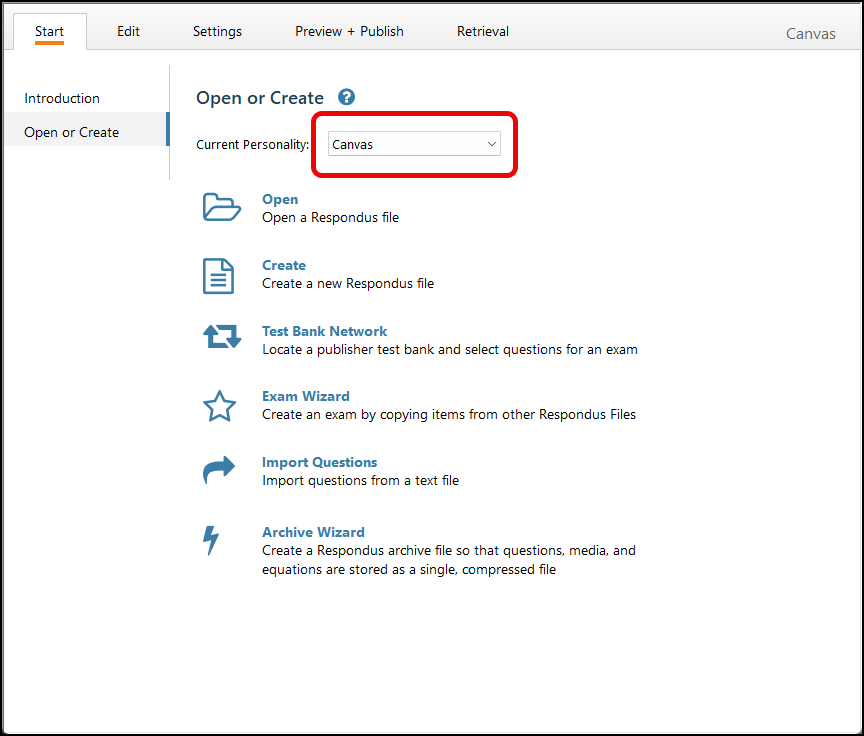
On the Start screen, make sure the current Personality is set to Canvas. You can confirm this by checking the Canvas label in the top-right corner.
Step 2 (optional)

You will need a test loaded into Respondus. If you do not yet have a test in the software, you can import from a Word document.

Step 3

After creating or selecting a test, go to the Preview & Publish [1] tab and click Publish [2] on the left to send it to a Canvas course.
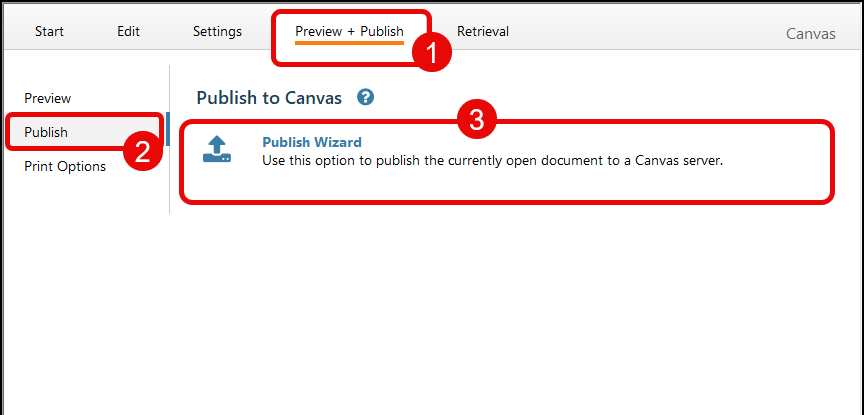
Click the Publish Wizard [3] button. If you have used Respondus before click Next.

Step 4

Select ‘Add New Server,’ then choose ‘No, I want to enter the server settings manually.’ Enter https://canvas.gmu.edu/ in the step 1 and click Extract to automatically populate the server connection URL.

In Field 4, enter any name (e.g., My Canvas Course), then enter your Mason ID and password. You may choose to save your login details. Click Next to continue.

The Mason Canvas window will open. Click Log Into Canvas and complete the two-factor authentication process. After successfully logging in and authorizing Respondus to access your account, the window will close automatically, returning you to Respondus. Click OK to continue.

Step 5

You can now continue to follow the on-screen steps to choose your course and publish the test (if you did not save your password you will be asked to log in again).


Last modified: September 18, 2025

Previous

How do I send my Canvas grades to Patriot Web?

Next

How to Install Respondus Test Creation Application (Faculty)

Related Articles

  • How to Print a Paper Test Created in Your Blackboard Course
  • How to Import a Paper Test into Canvas Using Respondus

Get Started at Mason

Whether you are a student, faculty, staff member, or a guest visiting the Mason campus, we have resources to help get you started.

READ MORE

Quick Links

Patriot Pass Password Reset
Create a Ticket
Track a Ticket
PuTTY
Cisco AnyConnect VPN

READ MORE

Explore IT Services

A B C D E F G
H I J K L M N
O P Q R S T U
V W X Y Z #

I T S Logo

© 2024 George Mason University
4400 University Drive
Fairfax, Virginia 22030

Follow Us
location pin for in-person IT support   @GeorgeMasonITS
location pin for in-person IT support   @georgemasonits
ITS Support 24/7
   703-993-8870
   Live Chat
  • Webmaster

The MASON-SECURE Wi-Fi network will be permanently shut down on Friday, December 19, 2025. To ensure uninterrupted connectivity, all campus Wi-Fi users should switch to eduroam. For details, see MASON-SECURE Retirement FAQs.