
Students can submit video or audio files to a Canvas assignment using Kaltura MyMedia.
Step 1
Go to your Canvas course and open the Assignment.
- If your instructor allows text entry submissions, click Start Assignment and choose a Submission Type: More opens the Kaltura Media tool
Or Text opens the Rich Content Editor.
Step 2
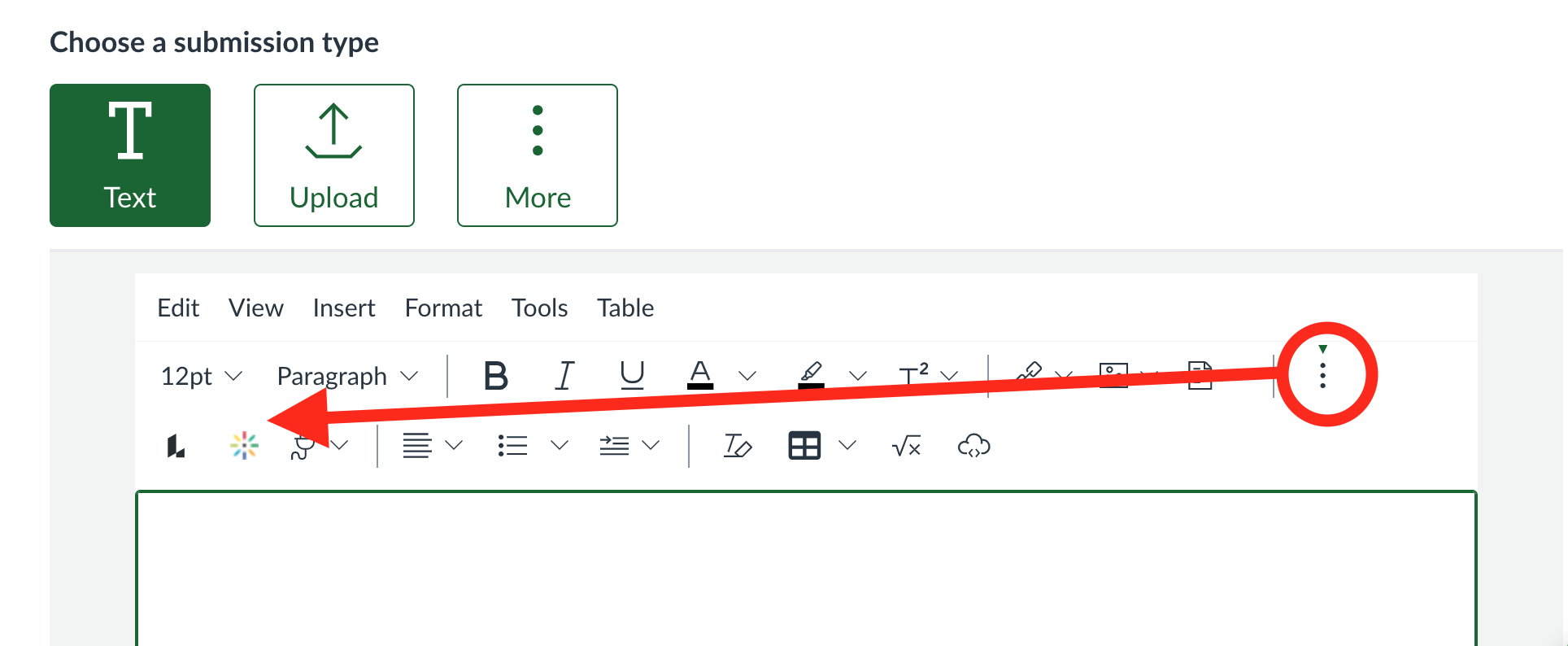
In the Rich Content Editor, click the Kaltura Media icon.
- If you don’t see it right away, click the ellipsis to find it.
Step 3
From the Kaltura MyMedia window, you can either:
- Add New > Media Upload to upload a new video file, or
- Add New > Express Capture to record using your webcam, or
- Select an existing video already stored in MyMedia.
Step 4
If uploading a new file:
- Click Choose a file to upload (or drag a video file into the upload window).
- While the file uploads, you can give it a title, description, and tags.
Step 5
When the upload finishes, click Save and Embed.
Step 6
The video will appear in the Rich Content Editor. You may add additional text if required.
Step 7
Click Submit Assignment to finish.
Tips for Successful Uploads
- Some browsers limit uploads to 4 GB per file.
- Do not leave the page until the upload status shows as complete.
- Use a fast, stable internet connection and prevent your computer from sleeping during upload.
- After uploading, Kaltura will process the file. It may take several minutes before the video is available for playback.