
In Canvas you can add video and audio via Kaltura in a course using Pages, directly to a Module, or anywhere the content editor is available (e.g., announcements, discussion board, assignment submission, etc.).
Add Kaltura to Pages /Content Editor
Step 1
Create or navigate to a page (or any other location with a content editor such a discussion post) where you want your video to be placed.
Step 2
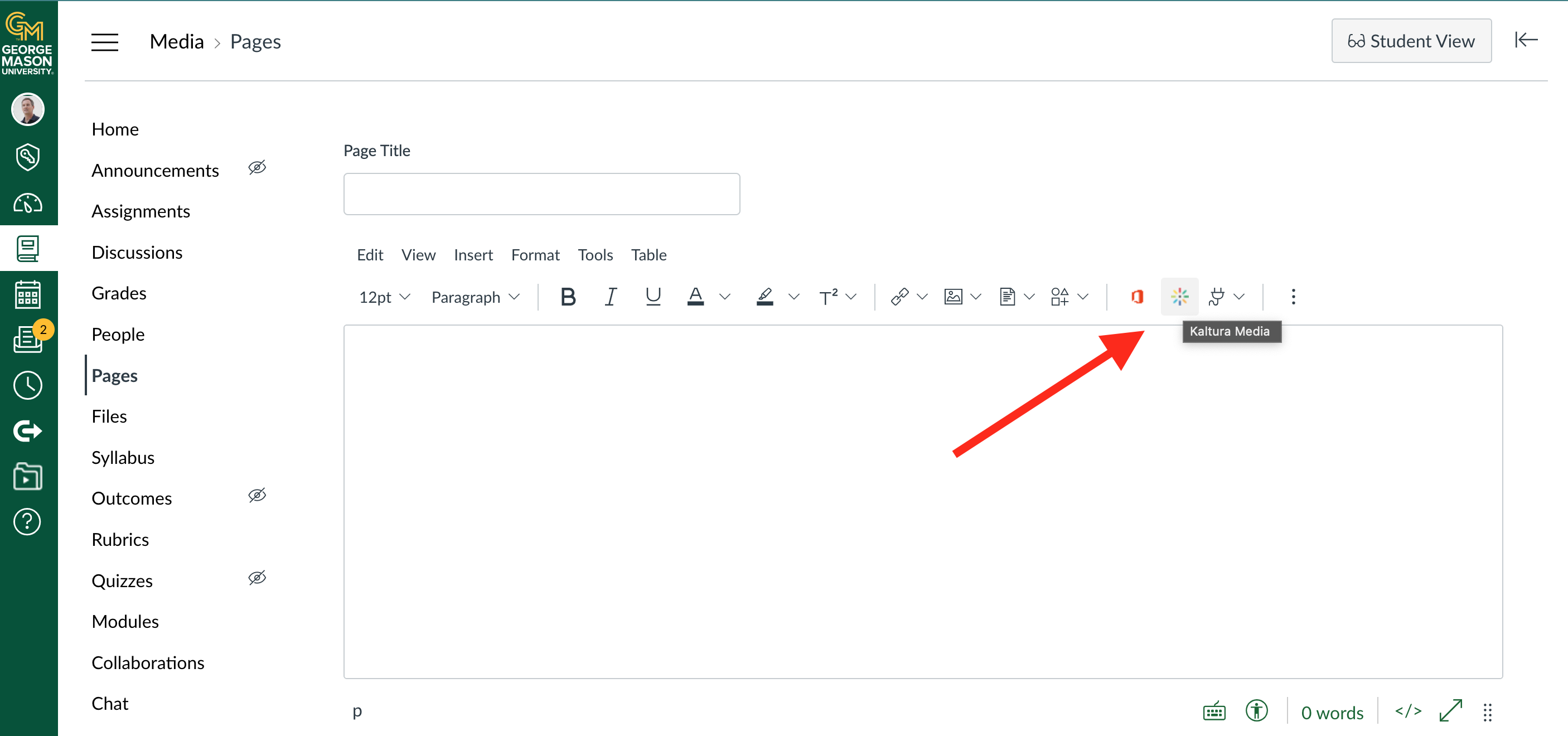
Click the Kaltura Icon button.
Step 3
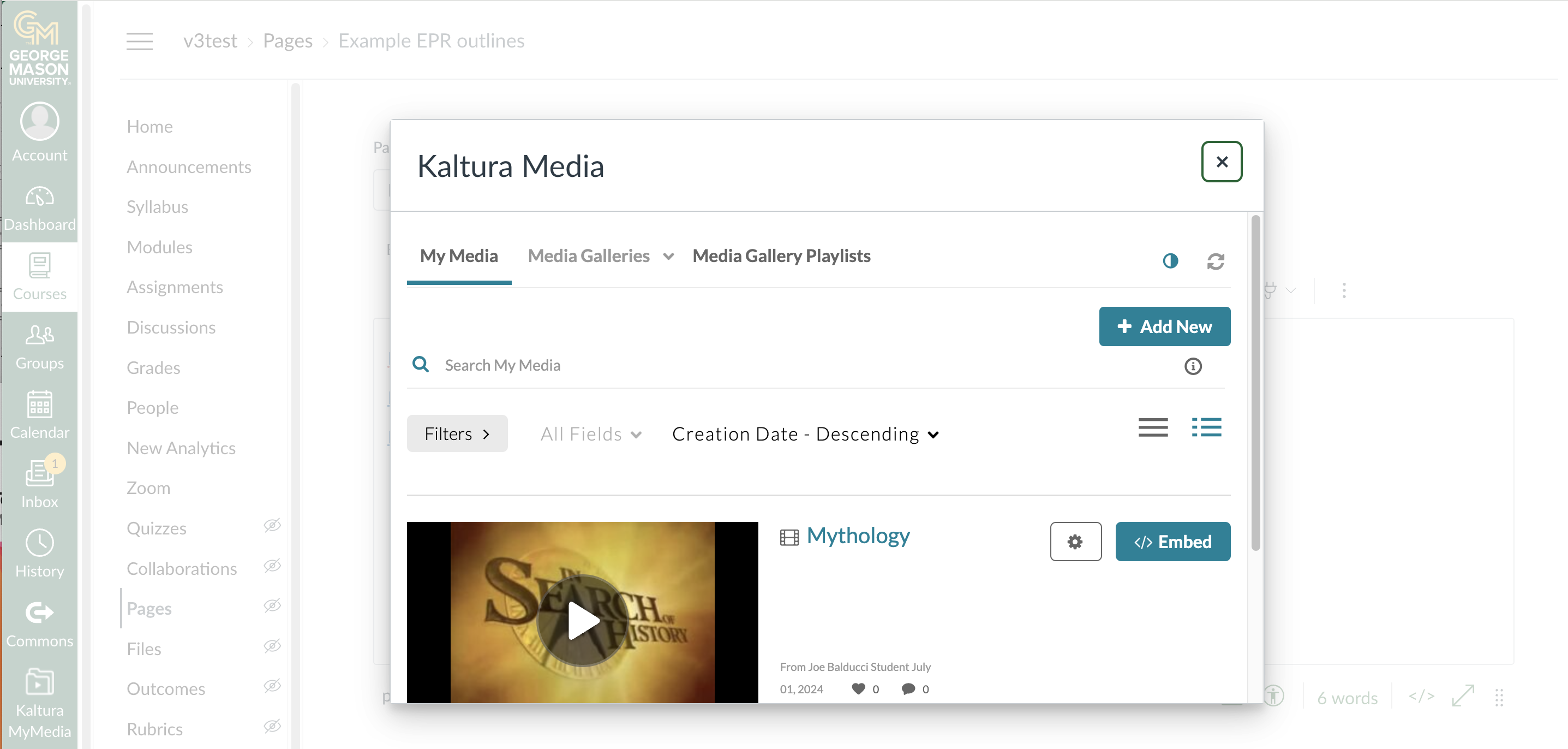
In the pop-up window, Kaltura MyMedia, choose Add New (to upload/create video) or click Embed next to existing media you would like to publish.
Step 4
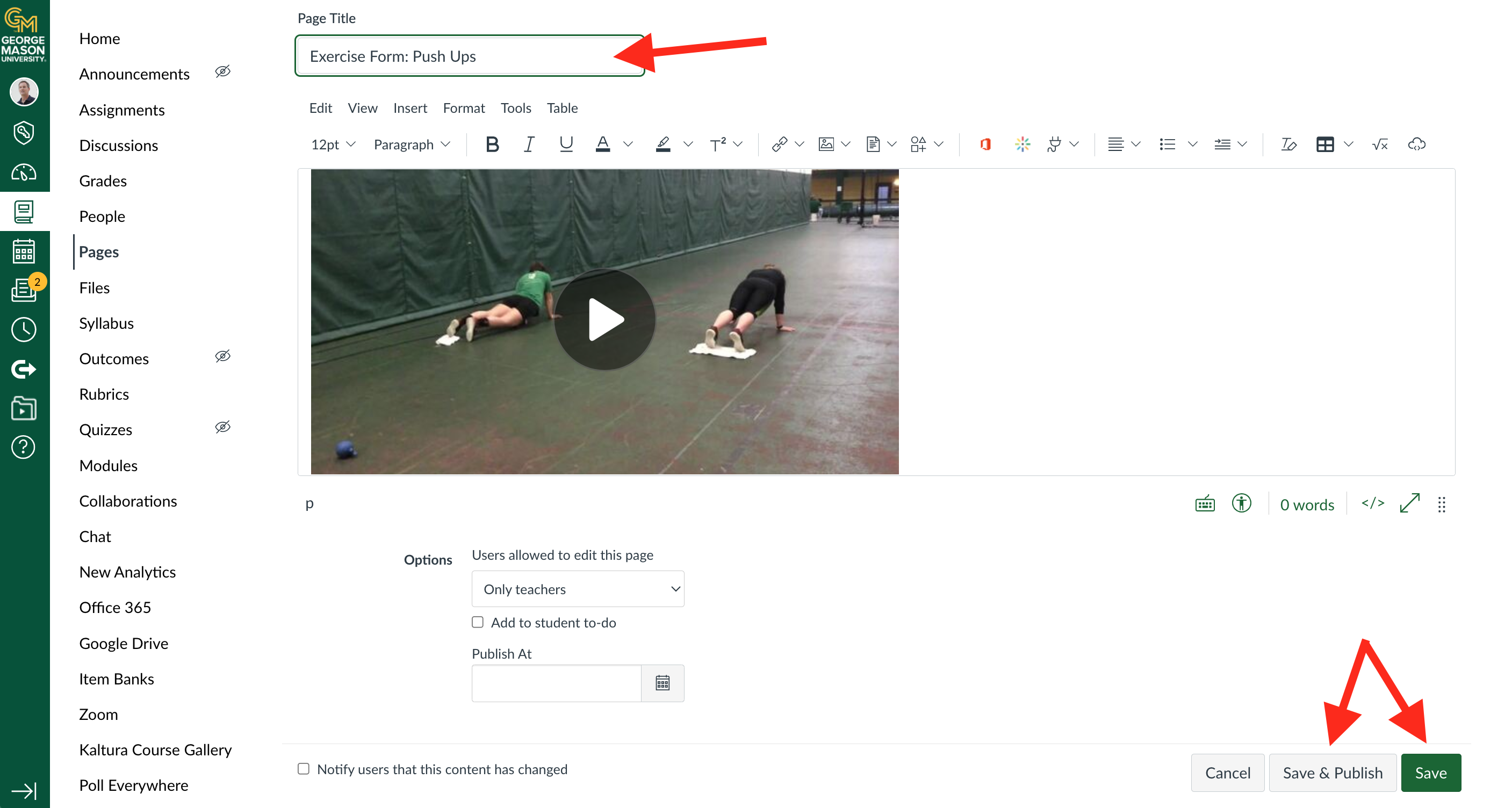
Give your Page a title and then choose Save and Publish or Save
Add Kaltura to Modules
Step 1
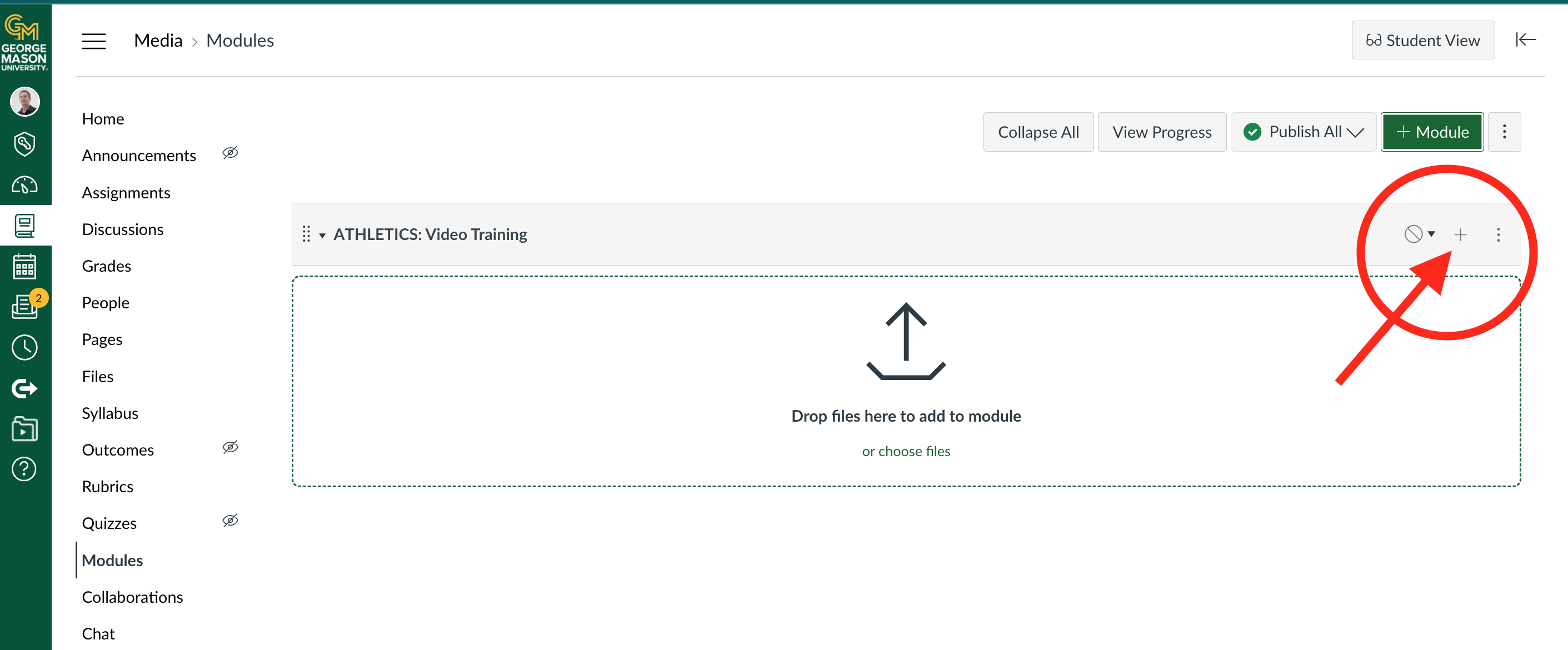
Create or navigate to a Module and then Select the + icon.
Step 2
In the pop up menu select External tools in the Add: To field.
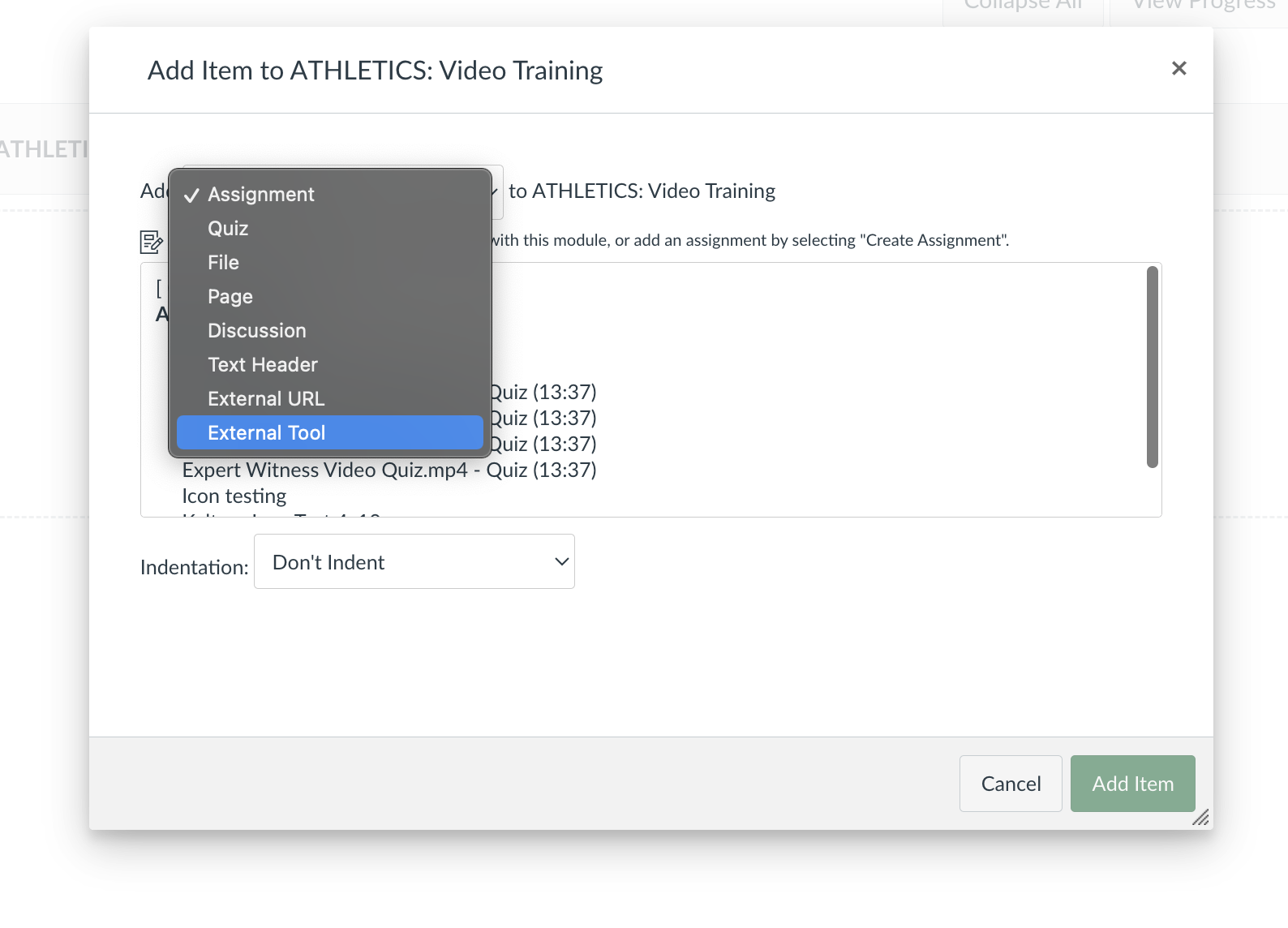
Step 3
Choose Kaltura Media from the external tools menu list
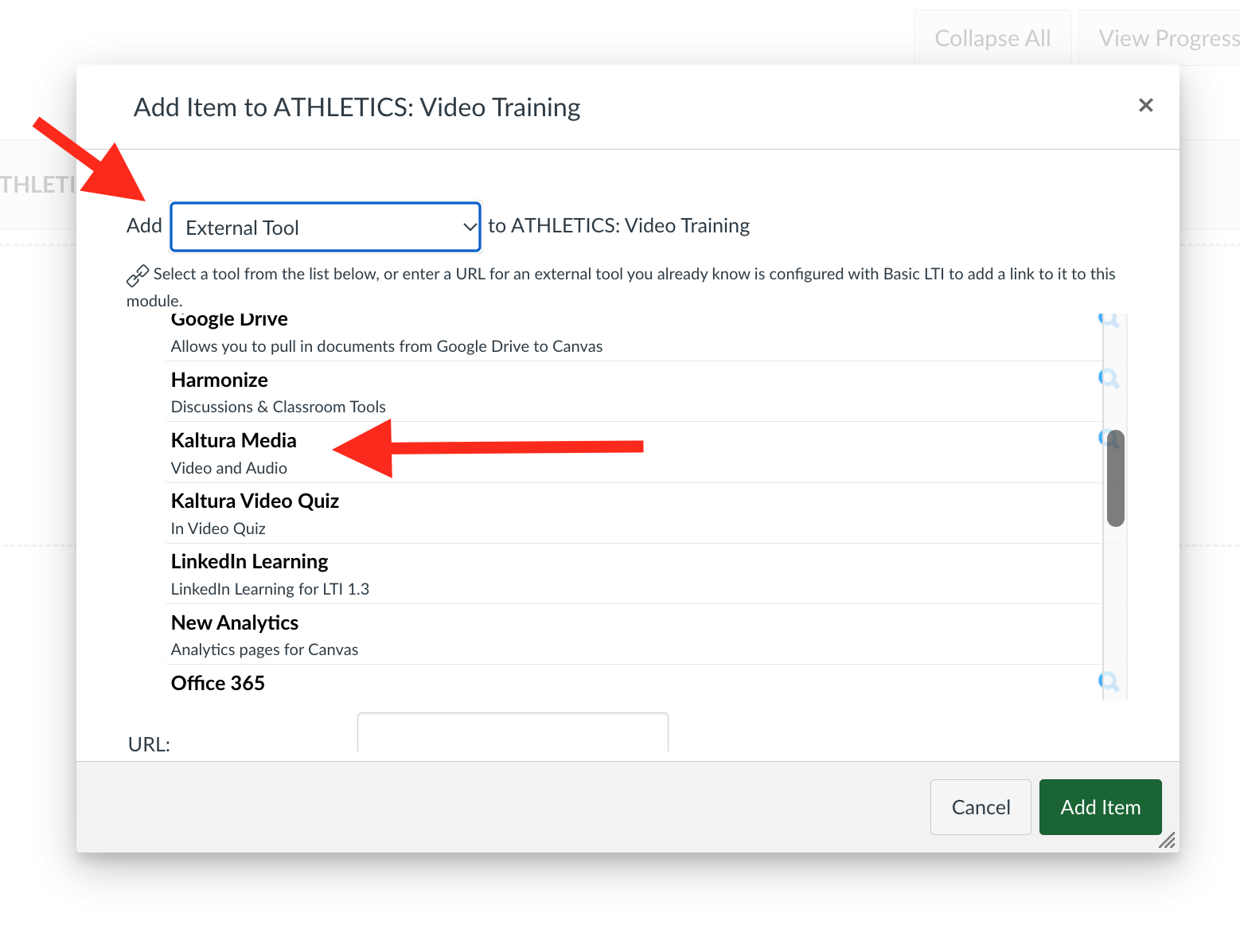
Step 4
In the pop-up window, choose Kaltura MyMedia. Then either choose Add New (to upload/create video) or Embed then Add Item to select an existing video.
Step 5
Choose the Add Item button, and then Save.
Add Kaltura to Assignment Submission (Students)
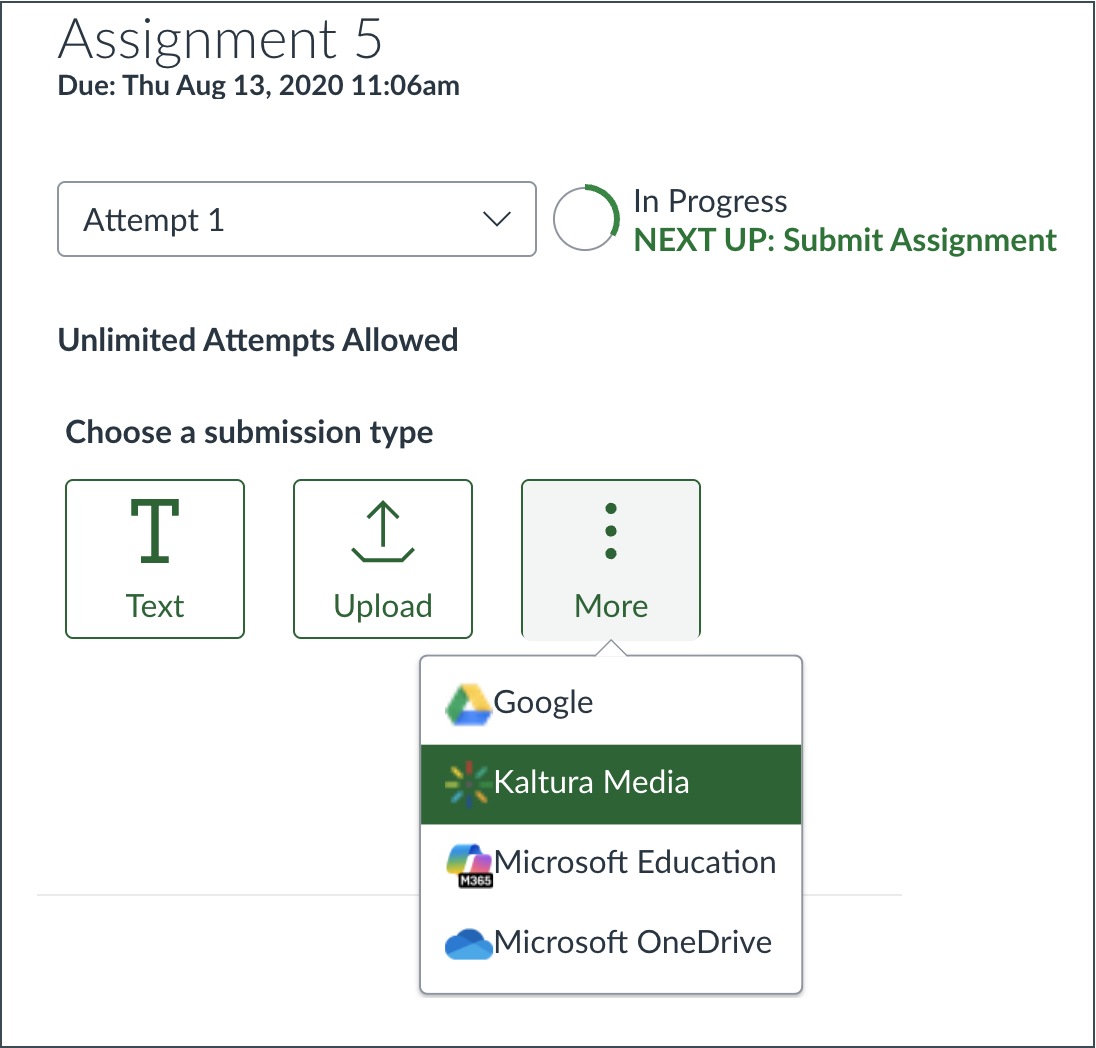 Students can submit Kaltura videos to assignment submissions.
Option 1
Open an assignment and choose More > Kaltura Media. You can upload a video, record from your webcam, or choose an existing video in your My Media library
Option 2
Open an assignment and choose Text. This allows you to add additional items (text, documents) along with the Kaltura video. See content editor instructions above.