
Email Account Set-Up
How do I log in to Office 365 email for the first time?
See these instructions for more information: How to Log in to Office 365 Email for the First Time.
How do I set up Outlook email on my device?
To download the Outlook App, follow the instructions on how set up Outlook email.
Note: Employees and students will be directed to sign in with your George Mason email address and Patriot Pass password and may need to also complete the Duo Push prompt.
How do I add an email account to Outlook?
See these articles for more information:
How do I set up email on Mac Mail?
Follow the step-by-step instructions to set up your Exchange account in Mac OS X Mail.
Can I request an email account for my whole office to use?
Yes, information about how to request generic accounts is available at Email Accounts for Campus Clubs, Departments & Organizations in the service catalog. Some offices use a generic account to offer customers a single point of contact.
How do I access my generic account?
Generic accounts are accessed the same way as you access your personal account. Go to mail.gmu.edu and use the generic NetID and password to log in.
To reset your generic account’s password, go to the Patriot Pass Password Management website, select “Admin/Generic Account” and log in with your NetID and Patriot Pass Password. This will change the password for all users. If you update the password, you will need to notify the other users.
Can I create an email account using another email service and link it to my George Mason email address?
Employees & Student Wages
No. Employees and student wage employees are not permitted to link/attach any other non-George Mason email service accounts (e.g. Gmail, Yahoo) to their George Mason email account.
- George Mason does not support external email services for university business.
- All official communications must be conducted through your George Mason email account.
- Use a separate personal email address when registering for non-university services (i.e., external services without a contractual relationship with the university).
Notes:
- When you leave George Mason you will lose access to this mailbox for account recovery or security.
- Your [email protected] email service is managed by George Mason and adheres to its policies and standards. While the university strives to protect user confidentiality, faculty and staff should not assume or expect privacy when using their George Mason email for personal communications and activities.
Students and Alumni
- Official communication with university faculty and staff must be sent from your George Mason email address.
- External email services are not supported by the university.
- Use a separate personal email address when registering for non-university services (i.e., external services without a contractual relationship with the university)
- The [email protected] email address is owned by Mason.
Email Basics
What browsers and email clients are supported for my email?
See the list of Microsoft-supported browsers here.
Outlook for Windows and Outlook for Mac are the supported desktop clients.
If you choose to use a client other than Outlook, you will not have access to all the features of your Office 365 account. ITS support for other desktop clients will be offered on a best-effort basis, as they fall outside the George Mason standards.
How do I print an email in Outlook on the Web?
To print an email, you must do the following:
- Select Print from the drop-down window
- Double-click the email to open the message
- Select … in the top right
How do I view the full headers of an email in Outlook for Windows?
If you need to view the full headers for an email, follow these directions:
- Double-click the message to open it in a new window.
- Select the File tab, and then, at the bottom, click Properties.
- The data is next to Internet headers.
Windows/OWA: View internet message headers in Outlook – Microsoft Support MacOS: Right-click the message from within Outlook > View Source Outlook Mobile: Header views not available
How do I use accessibility features in Outlook?
To learn more about Outlook’s accessibility features and settings see the following information:
- Accessibility tools for Outlook
- Make your Outlook email accessible to people with disabilities
- Outlook: Use accessible fonts and spacing
More information can be found at: https://support.microsoft.com/en-us
What is appropriate use of student email?
Email accounts are provided to all Mason students and serve as an official channel for academic and administrative communications. Student email may be used for academic and personal purposes; all usage must comply with the Responsible Use of Computing policy.
Students may forward their Mason email to another account but should be aware of the following:
- Mason email messages may be caught by spam filters or rejected if the account is over quota
- Students are expected to regularly check their Mason email to avoid missing important messages
- Academic departments may require students to submit official requests or communications with faculty/instructors from their Mason email accounts
Students who work at Mason are considered university employees and must follow the requirements for employees’ email usage in the context of their job.
How do I manage access and permissions for my email and calendar?
For more information about managing access and permissions, see:
- Sharing mailbox folders: Share and access another person’s mailbox or folder in Outlook | Microsoft Support
- Sharing calendar: Share an Outlook calendar as view-only with others | Microsoft Support
- Delegation: About delegates: Allow someone to manage your mail and calendar in Outlook | Microsoft Support
Email Security and Alerts
What is an external email notification?
The external email notification is a banner at the top of any email applied to any message that originates from outside of our Microsoft 365 environment. To the extent possible, this feature is extended to some systems and services outside of the George Mason Microsoft 365 environment, where there is an established business partnership.
The presence of the external email notification is a standard occurrence as most email comes from outside providers. The header is not necessarily a cause for alarm, but it helps recipients exercise more caution and more easily identify emails attempting to appear as internal emails that are phishing or fraudulent.
What does the external email notification look like?
A: The external mail header will appear at the top of the body of the email. There is a red line on the left-hand sign followed by this text: “Caution: This email did not originate from George Mason’s mail system. Do not click links or open attachments unless you recognize the sender and know the content is safe.”

Why do I have an external email alert?
The banner is in place to help email recipients identify those messages that originate from within our email system. Typically, George Mason faculty, staff, and students use the Microsoft 365 system, and those messages should always be tagged as internal.
How does this awareness help me?
Universities, including George Mason, are regularly targets for phishing and scams. These messages often look very real and are designed to catch the recipient off guard. Phishing attacks are typically successful due to their initial appearance, and the requests often contain a sense of urgency. This header will help make it easier to identify possible threats and encourage recipients to be more cautious when communicating with emails originating outside the George Mason Microsoft 365 environment.
If you receive a message from someone at George Mason with the external mail banner, take a few moments to confirm that the message is real. Reach out via a separate channel (text message or phone call) to confirm the legitimacy of the message and the fact that it originated outside of our environment.
A message I received appears to be official communication, yet it still contains the external banner.
How do I access emails in IronPort?
IronPort is an email security service that protects your inbox by filtering spam and phishing and blocking malicious attachments and links. To manage messages in IronPort:
- You must be connected to the VPN or on the Mason network
- Login to IronPort with your Mason email netID and password at ironport-antispam.gmu.edu
- Review messages to determine if any need to be released or deleted
Why do I have an external email alert?
The banner is in place to help email recipients identify those messages that originate from within our email system. Typically, George Mason faculty, staff, and students use the Microsoft 365 system, and those messages should always be tagged as internal.
How do I report Junk Email?
You can report junk email to Microsoft for analysis. This will allow for a reduction in the volume of junk email messages. Below are the directions to report a message.
- Create a new, blank message and add the spam message as an attachment.
- Copy and paste the original spam message subject line into the new message subject line.
- Important: Leave the body of the new message empty.
- Send your new message to [email protected] and [email protected]
Why are my emails getting caught in Junk Email in Outlook?
Check your Junk Email folder periodically to ensure that you are not missing valid messages. While reviewing your Junk Email folder, if you find a message that shouldn’t have been marked as junk, you can correct it using the instructions in the Mail goes to the Junk folder by mistake article.
How do I teach the Junk Email folder about emails that aren’t junk?
Office 365 needs to adapt and learn which messages are junk and not junk. Check your Junk Email folder regularly and tag legitimate emails with Mark as Not Junk. In the future, it will not move those messages to the Junk Email folder. For more information, read Overview of the Junk Email Filter in classic Outlook.
What should I do if I suspect a message is fraudulent?
Follow the established procedures for reporting suspicious emails. Do not follow any links, open attachments, or reply to the email.
A message I received appears to be official communication, yet it still contains the external banner. Can the banner be removed?
A process exists to review official messages originating externally and remove the banner if possible. Part of the criteria is the ability to identify the source of the message in such a way that it cannot be forged. Many of the bulk mailers in use do not allow messages from George Mason to be identified securely. If you want to inquire whether the banner can be removed, contact ITS Support and request an allowlist exception. You will be asked to provide a copy of the message, which will be examined by the IT Security Office and the Enterprise Collaboration teams. You will be informed if the banner can be removed.
Some regular George Mason mailings, like newsletters, are marked external – is this normal?
George Mason utilizes some bulk mailers for the delivery of newsletters and other content to a large population of users. Because these bulk mailers are also often used to send phishing messages (usually via compromised accounts), it is a best practice to always include the external banner for these messages.
The preview function no longer allows me to see the text of the message. Is there a way to increase the number of lines displayed in the preview?
To increase the number of preview lines in Outlook, you can change the Message Preview setting in the View menu with the following steps:
- Select the View tab
- Select Current View
- Select Message Preview
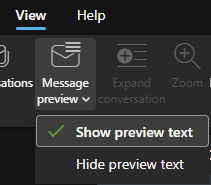
- Choose a preview setting:
- Show preview text
- Hide preview text
How do I create a Safe Senders List in email?
To ensure that you are receiving all your important emails in your inbox (rather than your Junk Mail folder), you should make a few modifications to your email settings. Use the How to Create a Safe Senders List in Email article for instructions.
Email Policies and Appropriate Use
As a George Mason employee, can I use my George Mason email account for personal communications?
It is recommended to maintain a non-George Mason email account for personal use.
Yes, limited incidental personal use is permitted; however, there are important considerations to keep in mind:
- All email use must comply with the Responsible Use of Computing and Employees’ Electronic Communications policies.
- Email may not be used for partisan political purposes, such as advertising for political candidates (see policy on Participation in Political Activities)
- Under Commonwealth of Virginia regulations, there is no expectation of privacy in electronic communications that use the university’s information technology systems. George Mason email is archived and subject to review under specific circumstances as detailed in Employees’ Electronic Communications. This policy applies to both business and personal communications.
- If your George Mason email account access is terminated or suspended for any reason, you lose access to all your messages.
May I use my George Mason email address to sign up for services at other websites such as applying for credit cards etc.?
It is not recommended to use your George Mason email address for external services that are not affiliated with the university.
- You should use a personal email account when registering for websites or external services without a contractual relationship with the university.
- Using your George Mason email for external services may create issues with account access or recovery if your university access changes.
Are George Mason employees allowed to use personal email accounts for work-related communications?
No. George Mason employees and authorized individuals operating on behalf of George Mason must use their assigned George Mason email accounts for all university business (see Employees’ Electronic Communications).
Violations of this policy open the university to risks, including:
- Using non-George Mason email for university business can lead to confusion and increase phishing risks.
- ITS cannot support or investigate issues involving non-George Mason email accounts used for university work.
- The university must comply with legal holds and FOIA requests. Personal emails may become subject to scrutiny in response to a subpoena, FOIA request, or other legal actions if it becomes necessary to retrieve university-related emails.
- All email messages forwarded to George Mason email accounts become part of the university’s electronic records and are archived in accordance with Mason’s data retention schedule and practices.
- Sending protected data, including Personally Identifiable Information (PII) or Family Educational Rights and Privacy Act of 1974 (FERPA) data, through a non-George Mason email provider violates state and federal regulations.
Managing Messages
How do I move emails from my George Mason Office 365 account to my personal email?
You can use Outlook to move emails from your George Mason Office 365 account to an alternative email provider (Gmail, Yahoo, Hotmail, etc.Use the instructions here https://its.gmu.edu/knowledge-base/moving-email-onedrive-data-from-office-365-to-an-alternate-account/.
Review policies regarding Highly Sensitive Data and Data Retention to ensure you remain in compliance.
Can I use POP to forward my email to another account?
POP has been disabled at George Mason. You may use more robust options such as IMAP or ActiveSync, which allow full mailbox coordination across multiple web clients, desktop clients, and mobile devices.
How can I forward my work email to another account, such as Gmail?
While supported by Microsoft, George Mason does not endorse or support employees forwarding their business email outside of the George Mason Office 365 email system. It is not recommended due to potential conflicts with the state records retention and the privacy of personal email. Personal accounts may be open to Freedom of Information Act requests if it is determined that an employee is forwarding emails outside of the George Mason Office 365 email system.
How do I forward as an attachment?
Follow these steps to forward a message as an attachment:
- Within the Message tab, in the Respond group, click More to get a drop-down option to forward as an attachment.
- Open a message in a separate window by double-clicking on it.
How do I forward as an attachment in Outlook on the Web?
To forward as an attachment:
- Log in to Outlook on the web
- Click “New mail” to start a new email.
- Click “open in new window” in the upper right corner. (This looks like a box with an arrow) Move this window to the side.
- Locate the email that you wish to forward as an attachment.
- Click and hold the email you wish to forward as an attachment, and drag it into the body of the new email.
Email Storage & Retention
How do I check how much storage I have in Outlook?
Sign in to https://outlook.office.com/mail and go to Settings > Account > Storage. Select Email storage to expand the section, and you will see a breakdown of how much space each folder in your mailbox is used.
For more information on managing your storage see:
When are emails removed from my Deleted Items folder?
A retention policy is being applied to the Deleted Items folder in Outlook. All emails in the Deleted Items folder will be tagged with an expiration date set 90 days in the future. Email items that reach the expiration date threshold will be deleted.
What is the maximum size message and attachment I can send?
It is recommended to avoid sending files as attachments but rather always share files via a link directly to the file or folder in OneDrive, MS Teams, and SharePoint. This will prevent creating multiple versions of your files and will avoid message and attachment size limitations. The maximum size for any single email message, including attachments, is 25 MB; individual attachments may not exceed 10 MB.
What should I do if I want to recover an email that has been deleted?
Emails can be located in “Recoverable Items” within 14 days of deletion. After that, they can no longer be retrieved.
Is there a retention policy applied to other email/folders?
The only folder with a retention policy is the “Deleted Items” folder.
What if I am concerned about losing sensitive data or important records?
Prior to the deleting emails, review the following to better understand the kind of data the needs to be retained:
Email Troubleshooting
Common problems and resolutions.
I accidentally deleted something in my email account. How can I get it back?
Deleted items are moved to the Deleted Items folder. Items deleted from the Deleted Items folder are recoverable for 14 days.
Mac/Web: Recover deleted email messages in Outlook – Microsoft Support
Windows: Recover deleted items in Outlook for Windows – Microsoft Support
Why can I only see 12 months of emails in Outlook?
By default, if Cached Exchange Mode is enabled, you will only be able to view messages from the last 12 months. This keeps the Outlook file smaller, which allows you to browse your email faster.
Follow these instructions to turn Cached Exchange Mode on or off. Or, to temporarily view messages older than 12 months, scroll to the end of an email list in a folder and select ‘Click here to view more on Microsoft Exchange’ or ‘More’.
Why does Outlook for Windows return no search matches?
Use these instructions to troubleshoot issues with Search in Outlook.
How do I stop missing messages in my Focused Inbox?
If messages are missing from your Focused Inbox, follow the instructions here to turn the feature on or off or train the feature to improve results.
Why can’t I see any of my emails on my mobile device (e.g., iPhone)?
Your device may have a “default days to sync” set to a low number, such as 3 days (the default for iPhone). That means any mail older than 3 days will not be automatically synced to the device. Go into your account settings to change the time it should sync.
Why did my Attachment get Blocked?
There are certain file types that are deemed dangerous, and it will block the attachments from being delivered to you. Best practice for sharing documents is to use the sharing link.
How do I configure or disable OneDrive attachment prompts when working with email?
- To configure or disable OneDrive Prompts when working with email log in to your email account using a web browser and click the Gear icon at the top right of your window.
- Next, click on View all Outlook settings at the bottom of the Settings pane and select Mail from the list on the left under Settings.
- On the left-hand menu click Mail, then Attachments from the left links.
You can adjust the settings based on your preference.
Calendar
Calendar sharing, scheduling, and resources.
How do I give other people access to my Microsoft Office 365 calendar?
The easiest way to share your calendar is to have it open on Outlook or Outlook via a web browser and use the Share button at the top. It will allow you to customize permissions and send a notification email.
How do I delete an instance from a recurring meeting or all upcoming meetings?
To delete a single occurrence from a meeting series, open your calendar, right click on the event, then select “Delete” and “This event.” To end a recurring meeting, you can:
- Edit the meeting to change the end date to date of the last event.
OR
- Select “Delete” and “This and all following events” instead of deleting the series—this preserves past events.
What is a Resource Calendar?
A Resource Calendar is an automatically managed calendar associated with an asset your organization shares. Outlook and Exchange treat it like a special kind of account that:
- Has its own calendar
- Can auto‑accept or decline requests based on rules you configure
- Allows many users to view availability
- Keeps scheduling centralized and consistent
It behaves similarly to a shared calendar, but with built‑in automation and governance designed for resources rather than people.
What is a Resource Calendar used for?
Resource Calendars can be used for:
- Shared Equipment (Laptops, Camera Kits, Projectors, Golf Carts)
- Workstations/Hoteling
Resource Calendars cannot be used for:
- Room/space reservations
*Meeting rooms, conference/event space, kiosks, and other university spaces should be managed and scheduled through 25Live. Additional information on 25Live may be found on the scheduling website, https://events.gmu.edu/scheduling/.
How can I request a Resource Calendar?
If you would like to request a resource account, complete the Resource Account Request form.
How do I access and manage a Resource Calendar?
You must be the Resource Account Requester or added as a Delegate to access the Resource Calendar.
Learn more: