If you receive a suspicious email, report it to Information Technology Services (ITS). Please do not respond to it, download any attachments, or click on any links.
ITS supports the Microsoft Report Button. This feature allows you to report phishing within your George Mason University Outlook mailbox with the click of a button. This method will automatically forward a complete copy of the reported email to Cybersecurity Operations for further investigation and response.
Outlook is George Mason University’s centrally supported email client. If you use another email client, you can still forward phish emails as an attachment to [email protected] for review.
If you have questions about the suspected phishing email, contact ITS Support at 703-993-8870 or Live Chat so it can be investigated.
Remember, George Mason University will never ask for your Patriot Pass password or Two-Factor Authentication (2FA) codes in an email or phone call!
When reporting phishing, it is important to understand the difference between phish and junk/spam emails:
- Phish Emails: Malicious messages crafted to trick recipients into actions that result in unauthorized exposure, access, or transfer of sensitive data.
- Junk/Spam Emails: Unwanted, unsolicited emails—usually sent in bulk for advertising or nuisance purposes.
Reporting a Phish Using Outlook for Web or Desktop Client
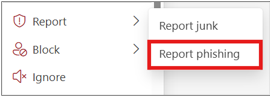
- Right-click the phish in your inbox
- Select ‘Report’ in the pop-up box
- Select ‘Report phishing’
Reporting a Phish Using Outlook Mobile Application
- Touch and hold the phish to view the email contents
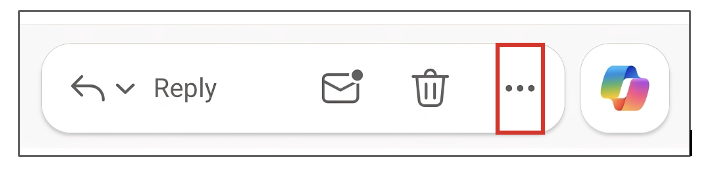
- Select the three dots at the bottom of the mobile device
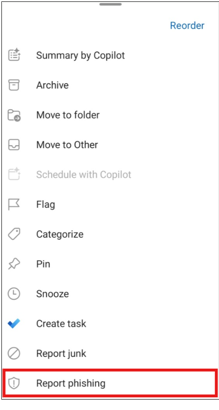
- Scroll down and select the ‘Report phishing’ option