
Harmonize is an online discussion board built to increase student engagement, promote equitable learning environments, and ease instructor workload through milestones and auto-grading options. Harmonize has a modern and engaging layout and offers a fast, fluid experience that unites instructors and students in a shared learning experience. Harmonize also supports Q&A boards and PDF annotations. Harmonize is accessed through Blackboard.
Harmonize Overview from Harmonize on Vimeo.
Requesting a Harmonize Account
All faculty can request a Harmonize account by submitting an access request to Learning Resource Request.
Creating Harmonize Activities
Harmonize allows faculty to create different discussion components, including text- and video-based discussions, polls, and Q&A forums.
Step 1
From the Build Content area of your Blackboard course, click on Harmonize and select the desired component that you want to create.

Step 2
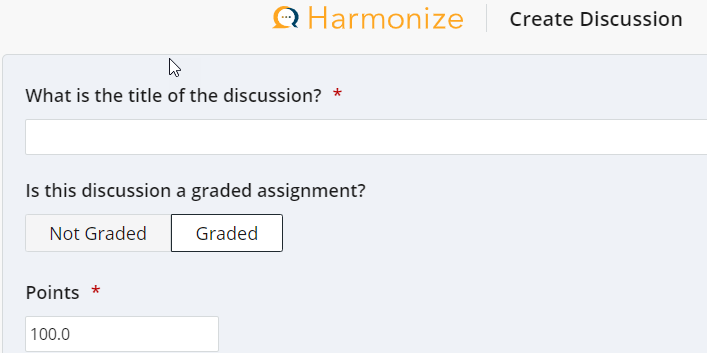
Enter the details of the topic and determine if it should be graded or not graded.
Step 3
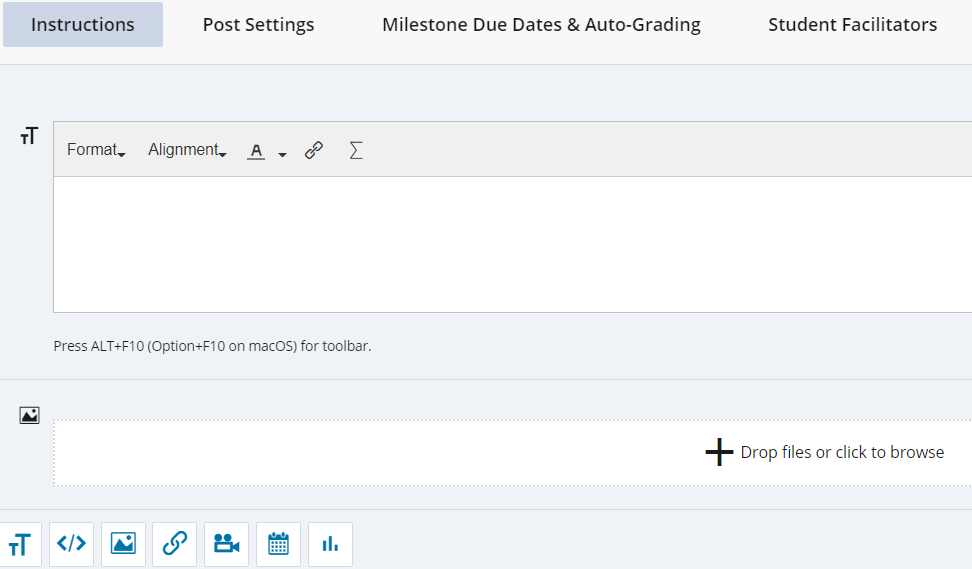
Click on the newly created Harmonize topic. Enter required instructions, and modify post settings as needed, including milestones, auto-grading features, or assign student facilitators.
Step 4
Click on the Harmonize component inside your Blackboard course to create a post, edit the topic, view new posts, comments, notifications, and engagement insights.

Support Resources
Customer support for Harmonize users is available almost 24/7 via email at Harmonize Support.