
George Mason-managed Apple devices may be unable to use the stapling feature. You will need to set up Finishing for each printer to use the stapling feature on both the Canon_Monochrome_NetID and Canon_color_NetID printers.
Step 1
Install Canon printer drivers from George Mason Self Service (George Mason-managed computers) or the Print Services Download page.
Step 2
Select Printers & Scanners in Settings.
Step 3
Select the printer type (i.e., Canon_Monochrome_NetID or Canon_color_NetID)
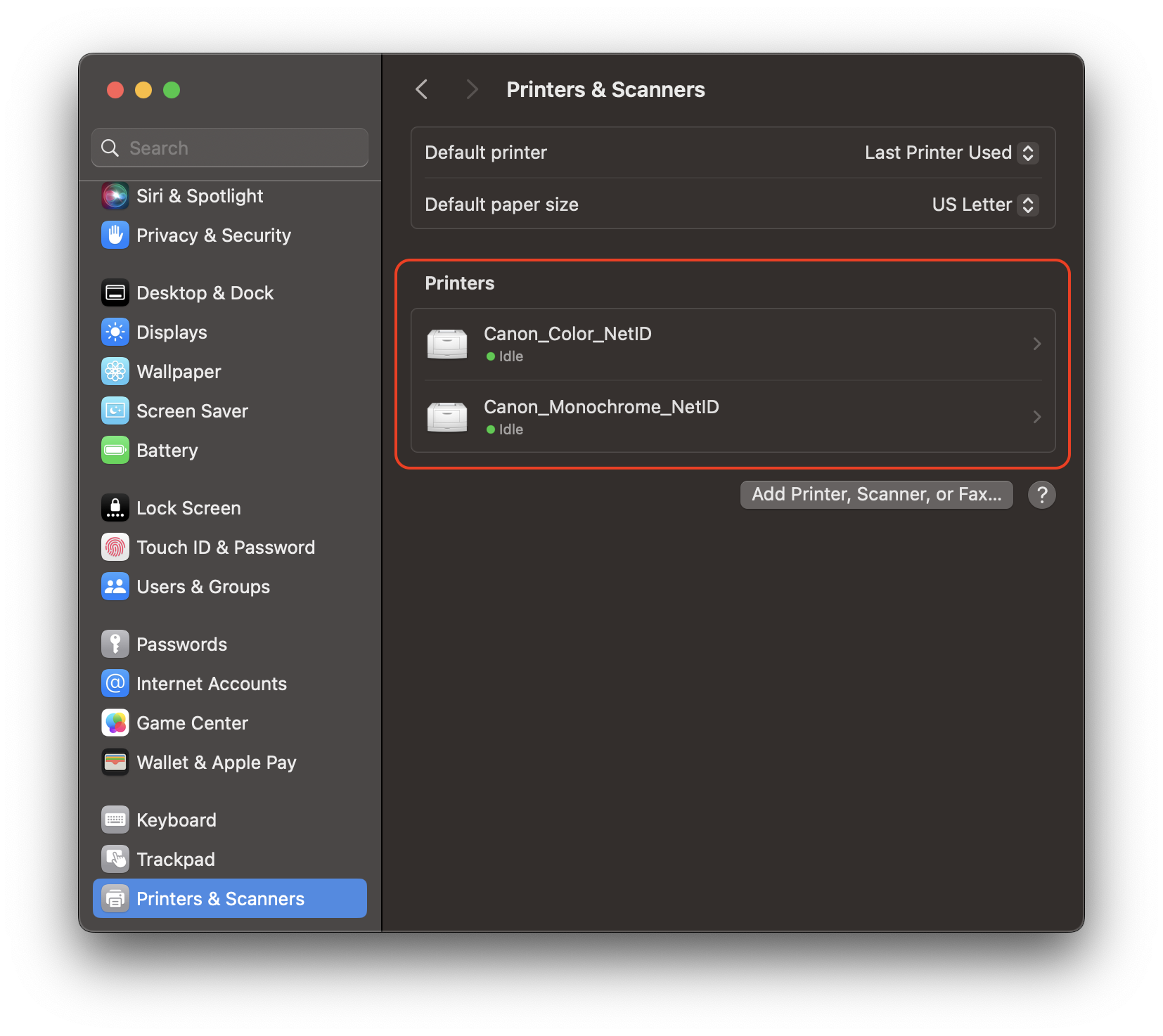
Once you choose a printer, you will see this screen.
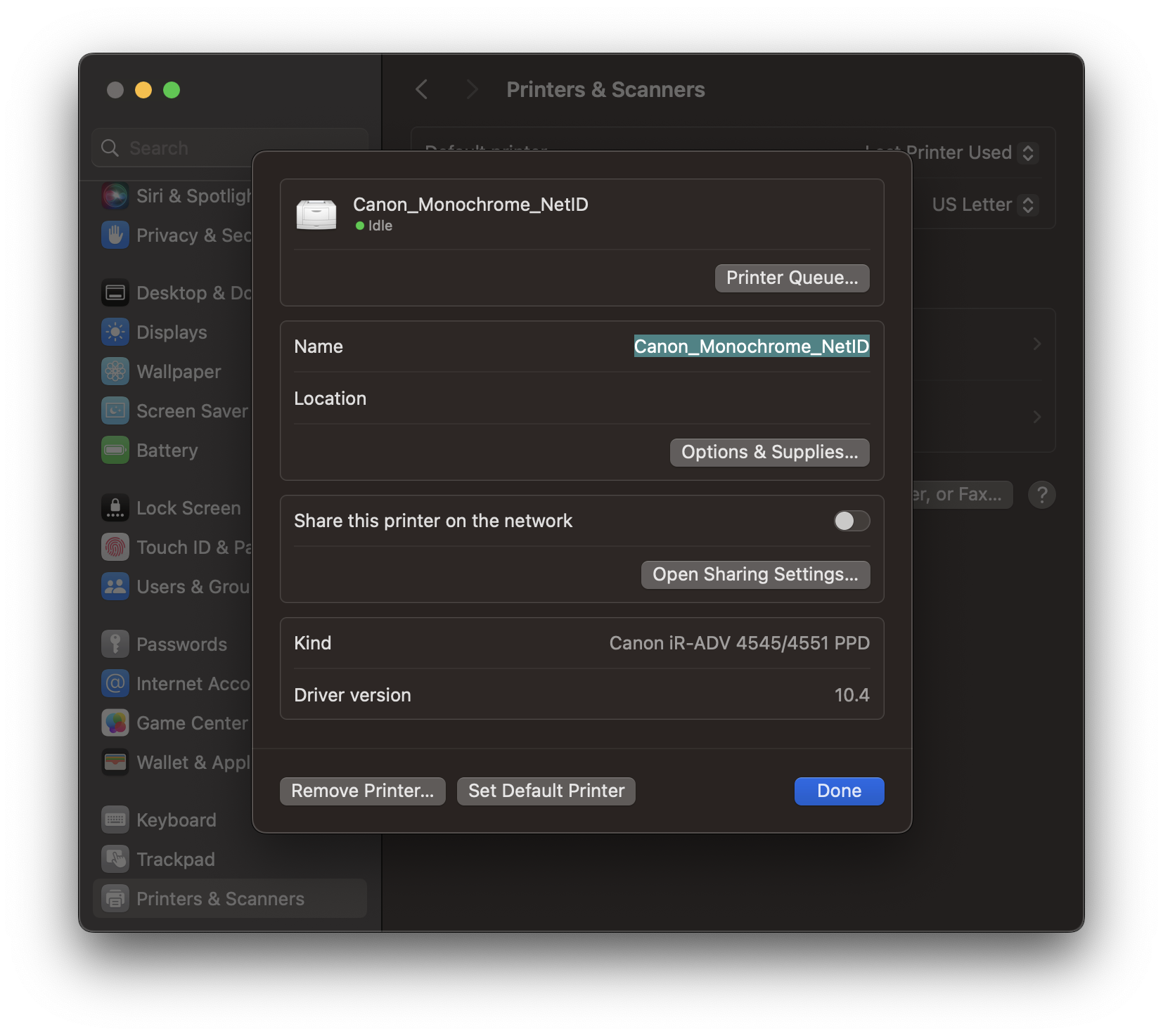
Step 4
Select Options & Supplies.
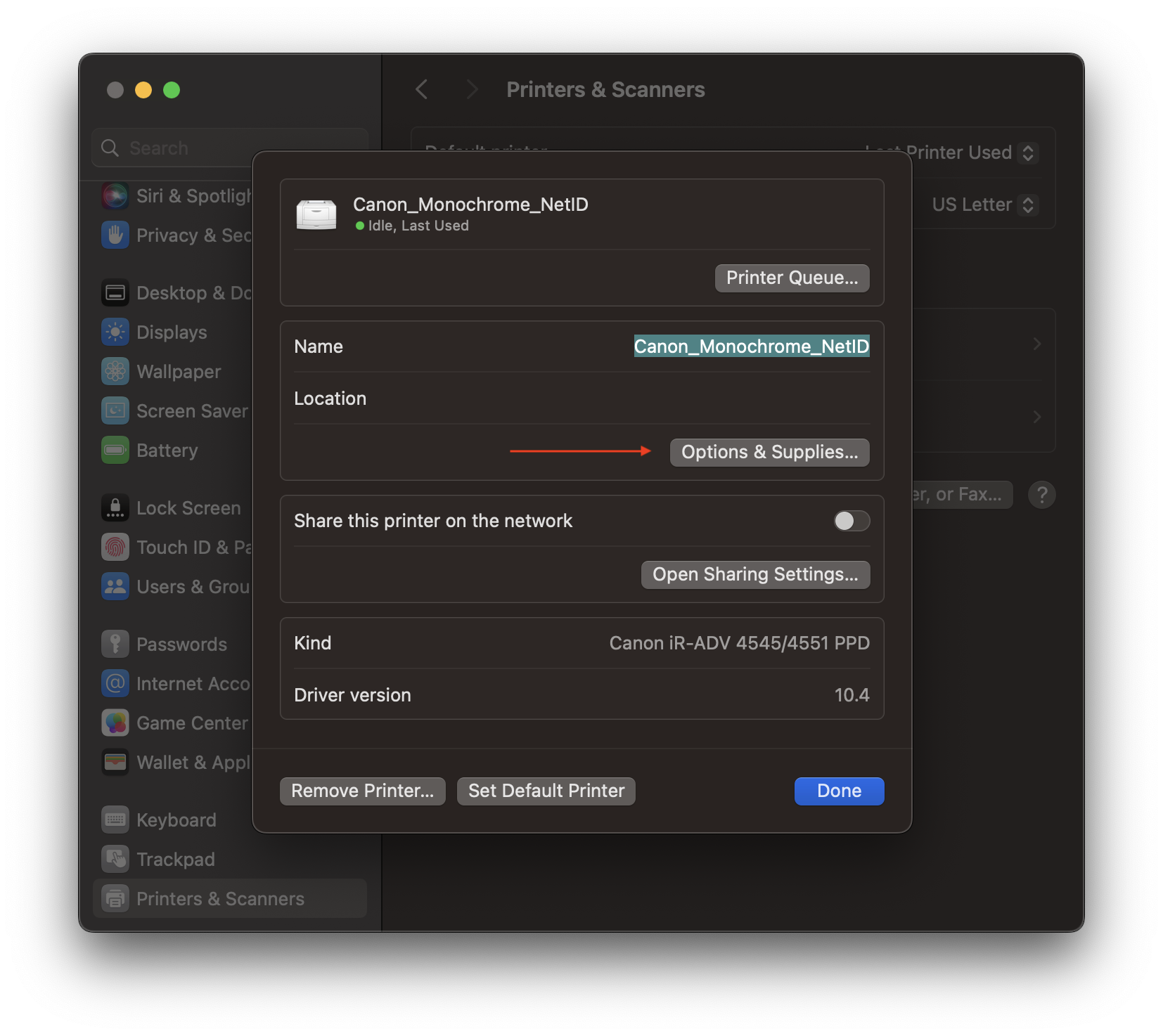
Step 5
Select the Options tab.
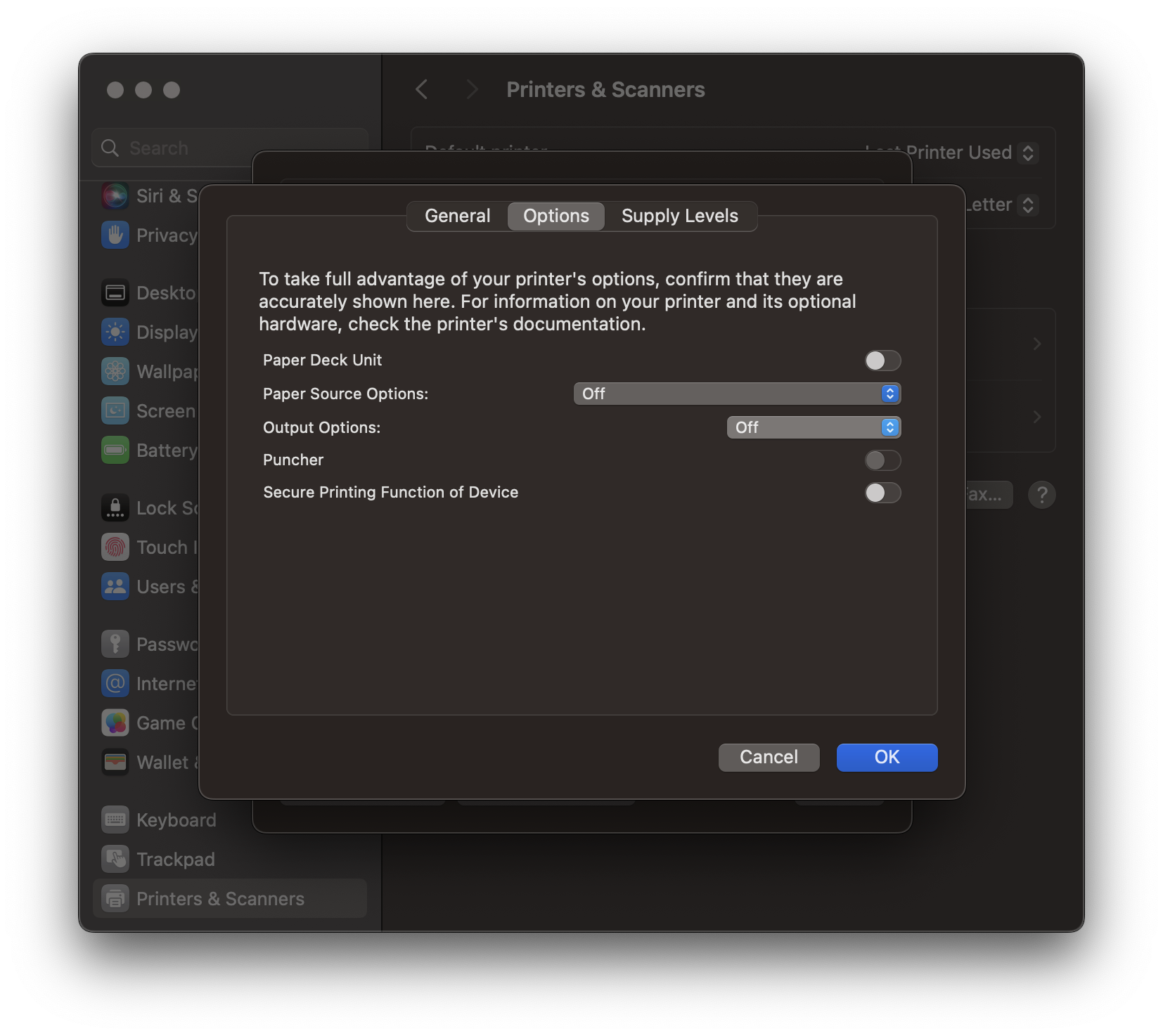
Step 6
Select Output Options > Staple Finisher Y1 , then OK.

Step 7
Return to the document that you want to print. Select Print (⌘P), then Printer Features.
Step 8
Select Finishing under Feature Sets.

Step 9
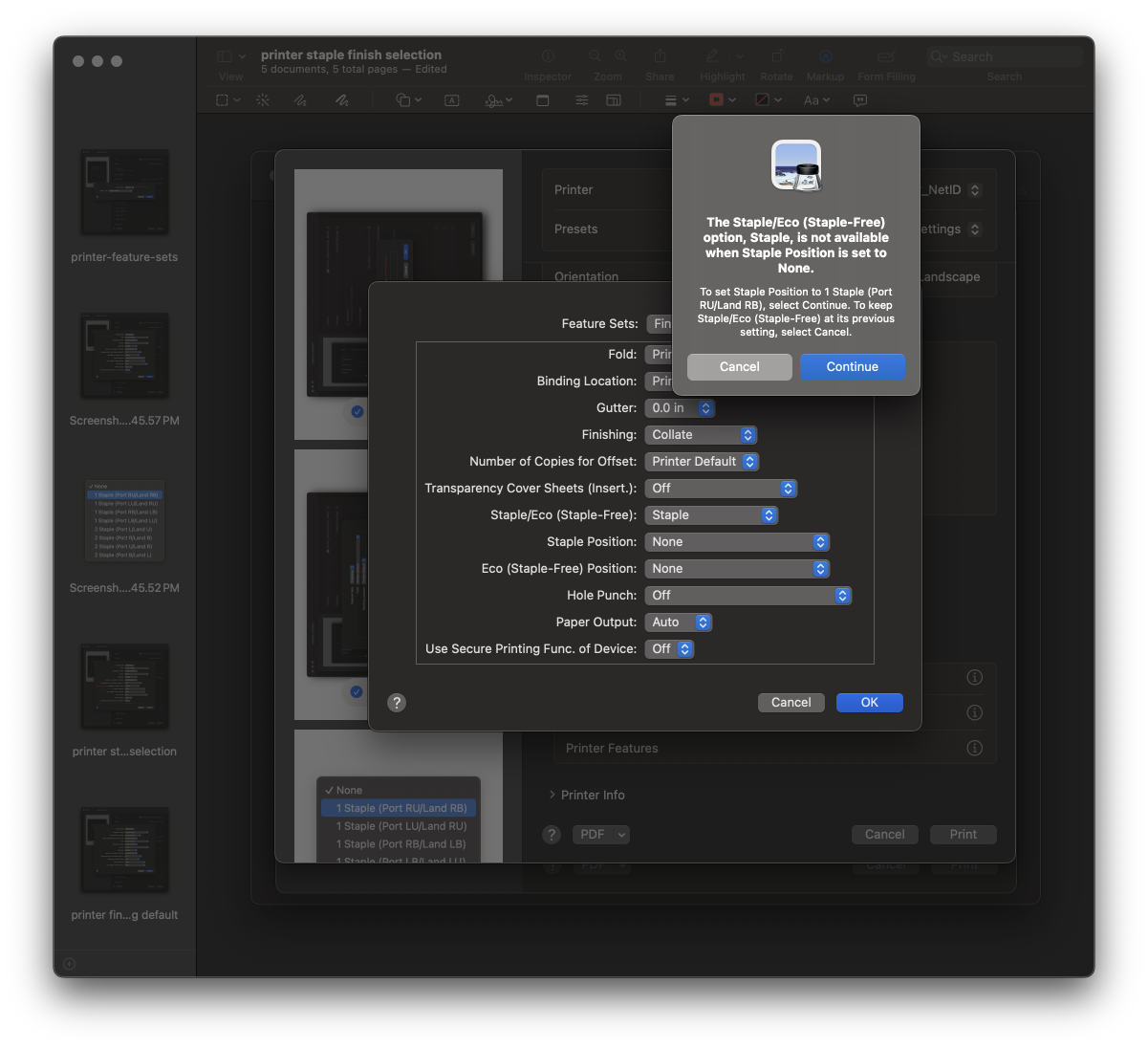
Select Staple under Staple/Eco (Staple-Free). Select Continue in the dialog box.
Step 10
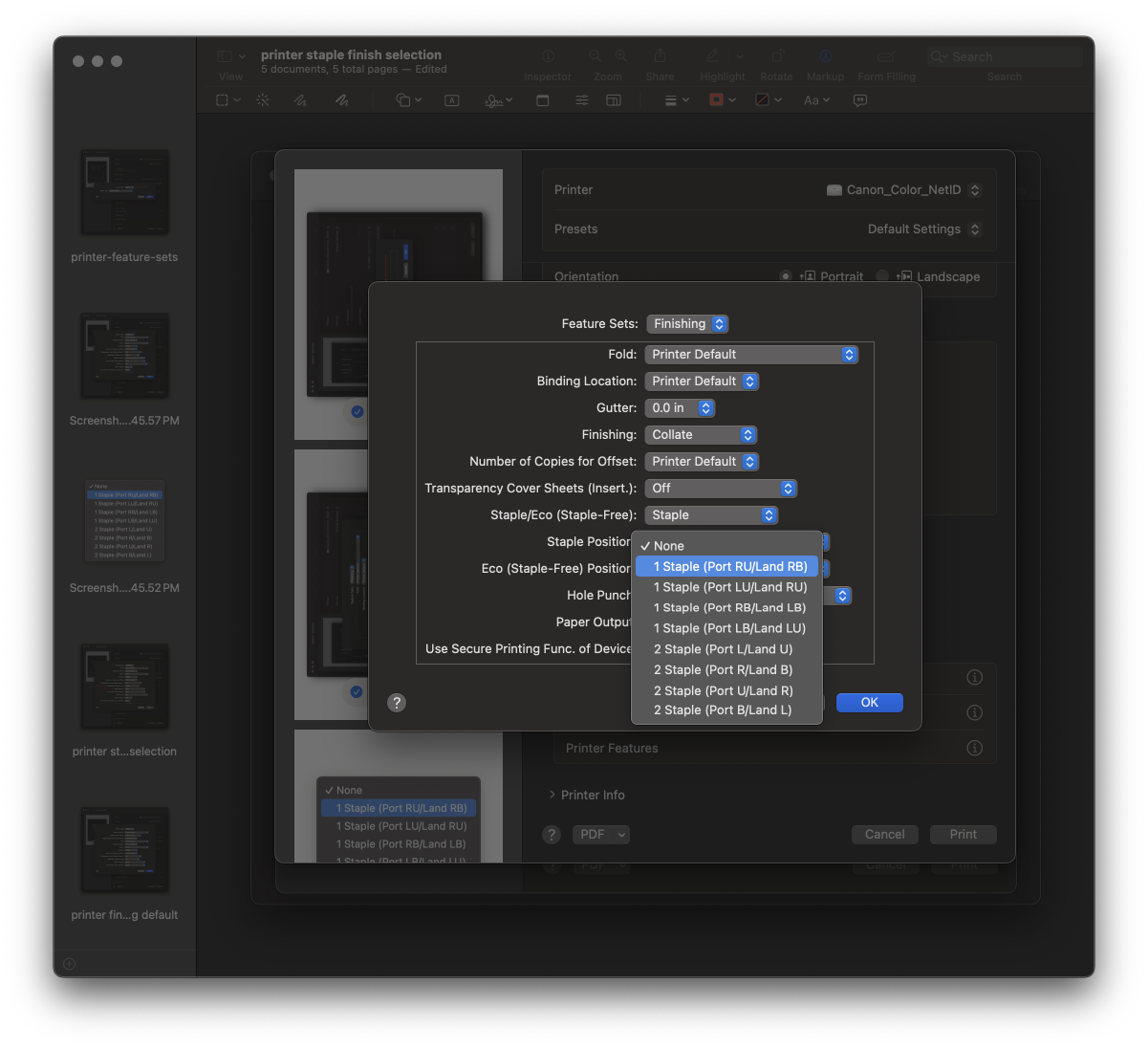
Select Staple Position. The first option is optimal to staple pages in portrait mode. Select OK, then select Print.
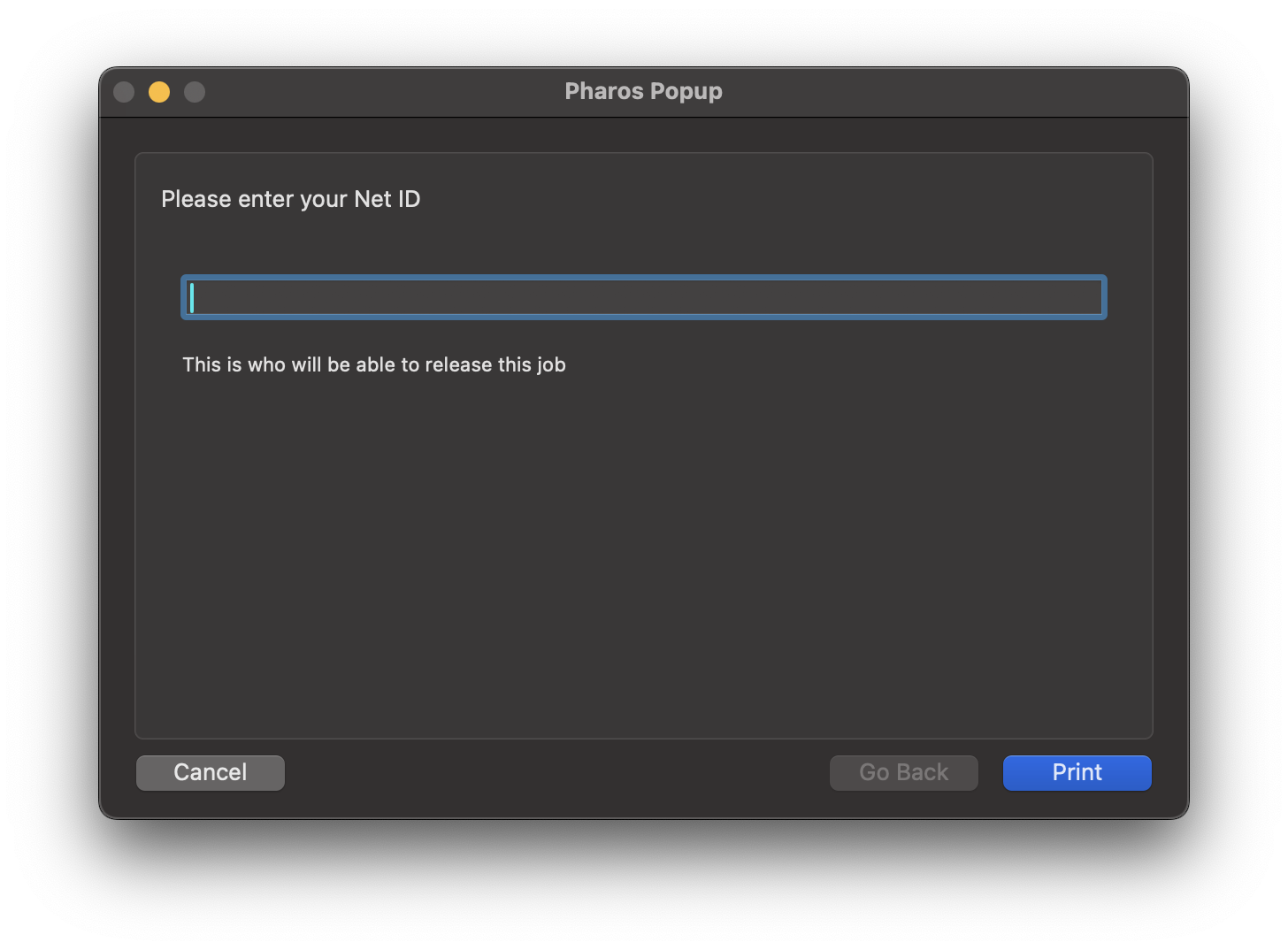
Enter your NetID in the Pharos Popup dialog box. The Canon printer should receive the job and will print with staples once initiated by the user at the Canon printer
Troubleshooting
If you receive this pop-up dialog box, go back and ensure you applied all the settings on your Mac for the desired printer.

Support
- For Mac settings help, contact ITS Support Live Chat or call 703-993-8870.
- For printer help (e.g., if the printer runs out of staples, paper jams, etc.), contact Print Services.