
UMASK Configuration
User file-creation mode mask (UMASK) determines the default permissions for newly created files and folders on the server. Mason recommends two UMASK settings:
umask 022– Individual files: Files are readable by everyone and writable only by the file owner.umask 002– Shared files: Files are readable by everyone and writable by the file owner and members of the owner’s group. Use this setting when multiple users need to edit shared files.
The default UMASK on mason.gmu.edu is umask 022. If you work with others on shared files, use umask 002 before creating or uploading new files.
How to Change the UMASK
Important: Changing your UMASK does not change permissions on existing files or folders. The new setting applies only to files and folders created after you make the change.
If you need to update permissions for existing content, you may need to:
- Change your UMASK.
- Remove the affected file or folder from the server.
- Upload it again.
Step 1: Connect to the Mason Cluster
Connect to the Mason Cluster using the instructions for your operating system:
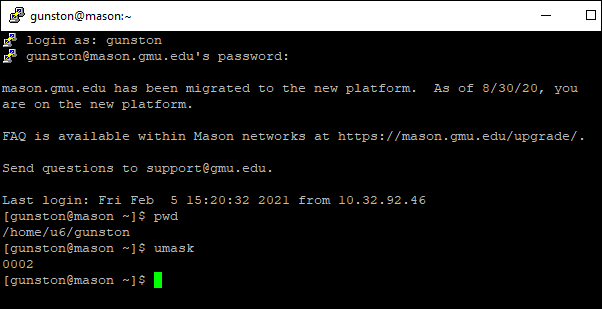
Step 2: Confirm Your Home Directory
At the command prompt, enter pwd and press Enter. Your current directory should be /home/netid, where netid is your Mason NetID.
If you are not in your home directory, enter cd /home/netid. Replace netid with your Mason NetID, then press Enter.
Step 3: Check Your Current UMASK
Enter:
umask
Press Enter to display your current UMASK setting.
Note: The screenshots use gunston as an example NetID. Your command prompt will display your own NetID.
Step 4: Open Your .bashrc File
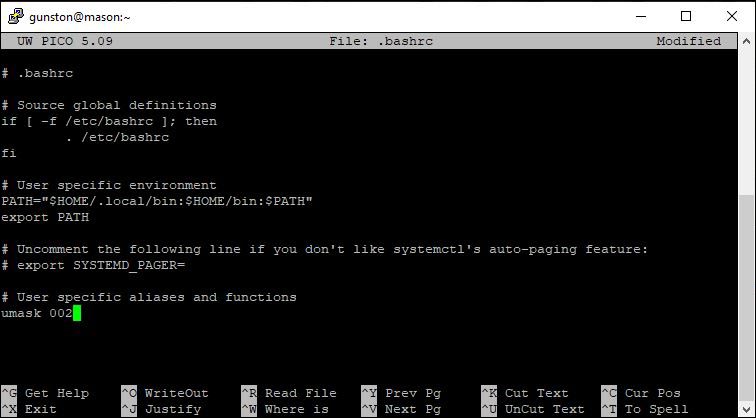
Enter the following command:
pico .bashrc
Press Enter.

Step 5: Set Your UMASK
In the .bashrc file, locate the existing umask line. Change it to the appropriate setting:
umask 022for individual filesumask 002for shared files
If there is no existing umask line, add the appropriate setting on a new line at the end of the file.
Step 6: Save Your Changes
Press Ctrl+O (the letter O) to save the file.
When File Name to write: .bashrc appears, press Enter.

Step 7: Exit the Editor
Press Ctrl+X to exit the editor.
Step 8: Log Out and Reconnect
Enter logout and press Enter. Then reconnect to the Mason Cluster.
Important: Close all other active connections to the Mason Cluster before reconnecting.
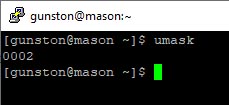
Step 9: Verify Your UMASK
Enter umask and press Enter.
Confirm that the displayed value matches the setting you selected:
0022=umask 0220002=umask 002
Common Issues
Forbidden Error
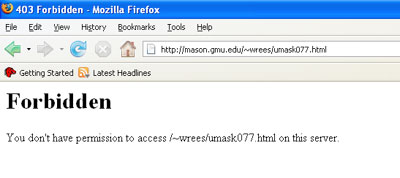
If your personal website displays a Forbidden error, check the following:
Make Sure Your Personal Website Is Enabled
Your personal website must be enabled using homewebon before the Mason web server can serve content from your public_html folder.
See What are homeweb scripts? for instructions to enable your personal website and set the required directory permissions.
Check Your File Permissions
Files in your public_html folder must be readable by the web server. Your UMASK determines the default permissions for newly created files and folders.
Check for an Index File
Make sure your public_html folder contains an index.html file. See How to Upload Files for additional information.