Overview
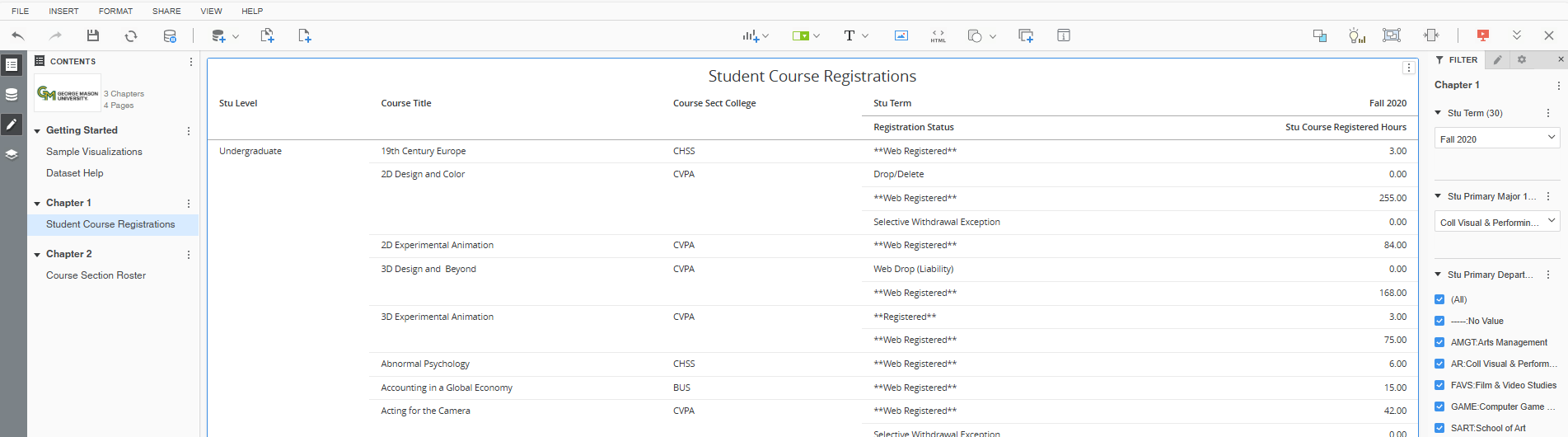
The 2025 MicroStrategy upgrade introduces a more streamlined user interface designed to enhance usability and reduce visual clutter. A key improvement involves consolidating panel icons in the Control Panel, located on the far left of the screen.
What’s Changed
- The Filter Panel and Format Panel no longer have separate icons.
- These panels are now accessed via the Editor Panel icon, which serves as a unified entry point for editing, formatting, and filtering tools.
- When a Dossier is first opened, the Filter Panel on the right side of the screen remains displayed by default. However, the Editor Panel icon, which now controls the Filter Panel, will not show a shaded background.
Before

After
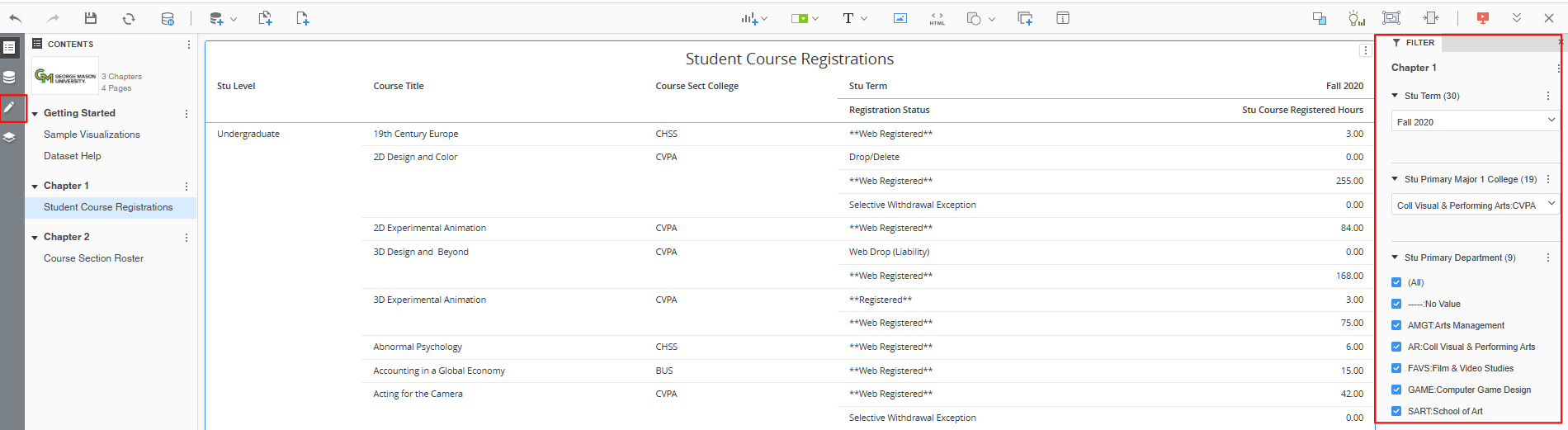
Interaction Update
Opening Panels:
- Clicking the Editor Panel icon in the Control Panel will now open the Editor, Format, and Filter panels in a staggered layout, allowing you to toggle among them as needed seamlessly.
- Once activated, the icon will display a shaded background, indicating that the associated panels are open and in use.

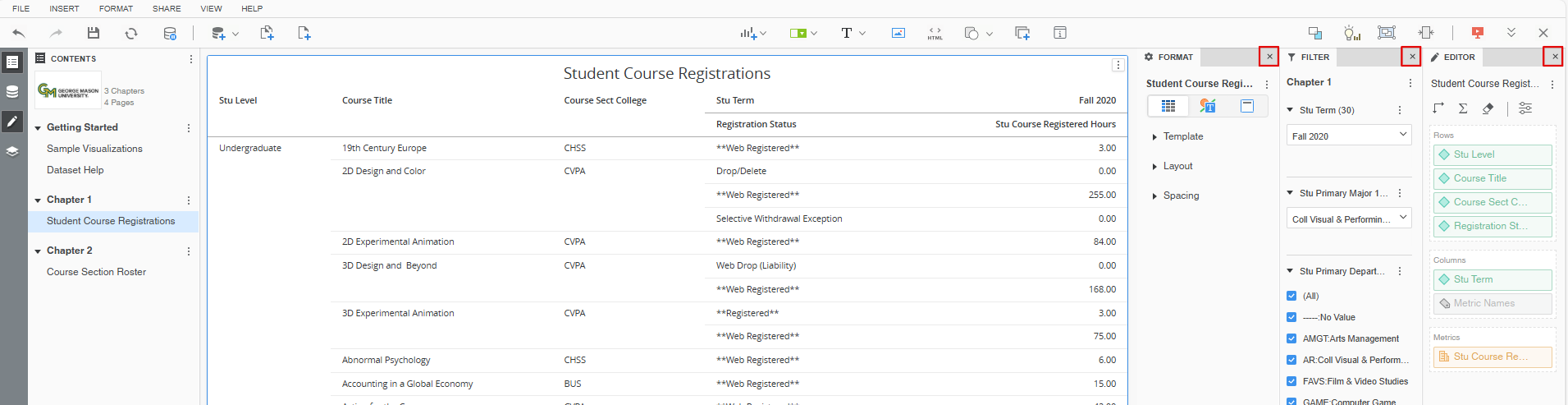
Closing Panels:
- Clicking the Editor Panel icon again will close all three panels – Filter, Editor, and Format – and the icon will return to its unshaded state, signaling that the panels are no longer in use.
- Alternatively, clicking the X button in the top-right corner of the panel in display will also close all three panels.

Note: To close only the Editor and/or the Format panels while keeping the Filter Panel open, you must individually drag each panel out of the staggered layout. Once separated, click the X button in the top-right corner of each panel to close it.
Re-Open Panels:
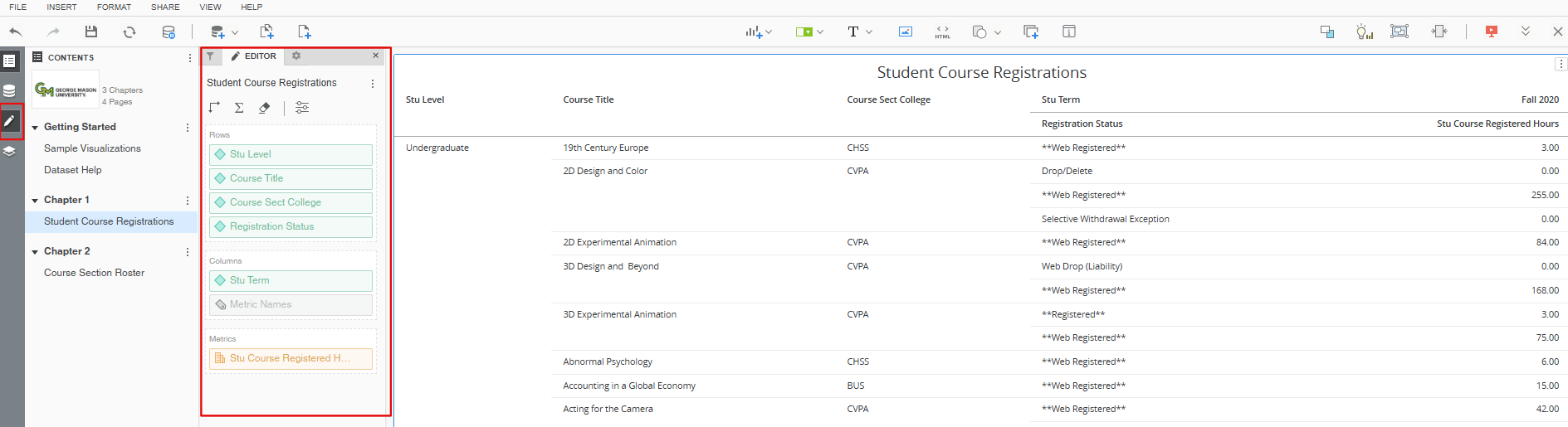
Panel Re-Opening Behavior:
- After closing the panels, clicking the Editor Panel icon in the Control Panel will reopen all three panels: Filter, Editor, and Format.
- However, instead of appearing on the far right of the screen (the default location), the panels will now appear on the left side of the report visualization area.
Restoring Default Panel Position:
- To return the panels—especially the Filter Panel—to their original position on the far-right side of the screen, the recommended (and quickest) way is to exit and reopen the Dossier.
- Manual Adjustment Steps (if you prefer repositioning panels manually):
- Drag each panel out of the staggered layout individually.
- Move each panel to the far-right side of the screen, one at a time.
- Drag and drop the panels into the same space to stagger them.