
Zoom is a versatile web conferencing tool for hosting virtual class meetings, collaborating with students, and sharing content. You can meet face-to-face using HD video, share your screen, and present lectures or documents. Zoom integrates with Canvas, allowing seamless online teaching and collaboration. It’s accessible via web browser, desktop, and mobile app.
Note: Zoom Secure meetings cannot be scheduled using the Zoom tool in Canvas; instead, instructors must create meetings in the Zoom portal and manually post the links in their Canvas course.
Getting Started
If you are new to Zoom:
Before using Zoom in Canvas, make sure you have first joined the George Mason institutional license. Go to gmu.zoom.us/signin and log in using your NetID and Patriot Pass Password to join the license. The proceed scheduling your sessions directly in your courses with Canvas.
Using Zoom with Canvas
Zoom can be used as a virtual meeting space within your Canvas course. You must first make Zoom visible in your course menu.
To make it accessible to students, follow these steps:
- Go to Settings in your Canvas course
- Select the Navigation tab
- Drag Zoom from the hidden section up to the active section of your course menu
- Click Save
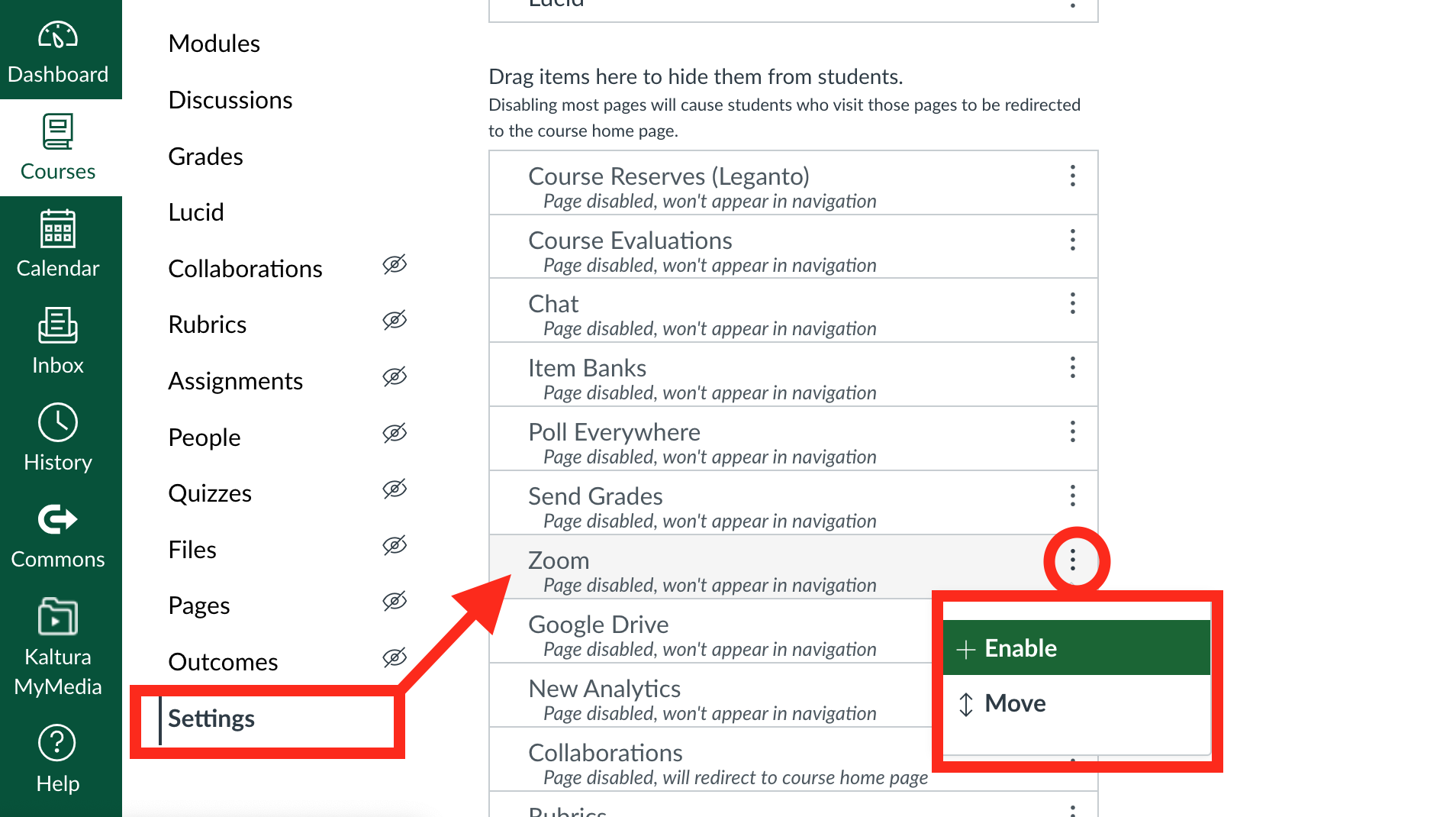
Once enabled, you and your students can use Zoom to schedule or join meetings, access personal meeting rooms, or hold virtual office hours directly from Canvas.
Schedule a New Meeting
Creating and Sharing Zoom Meetings in Canvas
To set up a new Zoom meeting:
- Click Schedule a New Meeting at the top of the Zoom page in your course.
- Adjust the meeting settings as needed. We recommend using your course name as the meeting topic for easy identification.
- After saving, the meeting will automatically appear for enrolled students in the Zoom section of the course.
As the meeting creator, you can also access or modify the meeting through the George Mason Zoom website or the Zoom desktop app. Using the course name as the session title will help you locate it quickly when using Zoom outside of Canvas.
Students will be able to join the meeting directly from the Zoom tool in your course. You don’t need to send the join link separately, though you can choose to do so if you prefer.
Please note: The session links inside Canvas are NOT completely secure.
Upcoming Meetings
All Upcoming Meetings will be shown when you first open the Zoom Meeting tool. For any meeting, you can click Start to join the meeting or Delete to cancel it. Clicking the meeting name will open the meeting to edit settings or enter poll questions. After clicking the meeting name, click Edit this Meeting to modify any options you selected when you scheduled a new meeting.
Personal Meeting Room
Your George Mason Zoom account comes with a single personal meeting room that is always available. Click Personal Meeting Room in the Zoom Meeting tool to edit settings or enter poll questions. Students do not see this tab and cannot access your personal meeting room.
Recordings
Recorded sessions will automatically be listed on the Cloud Recordings tab of the associate course. Students will have access to the recordings. You cannot hide a recording from the students in a course from this page; however, you can sign into your Zoom account to hide or make changes to recordings. Click the name of the meeting to access recordings for viewing, downloading, or sharing. Zoom recordings are deleted from the Zoom cloud after 120 days. These recordings are also stored in your Kaltura MyMedia for longer-term access and potential distribution.
Student View
When students log into the Zoom Meeting tool, they will see only 3 tabs: Upcoming Meetings, Previous Meetings, and Cloud Recordings. They do not see your Personal Meeting Room.
- Upcoming Meeting: Students can view upcoming meetings and click Join at the appropriate time. Even if there is a password to the meeting, students can join without entering the password by using the Join button.
- Cloud Recordings: By clicking on the name of any recording, students can view recordings of course meetings. The password for password-protected recordings will automatically be visible to students through Canvas.
Additional Resources
- George Mason Zoom page
- Zoom Help Center
- ITS article: How do I secure my online meeting?
- Zoom’s Best Practices for Securing Your Virtual Classroom
Quick How-Tos for Zoom
Host Meetings
Learn the steps to schedule and host a Zoom meeting, including setting up meeting options and inviting participants. Learn more here.
Manage Attendance Reports in the Canvas Gradebook
Learn how to configure and manage attendance reports in Zoom and Canvas, ensuring accurate tracking and grading for your courses. Learn more here.
Manage Audio & Video
Learn how to control your microphone and camera settings during Zoom meetings. Learn more here.
Record a Meeting
Discover how to record Zoom meetings locally or to the cloud, and access the recordings later. Learn more here.
Share Content & Present
Understand how to share your screen, PowerPoints, or other files with participants in a Zoom meeting. Learn more here.
Accessibility Features in Zoom
Explore Zoom’s accessibility features, such as closed captioning and keyboard shortcuts, to enhance the meeting experience for all users. Learn more here.
George Mason-branded Virtual Backgrounds
Download and use George Mason-branded virtual backgrounds to customize your Zoom meeting space. Learn more here.