
Once a course ends, students can no longer work in the course (although they retain view access by default). The instructor must update course settings to allow a student to continue to interact with the course. While the Participation end date could be changed on the course’s Settings page, this affects all students. Therefore, the recommended practice is to create a new section inside the course. Section end dates override the course end date. Follow the steps below to create a new section for a student (or a user in any course role).
Note: This option is only available through the period when a student must finish their incomplete. After this time, please submit an ITS ticket to add a student (or a user in any course role) to a course.
Step 1: Check your course participation end date
If it is past your course participation end date, you will need to open your course temporarily before you complete the next steps. On your course’s Settings page, look for the Participation End Date. See detailed instructions. If it is past the end date, change the end date to sometime in the future. Once you have completed the steps below, change it back to the original date. If you are setting up the course for an incomplete before the semester ends, you can disregard this step. If you cannot change the date, it is past the incomplete period for that semester and you must submit an ITS ticket.
Step 2: Create a new section in your course
Set up a manually created section for the student(s). We recommend naming the section “Incompletes” for clarity. Follow the steps in this guide. If you have multiple students with Incompletes, you can add them to one section or create one for each if you want different end dates for each.
Step 3: Set the end date for the section
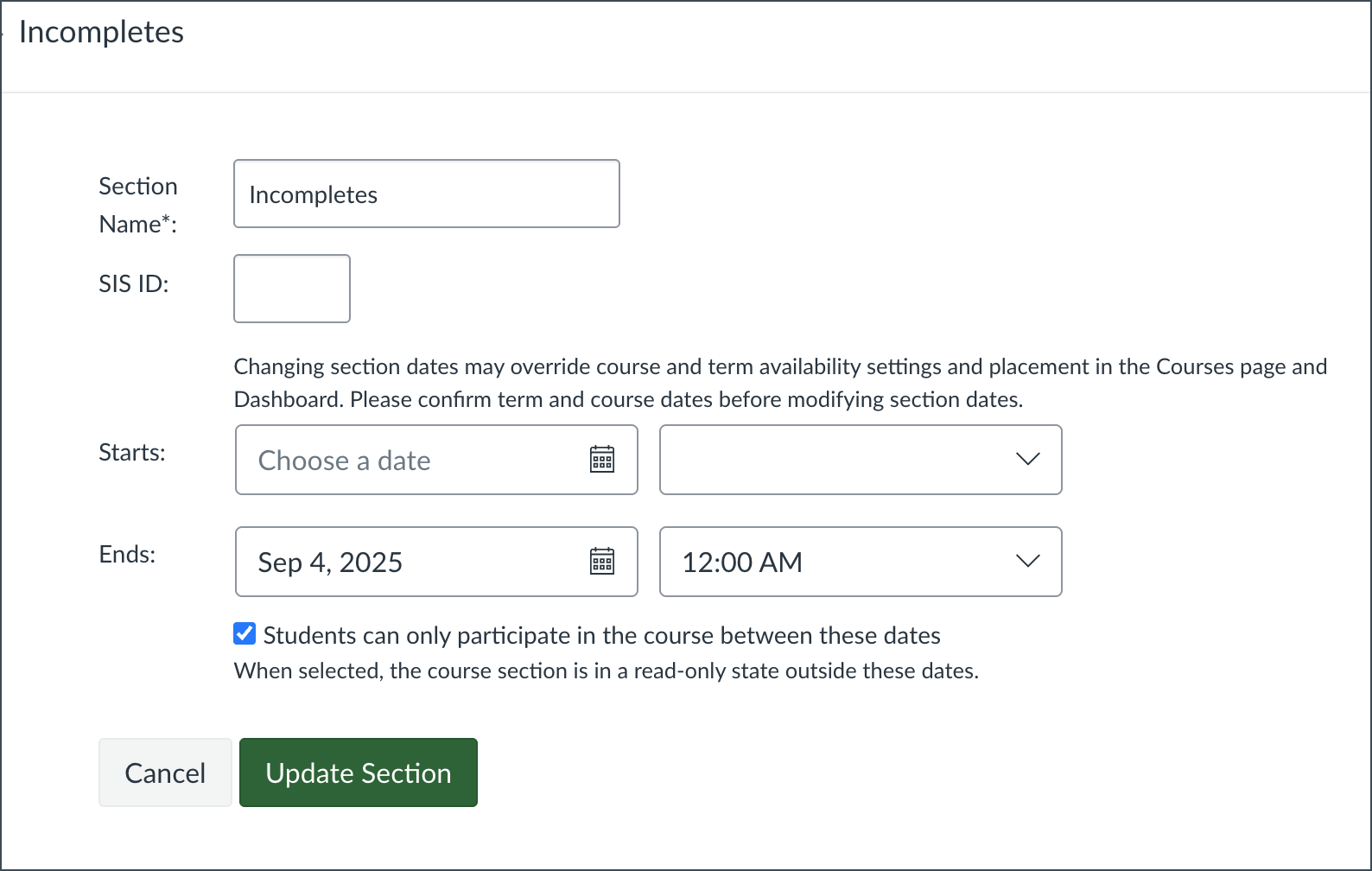
Set the section end date to match when the student needs to finish the course. If you don’t do this step, the student will have access to your course indefinitely until you manually close or delete the section. Do not set a start date. This guide shows you how to set an end date.
- Click on the section name you just created.
- Choose Edit Section (top right)
- Enter an end date
- Check the box for “Students can only participate in the course between these dates”
Step 4: Assign the student (and yourself) to the new section
On the course’s People page, follow these steps in this guide. Add both the students and yourself to this new section. Note: users can be in multiple sections. You will not be removing the student from the current course, only adding them to an additional section. If you receive an error message when adding people to a section, you must temporary update the course participation end date – see Step 1.
Step 5: Add new assignment due dates for the new section
If you set Until or Due Dates for items, you will need to add additional due dates for the new section, to each of the assignments/quizzes the student needs to complete. Follow this guide. We do not recommend changing the existing due dates as you lose record of when items were due and it affects your course setup for future course copies.
Finally, consider any other issues that may occur:
- Zoom recordings are deleted after 6 months, but are available in Kaltura for much longer. You can add the Kaltura links to your Zoom recordings to the course.
- Publisher content may no longer work after the end of the semester, or students may lose access to the digital content based on their purchase agreement with the publisher.