
Step 1
Navigate to the Play Store on an Android device or the App Store on an iPhone.
Step 2
Search for “Vonage.”
Step 3
Select Vonage Business Communications and click Install (Android) or Get (iPhone).
Step 4
Once installed, open the application.
Note: On Android devices, you will be asked to allow notifications.
Step 5
Select Get Started.
Step 6
Click Sign In.
Step 7
Select Log in with Single Sign-On and enter your full George Mason email ([email protected]). This will take you to the George Mason sign-in page, where you will enter your email address again and click Next. You will then be prompted to enter your Patriot Pass credentials using your full George Mason email.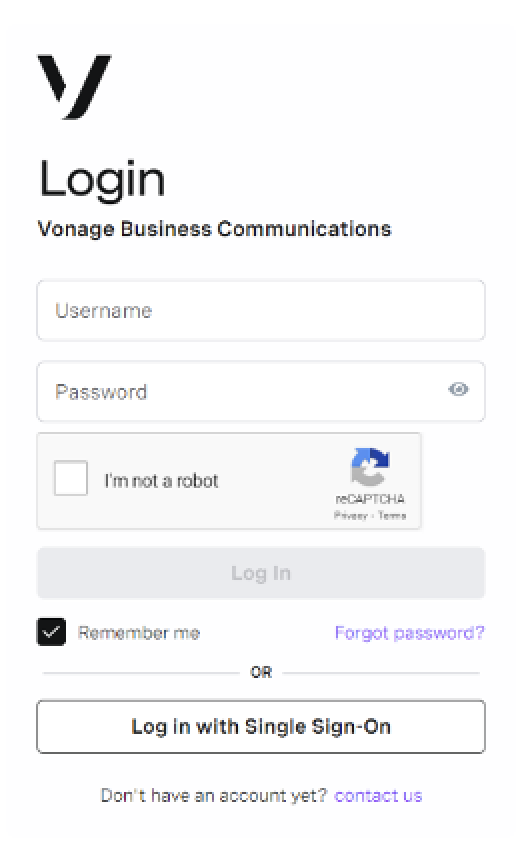
You will be prompted to confirm your identity using a Duo verification code.
Step 8
Once signed in, Vonage may request access to your microphone, contacts, camera, and photos. Microphone access must be enabled to place calls.
*It is not recommended to sync contacts.
See Vonage Mobile App Guide for details about using the application.