
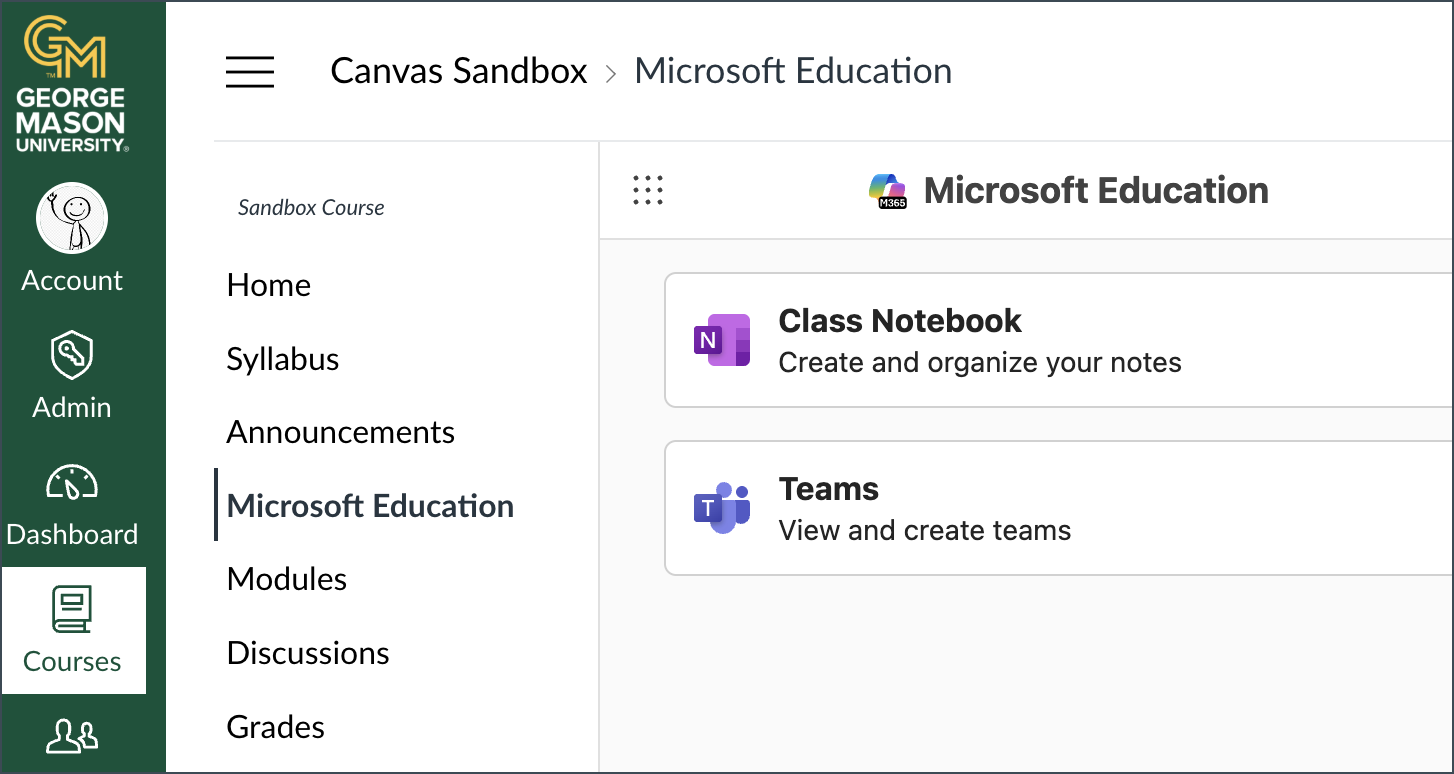
You can create a Teams class, a Class Notebook, and other Microsoft integrations in Canvas. Student enrollments are automatically added and updated. Note: This tool requires that faculty and student browsers have third-party cookies enabled to work properly.
Follow the steps below to enable the selected tools using the course menu link to Microsoft Education. Note: If you access Microsoft Education elsewhere in your course before following these steps, the system will automatically launch into setting up your course as described in Step 2.
Step 1 (Optional): Enable Microsoft Sync (for Teams only)
This step is only required if you want to create a Teams class. If you intend to combine sections in Canvas, you should do so before you enable Microsoft Sync, which will automatically create your Teams class based on Canvas course enrollment.
- Navigate to your Canvas course
- Select Settings from the course navigation menu
- On the Settings page, select the Integrations tab
- Toggle the Microsoft Sync to on/green
Step 2: Enable Microsoft Education
- Add Microsoft Education to the course navigation menu (Settings > Navigation)
- Find Microsoft Education in your course menu and access
- Select Continue setup
- Optional: Manage tool options by selecting your profile picture in the upper right and Course Settings
- Notifications: If you would like to opt out of receiving email notifications about new features and service changes to the Microsoft 365 LTI app, select Notifications, and toggle off Email notifications.
- Advanced: Go to the Advanced tab to verify synced members and manually resync the roster. You can also optionally Delete course to reset Microsoft Education. This does not delete the Teams class.
Step 3: Enable Microsoft Tools
Teams
Your Team will automatically be created based on your Canvas course enrollment when you enable Microsoft Sync as described above. The Teams class will have the same name as your Canvas course. The membership of the Teams class will be automatically populated by the enrollments (students) in your Canvas course. Student add/drops from the Canvas course will automatically update in the Teams class. This will enable all Teams features such as chat and meetings.
- Access Microsoft Education from your course navigation menu
- Toggle Teams to Enabled in the General tab
- Optional: If you intend to use other Microsoft tools, enable those as well
- Click Done
- Click Teams
- You should see your Teams class card with the course name; Click Open to launch in a separate or window
- Click Activate to open the Teams class to students
Now that the Teams class is created and activated, you and your students can access it via Canvas or directly in Microsoft Teams.
Class Notebook (OneNote)
Class Notebook can be used to distribute content, provide individual workspaces for students, and collaborate in real time.
- Access Microsoft Education from your course navigation menu
- Toggle Class Notebook to Enabled in the General tab
- Optional: If you intend to use other Microsoft tools, enable those as well
- Click Done
- Click Class Notebook
- Click Set up a OneNote Class Notebook
- Click Next
- Optional: Customize the sections of your Class Notebook; Section types include:
- Collaboration space: teacher and student can edit
- Content library: teacher can edit and student can view
- Teacher-only section: private space for teachers
- Student-only section: private space for students
- Click Create
- Click Open Notebook to launch in a separate tab or window
Now that the Class Notebook is created, you and your students can access it via Canvas or directly in Microsoft 365.
OneDrive (required for the Canvas Collaborations tool)
OneDrive is your personal file storage with Microsoft.
- Access Microsoft Education from your course navigation menu
- Toggle OneDrive to Enabled in the General tab
- Optional: If you intend to use other Microsoft tools, enable those as well
- Click Done
- Click OneDrive
This will let you access your OneDrive workspace within Canvas. Once enabled, it will also allow you to create Collaborations using the new Microsoft Education option.