
Step 1
Install and run the Zoom desktop app. Download options can be found at https://zoom.us/download.
Step 2
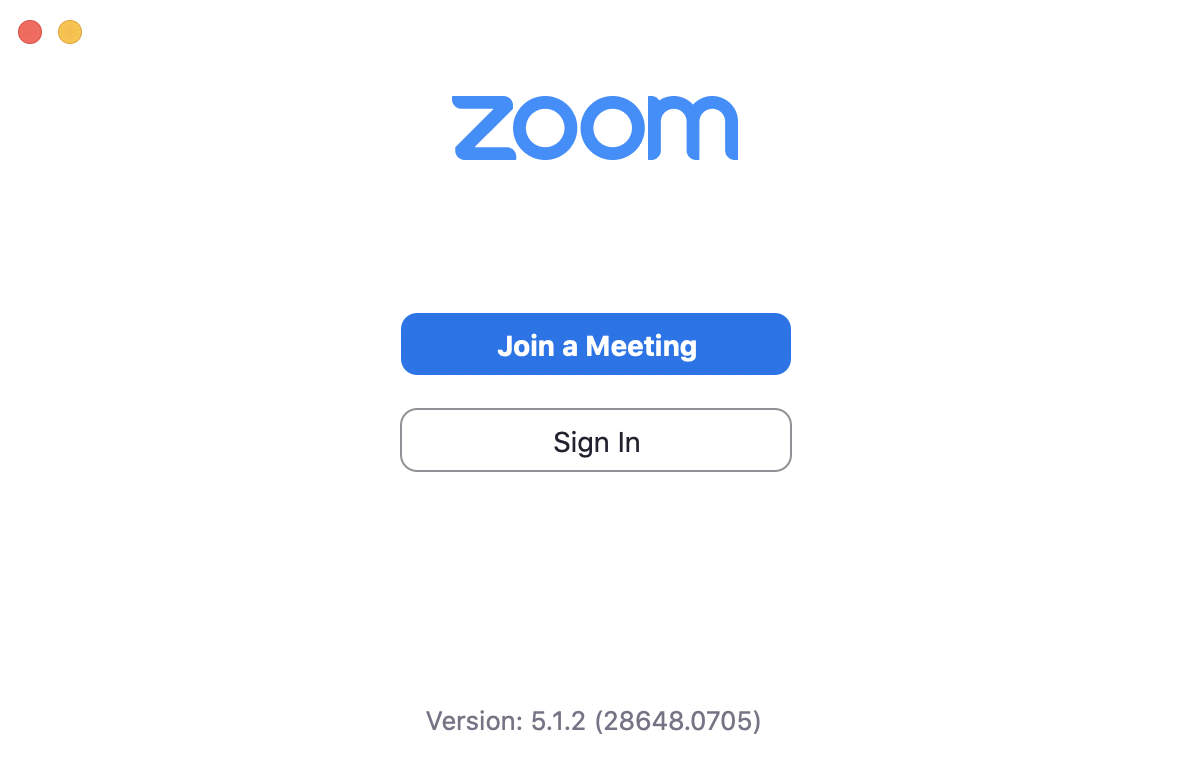
Open the app and click Sign In.
Step 3
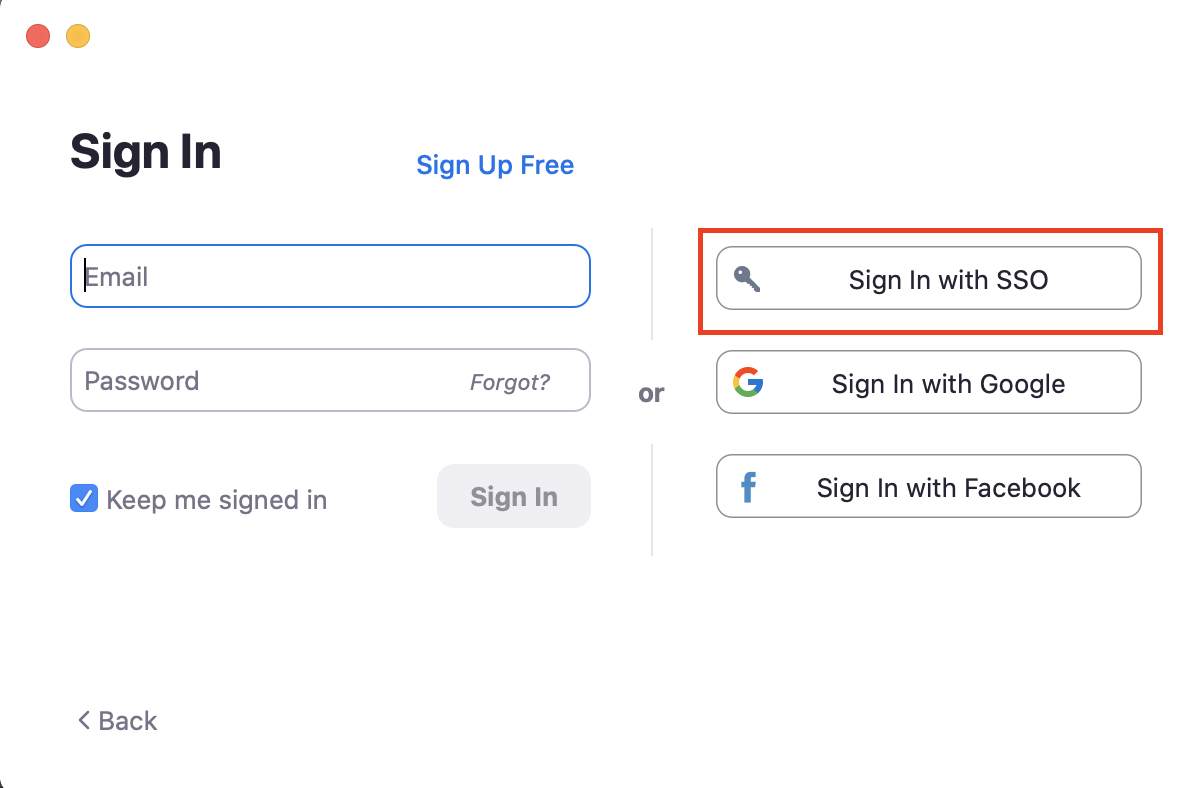
Select the login option Sign in with SSO.
Step 4
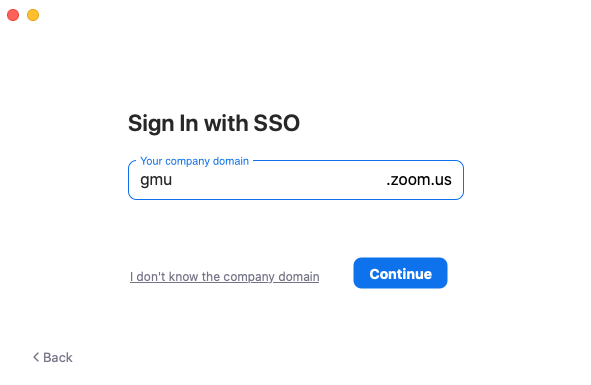
In the Company Domain field, enter gmu.
Step 5
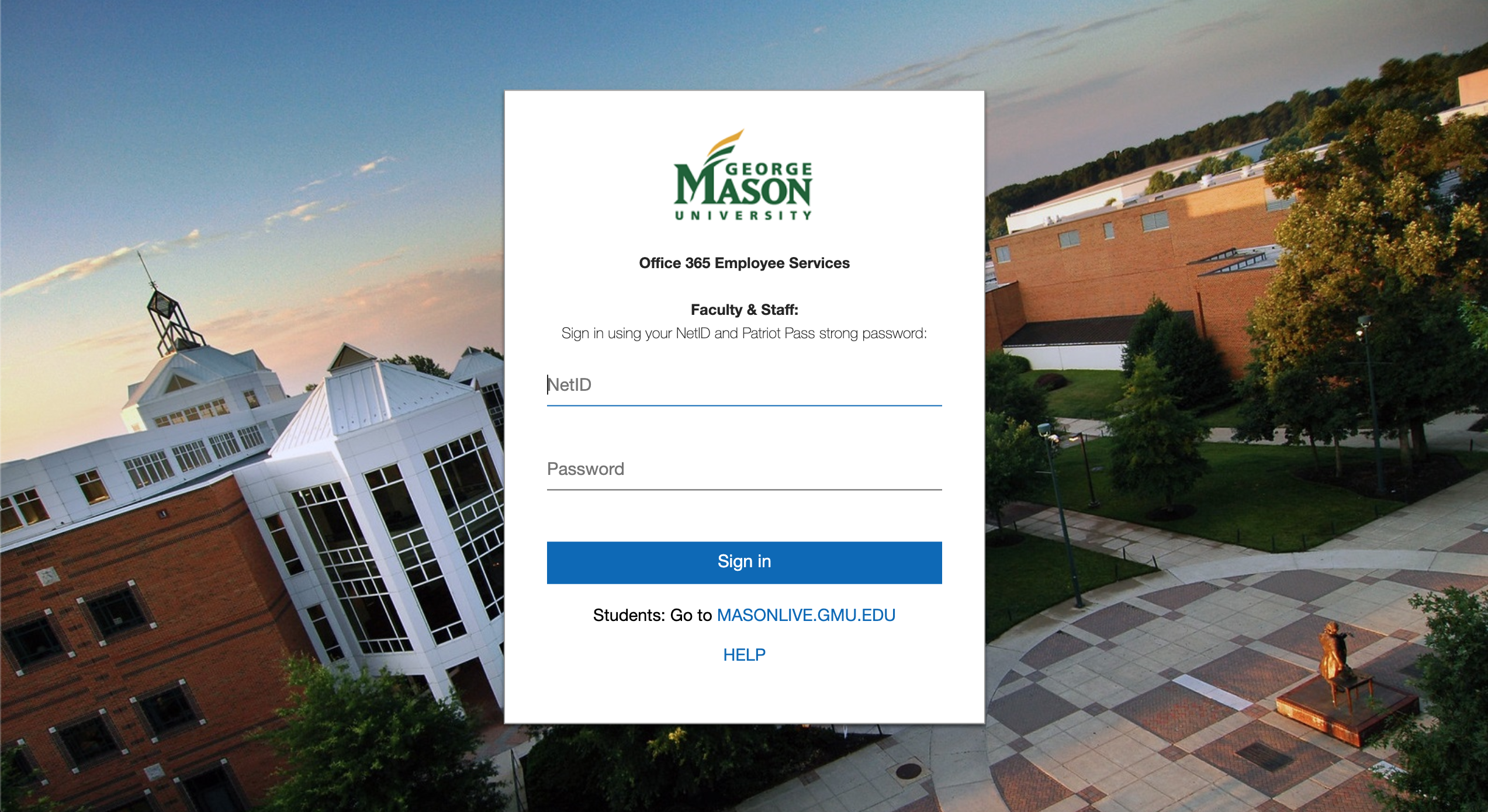
A new tab in your browser will open prompting you to log in using your NetID and Patriot Pass Password. Sign in.
Note: If you have Two-Factor Authentication (2FA) for Office 365 you may be prompted to authenticate.
Step 6
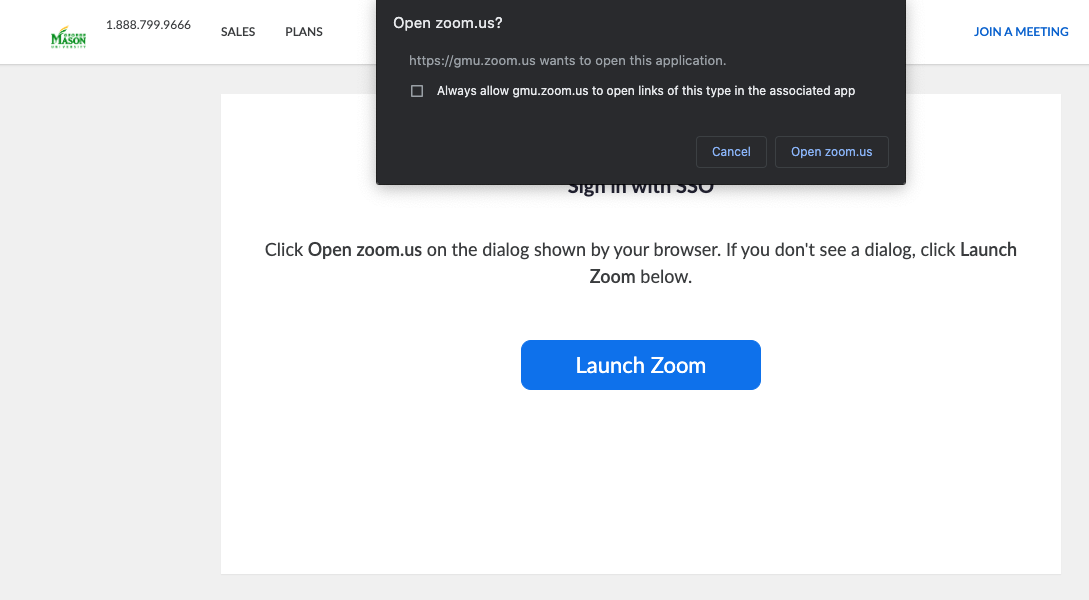
A new tab in your browser will open and a pop-up will prompt you to open Zoom Meetings. Click Open Zoom Meetings. If a pop-up does not appear select the Launch Zoom option at the center of the page.