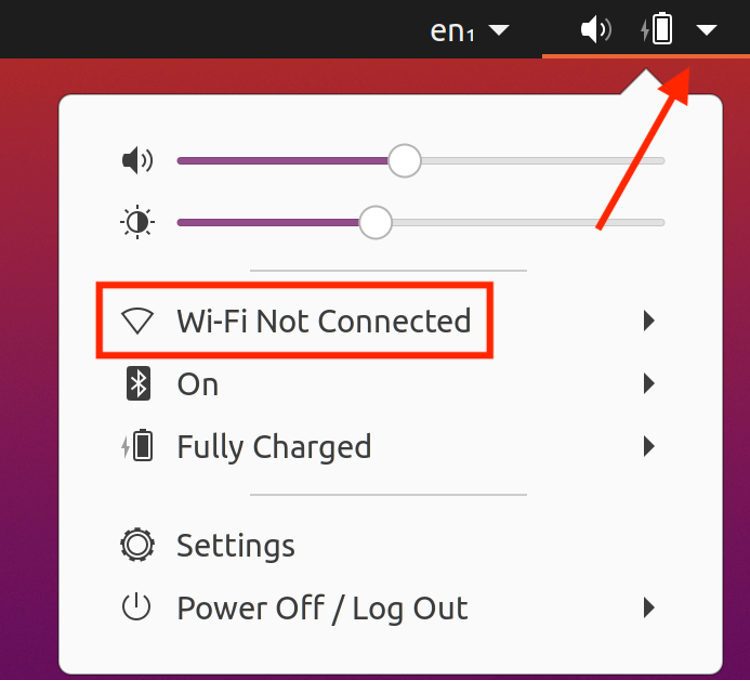
Step 1
Select the downward pointing arrow in the upper right-hand corner of your Ubuntu screen and click the area labeled Wi-Fi Not Connected in order to expand the next set of options.
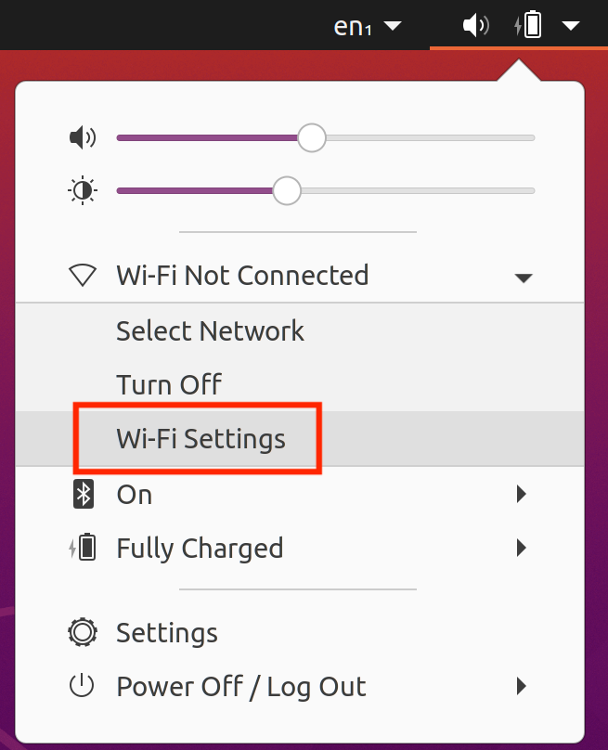
Step 2
Select Wi-Fi Settings.
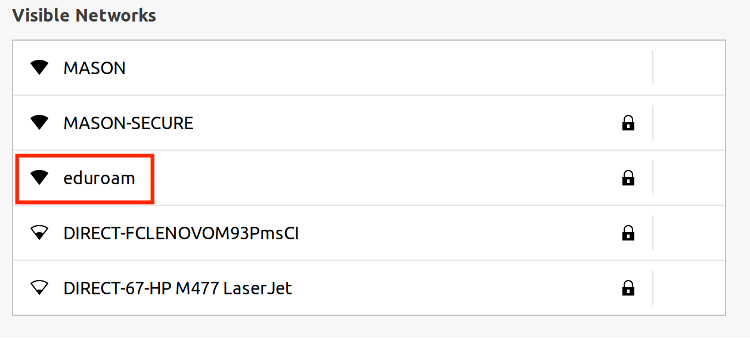
Step 3
Select eduroam from the list of visible networks.
Step 4
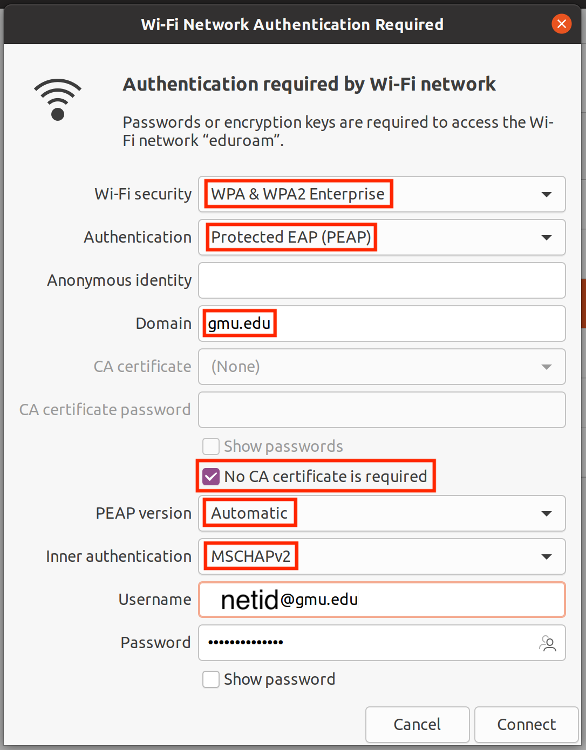
Change the following settings to authenticate to the eduroam network:
- Wi-Fi security: WPA & WPA2 Enterprise
- Authentication: Protected EAP (PEAP)
- Anonymous: leave this blank
- Domain: gmu.edu
- Check No CA certificate is required
- PEAP version: Automatic
- Inner Authentication: MSCHAPv2
- Username: Your FULL George Mason email address ([email protected])
- Password: Your Patriot Pass Password
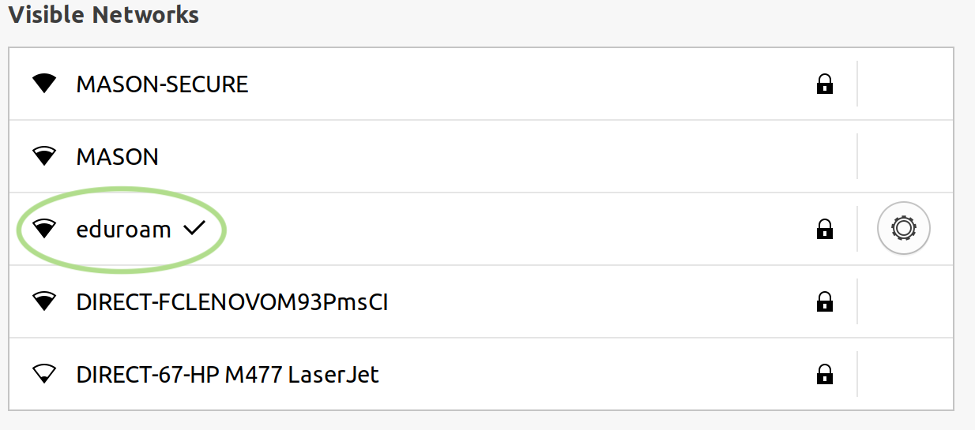
Step 5
If successful eduroam will have a checkmark in the list of visible networks.