
Turnitin plagiarism detection can be added to any Assignment in Canvas. Turnitin can help prevent plagiarism by identifying unoriginal content and manage potential academic misconduct by highlighting similarities among existing content. Note: Turnitin’s AI Detection tool is not available at George Mason.
How to Enable Turnitin
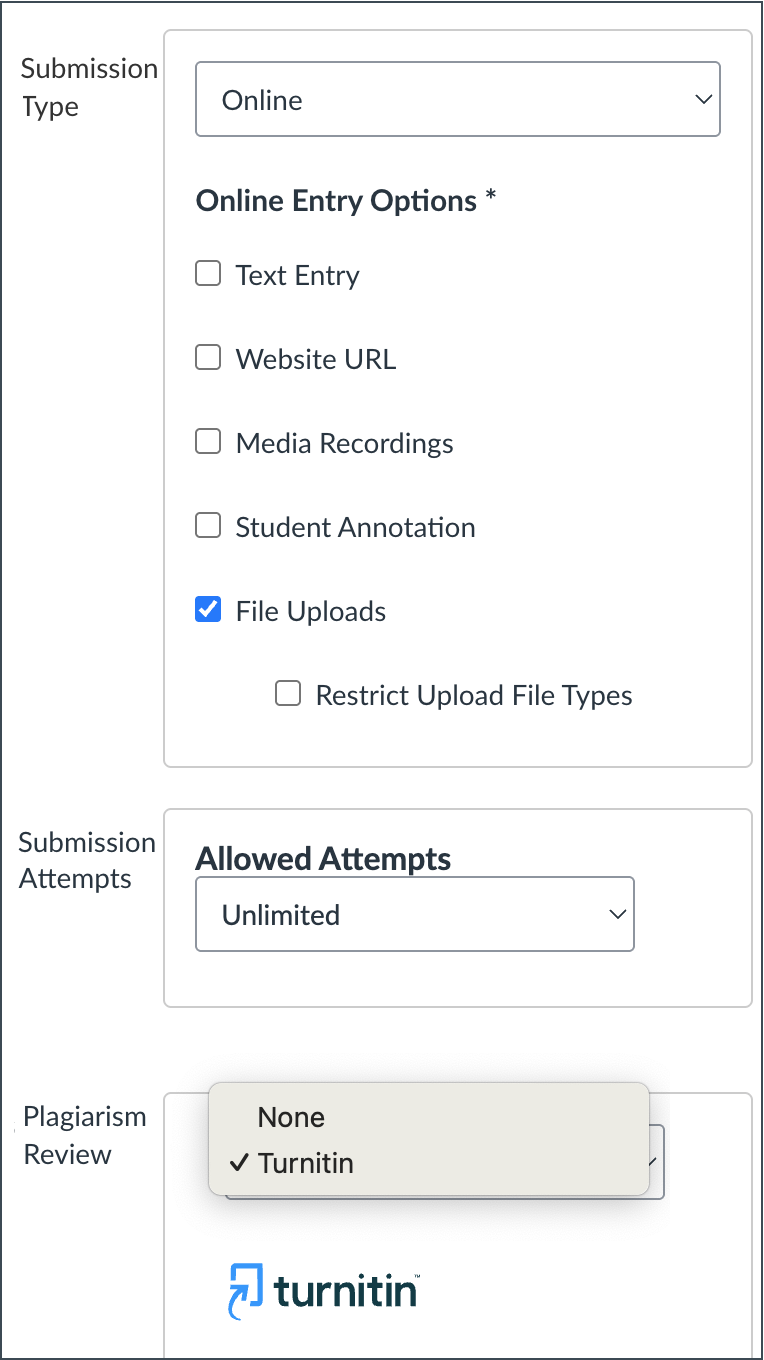
Turnitin can be applied to any Assignment in Canvas.
- For Submission Type choose Online.
- For Online Entry Options choose File Upload (Text Entry is also an option – Turnitin can also check text typed directly into the Canvas assignment submission)
- For Plagiarism Review choose Turnitin and select your options.
- Decide if you want students to see the originality report
- Choose any other Assignment options and Submit.
What can students submit?
Students can type text directly into the Canvas assignments, or more commonly submit a file. File requirements.
How to view report
To view the Similarity Report, enter SpeedGrader, select a student, and click the similarity percentage score.
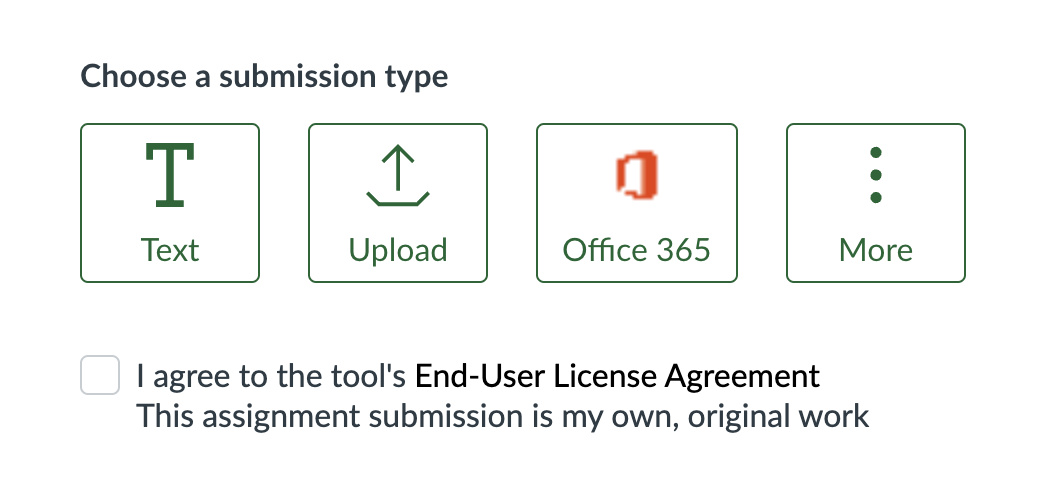
What students see
When submitting an Assignment that uses Turnitin, students must agree to the Turnitin license and confirm the work is their own. Instructors can optionally choose to allow students to see the originality report.
Enable Turnitin Retroactively / Check one submission
Turnitin does not have an option for an instructor to submit a single paper through Canvas. But an Assignment in Canvas can be edited to retroactively enable Turnitin (using above steps). When you do this, the instructor must go into a student’s submission in the Canvas Gradebook/Speedgrader and click the “Resubmit to Turnitin” button (this cannot be done for all students at once).