
Learn how to use Copilot Chat, an AI-powered chat companion tool from Microsoft, formerly called Bing Chat Enterprise.
NOTE: Copilot Chat grants you access to Microsoft’s standard generative AI license. Your George Mason University license does not grant you access to Microsoft’s premium services: Copilot Pro, Copilot for Microsoft 365 (work mode), and Copilot Studio.
Access Copilot Chat
- Go to https://m365copilot.com
- Log in with your NetID and Patriot Pass Password
Before you type anything into Copilot Chat, make sure that you see the shield in the top right corner. When you click or hover over the shield a pop-up with data protection information should appear.
Note: At this time, we are still assessing the security of this tool. Do not share sensitive or restricted data in Copilot. See ITS Guidance on Using Artificial Intelligence (AI) Tools for Administrative Purposes at George Mason for more information.
Copilot Chat Overview
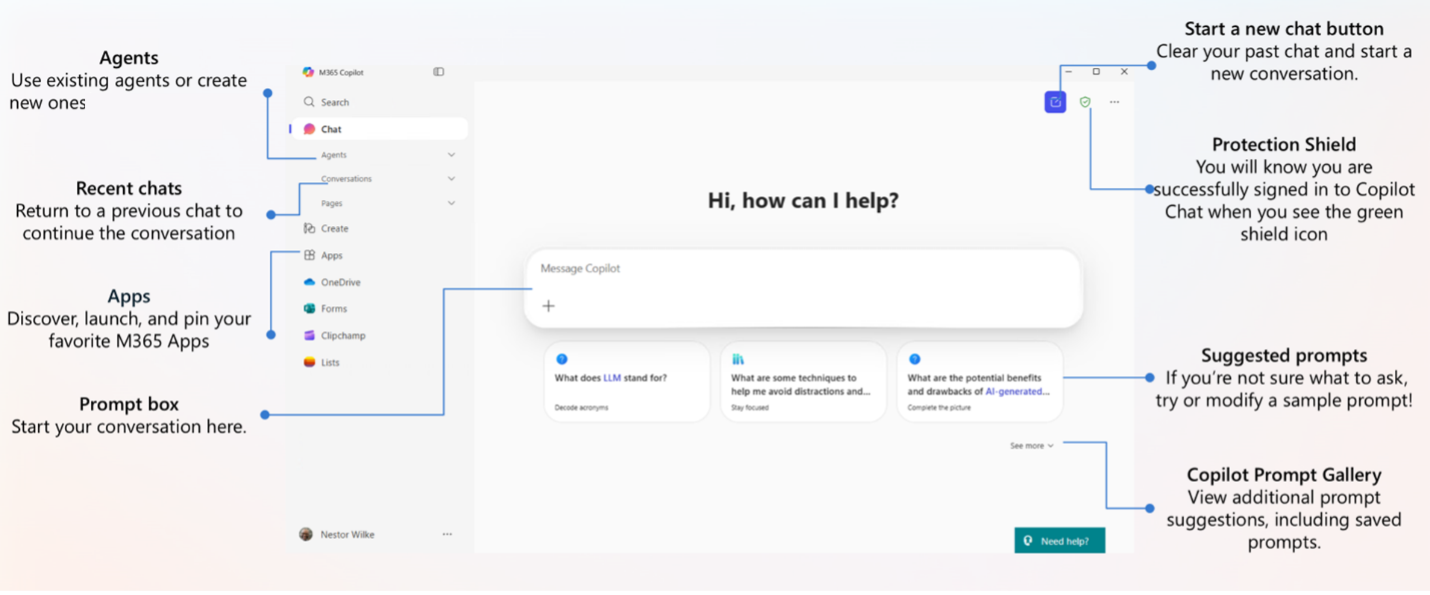
Upload and Chat with Files
Get help analyzing a document, summarizing a report, or extracting data from a spreadsheet. Copilot will read the file and respond with insights, summaries, or edits—just like a helpful assistant.
- Click the paperclip icon in the chat window
- Upload your file (PDF, Word, Excel, etc.)
- Ask Copilot questions like:
- “Summarize this report.”
- What are the key findings in this spreadsheet?”
- Rewrite this paragraph in simpler language.”
Generate Images with AI
Create visuals for a presentation, course material, or research poster
- Type a prompt like: “Create an image of a futuristic university campus at sunset”
- Copilot will generate a unique image based on your description
- You can download or refine the image by adjusting your prompt
Use Cases:
- Faculty designing lecture slides
- Students creating project visuals
- Admins building marketing materials
Pages in Copilot Chat
Pages are single-topic documents where you can focus on one task at a time. They’re great for quick writing, editing, or summarizing—especially when you don’t need a full notebook.
- Write or paste content and ask Copilot to improve or summarize it
- Use it for short tasks like drafting emails, writing bios, or summarizing articles
- Save and revisit your work later
Use Cases:
- Researchers: Write an abstract or summarize a journal article
- Students: Write a reflection journal or summarize a reading
- Faculty: Draft a syllabus or assignment instructions
Copilot Chat Use Cases at George Mason
Use Copilot Chat to get work done faster, be more creative, or support customers better. Copilot Chat can help you quickly generate content, analyze or compare data, summarize documents, learn new skills, write code, and more.
Students
- Study Aid: Ask for explanations of complex concepts or topics in simpler terms to improve understanding.
- Homework Help: Use it to clarify questions or problems, getting hints or guidance on how to approach assignments without giving direct answers.
- Research Assistance: Generate ideas for research topics or gather overviews of subjects to help with the initial stages of a project.
- Drafting and Outlining: Get assistance in creating outlines for essays or projects, helping to organize thoughts and structure arguments.
- Practice Questions: Request practice questions or quizzes on specific subjects to reinforce learning and prepare for exams.
- Feedback on Writing: Share drafts of essays or papers for constructive feedback on clarity, structure, and grammar, helping to improve writing skills.
- Language Learning: Use for vocabulary practice, grammar explanations, or conversation practice in a foreign language.
- Summarizing Material: Summarize articles, textbooks, or lecture notes to distill key points and aid in review.
- Study Techniques: Ask for tips on effective study strategies, time management, or exam preparation techniques.
- Group Project Collaboration: Use it to brainstorm ideas for group projects, ensuring that contributions are original and collaborative.
- Exploring Different Perspectives: Ask for various viewpoints on a topic to better understand diverse opinions and enhance critical thinking.
- Clarifying Instructions: Seek clarification on assignment guidelines to ensure a complete understanding of what’s expected.
Faculty
- Course Material Development: Generate outlines, summaries, or supplementary materials for lectures and course content.
- Creating Assignments: Draft assignments or exam questions that align with course objectives, ensuring variety and depth.
- Feedback on Teaching Materials: Get constructive feedback on lecture slides, syllabi, or other instructional materials to enhance clarity and effectiveness.
- Research Assistance: Use it to gather insights on recent developments in their field, summarize academic papers, or explore new research ideas.
- Student Engagement: Generate discussion prompts or questions for classroom debates to encourage active participation and critical thinking.
- Writing Support: Assist in drafting emails, newsletters, or announcements to students, streamlining communication.
- Exploring Pedagogical Strategies: Ask for suggestions on innovative teaching methods, technologies, or assessment techniques.
- Diversity and Inclusion Resources: Generate ideas for promoting diversity and inclusivity within the classroom or curriculum.
- Professional Development: Access tips on time management, work-life balance, and other strategies to enhance productivity.
- Creating Study Guides: Develop study guides or review sheets for students to aid their exam preparation.
- Clarifying Student Questions: Provide clear explanations for common student questions or concerns about course material.
- Grading Criteria Development: Create rubrics and grading criteria for assignments to ensure transparency and fairness.
Staff
- Drafting Emails: Quickly generate professional email drafts for various purposes, such as inquiries, follow-ups, or announcements.
- Brainstorming Ideas: Use it to brainstorm ideas for projects, campaigns, or problem-solving, helping to overcome creative blocks.
- Summarizing Documents: Provide summaries of lengthy reports or articles, making it easier to digest key information.
- Creating To-Do Lists: Organize tasks by generating structured to-do lists based on project requirements or meeting notes.
- Conducting Research: Ask for information on a specific topic, helping to gather insights or overviews without extensive searching.
- Writing Reports or Proposals: Get assistance with the structure and content of reports or proposals, including key points to cover.
- Generating Meeting Agendas: Create outlines for meeting agendas, ensuring all relevant topics are covered and facilitating efficient discussions.
- Drafting Social Media Posts: Generate engaging content for social media platforms, tailored to your audience.
- Customer Support: Use it to draft responses to frequently asked customer inquiries or support tickets.
- Training and Onboarding: Create training materials or FAQs for new employees, simplifying the onboarding process.
- Translating Text: Quickly translate phrases or short documents, aiding communication in multilingual environments.
- Providing Feedback: Get constructive feedback on written content or presentations, helping to refine and improve work.
Agent Builder in Copilot Chat
What Are Agents?
Microsoft Copilot Chat includes a built-in Agent Builder to create your own intelligent assistant—called an Agent—without needing a paid license or access to Copilot Studio.
- Customizable: Tailored to your department or workflow
- Task-focused: Built to help with things like scheduling, data analysis, or content creation
- Always available: Ready to assist 24/7
Agents are like specialized digital assistants built with Copilot’s intelligence. They’re designed to perform specific tasks or support particular roles—like a research assistant, teaching aide, or student advisor.
How to Build an Agent in Copilot Chat
- Open Copilot Chat
- Click Create Agent on the left navigation pane
- Copilot will launch the Agent Builder interface
- Name your agent (e.g., “Study Buddy” or “Course Assistant”)
- Describe what it should do (e.g., “Help students understand biology concepts”)
- Set the tone or personality (e.g., friendly, formal, concise)
- Add a public-facing website as a knowledge source (can only be 2 layers deep e.g., https://learn.microsoft.com/copilot/microsoft-365)
- Click Create Agent, and your new agent will appear in your Copilot Chat sidebar, ready to use anytime
With Agent Builder, you can:
- Create and save multiple agents
- Add publicly available websites as knowledge sources
- Customize their behavior and tone
- Use them in any Copilot Chat session
- Share them with others via a link
Agent Use Cases
Students
| Agent Name | Description | Prompt Example |
|---|---|---|
| Assignment Planner | Breaks down assignments into steps and deadlines | “Create a weekly plan to finish my research paper due in 3 weeks.” |
| Exam Prep Coach | Quizzes you on key topics and explains answers | “Ask me 10 multiple-choice questions on cell biology.” |
| Scholarship Finder | Helps find and apply for scholarships | “Help me find scholarships for undergrad CS students.” |
Faculty
| Agent Name | Description | Prompt Example |
|---|---|---|
| Lecture Assistant | Generates outlines, slides, and discussion questions | “Create a lecture outline on the Cold War for a 90-minute class.” |
| Feedback Generator | Drafts personalized feedback for student work | “Write feedback for a student who struggled with their thesis.” |
| Curriculum Designer | Helps map out course objectives and assessments | “Design a 12-week syllabus for intro sociology.” |
Researchers
| Agent Name | Description | Prompt Example |
|---|---|---|
| Lit Review Assistant | Summarizes academic papers and organizes citations | “Summarize key findings from these three journal articles.” |
| Grant Helper | Drafts and edits grant proposal sections | “Write a 250-word summary for a renewable energy grant proposal.” |
| Data Interpreter | Explains statistical results and suggests visualizations | “Interpret this ANOVA test and suggest a chart.” |
Administrative Staff
| Agent Name | Description | Prompt Example |
|---|---|---|
| Event Planner | Creates checklists and communications for campus events | “Plan a faculty development workshop and draft the invite email.” |
| Policy Summarizer | Breaks down long documents into bullet points | “Summarize the new academic integrity policy for students.” |
| Student Services Bot | Answers common questions about registration and resources | “Provide a response to a student asking how to appeal a grade.” |
Accessibility
Copilot Chat Accessibility Features
- Screen Reader Support: Copilot works with popular screen readers like Narrator, NVDA, and JAWS across Microsoft 365 apps.
- Keyboard Navigation: Navigate Copilot Chat using only your keyboard—no mouse required.
- Natural Language Input: Type prompts in plain language to reduce cognitive load and simplify complex tasks.
- Simplified Language: Ask Copilot to rewrite or summarize content in simpler terms for easier comprehension.
- Multilingual Support: Copilot can understand and respond in multiple languages, supporting ESL learners and multilingual users.
- Tone & Clarity Assistance: Copilot can help interpret tone in emails or rewrite messages for clarity—especially helpful for users with neurodiversity.
Training and Resources
Reminder: Some of the resources below may mention features that are not available to you. Copilot grants you access to Microsoft’s standard generative AI license. Your George Mason license does not grant you access to Microsoft’s premium services: Copilot Pro, Copilot for Microsoft 365, or Copilot Studio.
Explore Microsoft Copilot Chat in Microsoft 365
Discover how Microsoft Copilot Chat can enhance your productivity across Microsoft 365 applications such as Word, Excel, PowerPoint, Outlook, and Teams. This page provides practical examples of how Copilot Chat can help you draft content, analyze information, summarize conversations, and streamline everyday tasks. You’ll also find links to short training videos designed to help you get started and make the most of Copilot Chat in your daily work.
Trainings Videos (Hosted by Microsoft):
- About Microsoft 365 Copilot Chat
- Transform ideas into action with Copilot Chat
- Create a document with Copilot Chat
- Create a graph with Copilot Chat
- Summarize an email in Outlook with Copilot Chat
- Copilot in Edge
Using Copilot Chat with Microsoft 365 Apps
| Supported Experience Area | How Copilot Chat is Used |
|---|---|
| Outlook (Web/Desktop) | Copilot Chat in Outlook helps you manage your inbox, calendar, and communications by summarizing emails, drafting and refining messages, prioritizing tasks, and scheduling meetings using natural language requests. (no inbox access) |
| Teams/Meetings | Within Microsoft Teams, Copilot Chat enhances collaboration by improving meeting recaps, enabling deletion of AI-generated meeting content, and offering better notification controls for more focused communication. |
| Word Documents | In Word, Copilot Chat can edit documents directly from the chat interface by default, allowing you to rewrite, reorganize, and refine longform content with transparent, reviewable updates. |
| PowerPoint | Copilot Chat in PowerPoint works like an AI assistant that understands your whole presentation, not just the current slide. You can ask questions, request changes, or generate new content. |
| Excel/Data | Use Copilot Chat in Excel to create and refine workbooks by pulling in referenced files and web data, helping you generate analyses, restructure sheets, and build data-driven content through iterative prompts. (no live workbook access) |
| Files (OneDrive/SharePoint) | Copilot Chat in OneDrive can help summarize files, ground responses on selected content sources, and support smarter file management, including improved handling of long pathlength issues. |