• Live Chat
  • Report an IT Security Incident
  • Request Help
  • Help & Support
    • Live Chat
    • Request Help
    • Track a Ticket
    • Knowledge Base
    • AI Toolkit
    • User Training
    • George Mason Endpoint Information and Resources
    • Computer Labs & Classrooms Information
    • Getting Started
    • Working/Learning Remotely
  • Service Catalog
    • ITS General Help
    • Accounts & Access
    • Communications & Collaboration
    • Computers & Software
    • Information Security
    • Network & Internet Services
    • Professional Services
    • Research Computing
    • Teaching & Learning
    • University Applications
  • About ITS
    • Our ITS Team
    • Strategic Plan
    • Annual Reports
    • Awards
    • Student Employment
  • Working with ITS
    • Architectural Standards Review Board
    • Banner Admin
    • Business Intelligence
    • Data Governance
    • Enterprise Data Integration Services (EDIS)
    • IT Business Analysis
    • IT Security Office
    • Projects & Project Management
    • Technical Business Solution Intake Request Process
  • Alerts & Outages
    • Unplanned Outages
    • Phishing Alerts
    • Maintenance
    • After Action Reports
    • Archives
    • ITS Alerts Sign Up
  • News
    • Bits & Bytes Signup
    • Bits & Bytes Submissions
    • Bits & Bytes Archive
    • Spotlights
    • Bulletins
George Mason University
  • Live Chat
  • Report an IT Security Incident
  • Request Help
X Hide

Information Technology Services

Skip to content
  • Help & Support
    • Live Chat
    • Request Help
    • Track a Ticket
    • Knowledge Base
    • AI Toolkit
    • User Training
    • George Mason Endpoint Information and Resources
    • Computer Labs & Classrooms Information
    • Getting Started
    • Working/Learning Remotely
  • Service Catalog
    • ITS General Help
    • Accounts & Access
    • Communications & Collaboration
    • Computers & Software
    • Information Security
    • Network & Internet Services
    • Professional Services
    • Research Computing
    • Teaching & Learning
    • University Applications
  • About ITS
    • Our ITS Team
    • Strategic Plan
    • Annual Reports
    • Awards
    • Student Employment
  • Working with ITS
    • Architectural Standards Review Board
    • Banner Admin
    • Business Intelligence
    • Data Governance
    • Enterprise Data Integration Services (EDIS)
    • IT Business Analysis
    • IT Security Office
    • Projects & Project Management
    • Technical Business Solution Intake Request Process
  • Alerts & Outages
    • Unplanned Outages
    • Phishing Alerts
    • Maintenance
    • After Action Reports
    • Archives
    • ITS Alerts Sign Up
  • News
    • Bits & Bytes Signup
    • Bits & Bytes Submissions
    • Bits & Bytes Archive
    • Spotlights
    • Bulletins

How can ITS help you?

Our services are designed to help you succeed at Mason—
search our services, knowledge articles, how to guides, FAQs, and more.

Knowledge Base

Home > Help & Support > Knowledge Base > Email & Collaboration > Outlook > Delegate Access > How to Open a Shared Inbox/Folders on Outlook 2019 for Mac

How to Open a Shared Inbox/Folders on Outlook 2019 for Mac

This set of steps will make your manager's email available to you automatically, every time you use Outlook. The manager must first grant delegate access or share their mail folder(s) before these steps will work.

Select the below option based on which level of rights you have.

  • View only
  • Higher level access (ability to edit, delete, or move items, or the "send on behalf of" right)

View Only Rights

Step 1

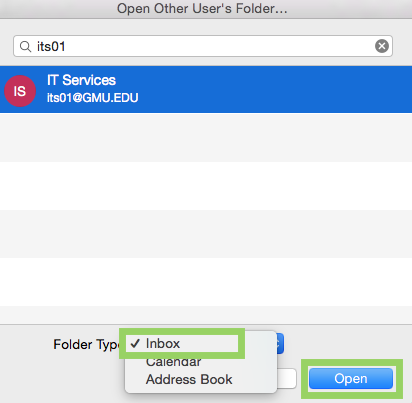
In the small dialog box, enter the name or email address of the inbox you are attempting to open. Select Inbox from the drop-down list. Click Open.
Step 2

In the small dialog box, enter the name or email address of the inbox you are attempting to open. Select Inbox from the drop-down list. Click Open.

Step 3

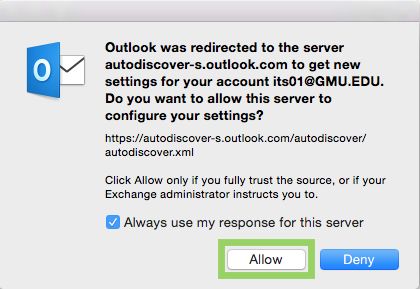
Check the box to Always use my response for this server then click Allow.
Step 4

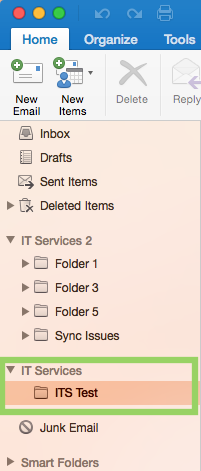
In the Navigation Pane you should now see an additional Mailbox with your manager's name. Within that mailbox you will be able to see the folder(s) your manager has shared with you.
Higher Level Access

Step 1

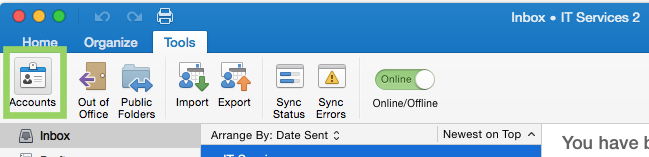
From Outlook's Tools menu, select Accounts.

Step 2

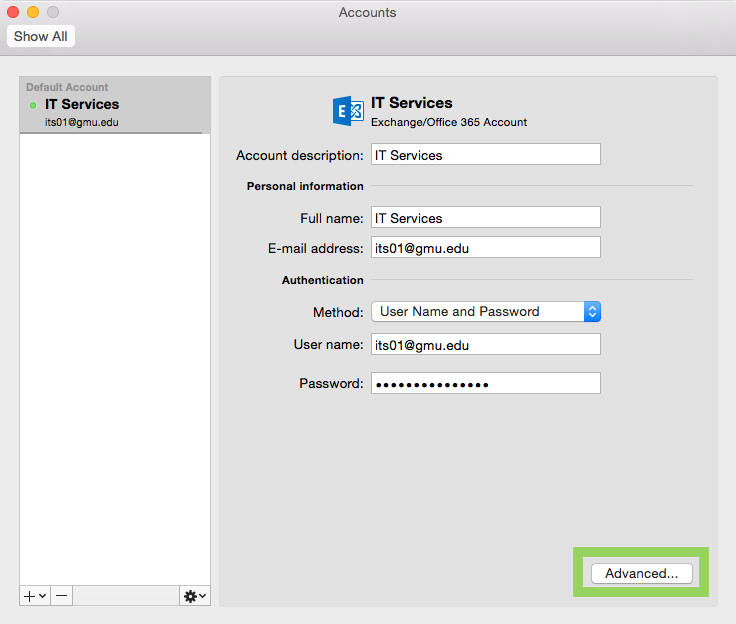
In the Accounts dialog box, select your Exchange account in the list on the left. It will probably be labeled with your name or NetID, and may be the only account listed.

Step 3

Click Advanced. A smaller dialog box will open, with the Server tab selected.
Step 4

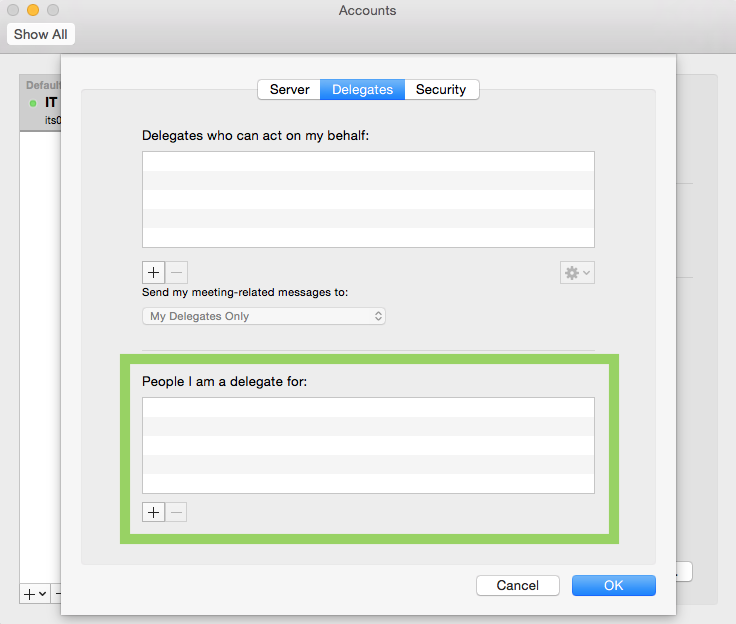
Click the Delegates tab.
Step 5

The bottom half of the dialog box is labeled People I am a delegate for. Click the plus sign (+) near the bottom of this section.

Step 6

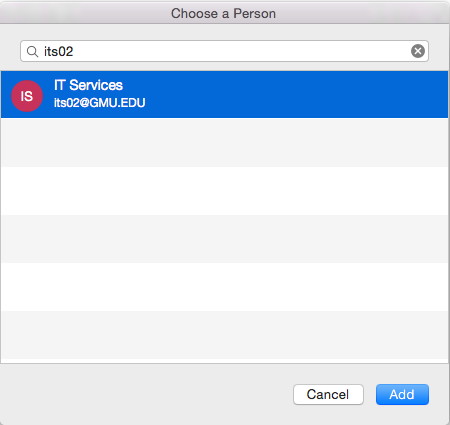
In the Choose a Person dialog box, type the person's name and Outlook will display probable matches.

Step 7

Click the name of the person who will be your delegate, then click Add.
Step 8

Click OK to close the dialog box with the Delegates tab.

Step 9

Close the Accounts dialog box.

Step 10

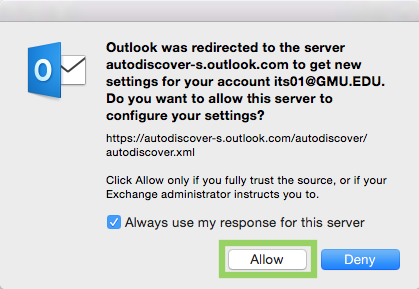
Check the box to Always use my response for this server then click Allow.
Anytime your manager adds a new folder under the inbox you will see a new folder appear.

Last modified: September 3, 2021

Previous

How to Share my Inbox/Folders on Outlook 2019 for Mac

Next

How to Act as a Delegate on Outlook 2019 for Mac

Related articles

  • How to setup my email on Outlook 2019 for Mac
  • How to Share my Inbox/Folders on Outlook 2019 for Mac
  • How to Act as a Delegate on Outlook 2019 for Mac
  • What is the Focused Inbox for Outlook?
  • Do I need to use Outlook if I wish to setup delegate access to my Office 365 calendar?

Get Started at Mason

Whether you are a student, faculty, staff member, or a guest visiting the Mason campus, we have resources to help get you started.

READ MORE

Quick Links

Patriot Pass Password Reset
Create a Ticket
Track a Ticket
PuTTY
Cisco AnyConnect VPN

READ MORE

Explore IT Services

A B C D E F G
H I J K L M N
O P Q R S T U
V W X Y Z #

I T S Logo

© 2024 George Mason University
4400 University Drive
Fairfax, Virginia 22030

Follow Us
location pin for in-person IT support   @GeorgeMasonITS
location pin for in-person IT support   @georgemasonits
ITS Support 24/7
   703-993-8870
   Live Chat
  • Webmaster