
Overview
This guide first covers the steps everyone completes in Azure AI Foundry, then provides separate instructions for enabling and using Claude Code on macOS/Linux and Windows.
Azure AI Foundry gives you access to a curated catalog of AI models — including Claude from Anthropic, GPT from OpenAI, and others — within George Mason’s secure, governed Azure environment. All usage is billed to your department’s Azure subscription.
Universal Steps: Azure AI Foundry Setup
1. Sign In to Azure AI Foundry
Open your browser and go to https://portal.azure.com. Activate the appropriate PIM to enable model deployment.
Once activated, go to: https://ai.azure.com
When prompted to pick an account, select your George Mason account. It will appear as:
[yournetid]@gmu.com
After logging in, you will see the Microsoft Foundry home screen. Click the project selector at the top left and select your project from the list. Your project name will follow the format:
az-[resource-name]

If you do not see your project listed, click View all resources or contact ITS.
2. Deploy a Claude Model
From your project home screen, click Discover in the top navigation, or click View all models from the Model selection section on the home page.

In the search box type the model name — for example Claude to filter for Anthropic Claude models.
You will see available models including:
- claude-opus-5-5 — Anthropic’s most capable model, 1M context window, hosted on Azure
- claude-opus-4-8 — Capable Opus model, hosted on Azure
- claude-sonnet-5 — Fast and capable, recommended for most research tasks
- claude-sonnet-4-5 — Previous generation Sonnet
- claude-haiku-4-5 — Fastest and most economical

Which model should I choose?
- Use Sonnet for most research tasks — summarization, analysis, writing assistance, code generation. It is fast and cost-effective.
- Use Opus for complex reasoning, long documents, nuanced analysis, and tasks requiring deeper thinking. It is more powerful but costs more per token.
Click on the model you want to deploy. Review the Details page to confirm it meets your needs, then click the purple Deploy button in the top right corner.
Once you click Deploy select Custom Settings:

A deployment dialog will appear. Review the terms of use. You will need to provide:
- Industry — select Education
- Any other required use case details
Once you select Education and click Agree and proceed, you’ll be asked for Deployment Type. Within this, please select Data Zone Standard, if available.
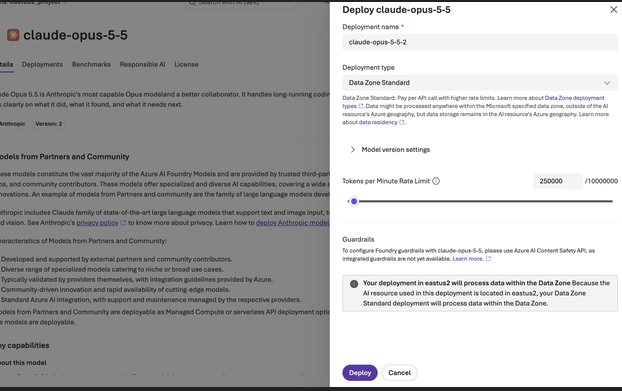
Note: Deployment typically completes within a few minutes. You can deploy multiple models to your project — for example both Sonnet and Opus.
After deployment, you can see your deployed models in the Recent work section on your project home page, or by navigating to Build → Models
Your deployed models will be listed with their exact model names — for example:
- claude-opus-5-5
- claude-sonnet-5
⚠️ Important: The model names shown in this list are the exact strings you will use when configuring your terminal connection. Copy them exactly as shown — they are case-sensitive.
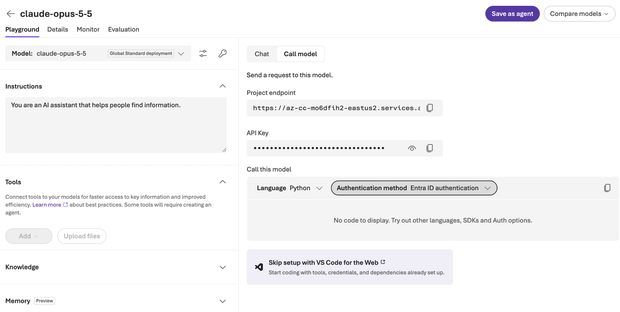
3. Retrieve Your Connection Details
Before configuring your terminal, you need the Project Endpoint
Click on a deployed model from the Recent work list or Build → Models
Click the Playground tab, then click the Details tab. On the right side of the screen, you will see:
- Project endpoint — a URL in the format https://[resource-name].services.ai.azure.com/…
Your resource name is the portion of your endpoint URL between https:// and .services.ai.azure.com.
For example, if your endpoint is: https://az-cc-mo6dfih2-eastus2.services.ai.azure.com/…
Your resource name is: az-cc-mo6dfih2-eastus2
Enable Claude Code on macOS or Linux
Entra ID authentication uses your George Mason Azure account identity instead of an API key. This is the more secure approach — there is no key to manage, rotate, or accidentally expose. Microsoft recommends this method for interactive use.
If you do not already have the Azure CLI installed, install it using Homebrew on Mac:
bash
brew install azure-cli
Verify the installation:
bash
az –version
If Homebrew is not installed on your Mac, install it first:
bash
/bin/bash -c “$(curl -fsSL https://raw.githubusercontent.com/Homebrew/install/HEAD/install.sh)”
Run the following command:
bash
az login
A browser window will open. When prompted to pick an account, select your Azure account — the one that looks like:
[yournetid]@gmu.com
bash
az account show
Confirm the output shows:
- Your Azure account ([yournetid]@gmu.com)
- Your George Mason subscription name
- Tenant: George Mason University – O365 Production
Run the following commands — note there is no API key required:
bash
export CLAUDE_CODE_USE_FOUNDRY=1
export ANTHROPIC_FOUNDRY_RESOURCE=”your-resource-name”
export ANTHROPIC_DEFAULT_SONNET_MODEL=”claude-sonnet-5″
export ANTHROPIC_DEFAULT_OPUS_MODEL=”claude-opus-5-5″
Replace your-resource-name with your actual resource name from Part 3.
What each variable does:
| Variable | Purpose |
| CLAUDE_CODE_USE_FOUNDRY | Tells Claude Code to use Azure AI Foundry instead of Anthropic’s direct API |
| ANTHROPIC_FOUNDRY_RESOURCE | Points to your specific George Mason Azure resource |
| ANTHROPIC_DEFAULT_SONNET_MODEL | Sets the exact model name for Sonnet — must match exactly as shown in Foundry |
| ANTHROPIC_DEFAULT_OPUS_MODEL | Sets the exact model name for Opus — must match exactly as shown in Foundry |
Note: No API key is needed. Claude Code uses your active Azure CLI session for authentication automatically.
To connect using Sonnet:
bash
claude
To connect using Opus:
bash
claude –model opus
When Claude Code launches, you should see “Microsoft Foundry” in the header:
Sonnet 5 · Microsoft Foundry
To avoid running az login and the export commands every session, add the following to your shell profile:
On Mac (zsh):
bash
nano ~/.zshrc
Add these lines at the bottom:
bash
# Azure AI Foundry — Entra ID Configuration
export CLAUDE_CODE_USE_FOUNDRY=1
export ANTHROPIC_FOUNDRY_RESOURCE=”your-resource-name”
export ANTHROPIC_DEFAULT_SONNET_MODEL=”claude-sonnet-5″
export ANTHROPIC_DEFAULT_OPUS_MODEL=”claude-opus-5-5″
Save with Control+X, Y, Enter, then reload:
bash
source ~/.zshrc
You will still need to run az login once per session — or once per day if your token expires. The environment variables will load automatically on every new terminal session.
On Mac (bash) or Linux:
bash
nano ~/.bash_profile
Add the same lines, save, then:
bash
source ~/.bash_profile
Use Claude Code from a macOS or Linux Terminal
Once connected, you can interact with your deployed model directly from the terminal.
Basic question:
claude “Summarize the key considerations for using AI in NIH-funded research”
Switch to Opus for complex analysis:
claude –model opus “Analyze the methodological strengths and weaknesses of using large language models for qualitative research coding”
Work with files in the current directory:
claude “Read the files in this directory and summarize the key research themes”
Ask Claude to help with data analysis:
claude “Look at the CSV file in this folder and tell me what trends you see”
Enable Claude Code on Windows
Complete Parts 1-3 first. These instructions use Windows PowerShell, your own Foundry resource, and Entra ID authentication. Do not copy another user’s resource name or set it machine-wide on a shared computer.
If Azure CLI is offered in Company Portal, install it there. Otherwise, follow Microsoft’s Windows installation instructions, including the MSI option: https://learn.microsoft.com/en-us/cli/azure/install-azure-cli-windows
Close and reopen PowerShell after installation, then verify:
az version
az login
az account show
Choose your George Mason Azure account and confirm the account, tenant, and subscription match your Foundry project. If needed, run az account set –subscription “your-subscription-name”.
Install Claude Code from Company Portal if available. If your organization allows self-installation, Anthropic documents this native PowerShell command:
irm https://claude.ai/install.ps1 | iex
Open a new PowerShell window, then verify:
claude –version
Replace the resource and model values with your exact Foundry resource and deployment names. Omit a model line if you have not deployed that model. These values affect only the current PowerShell window:
$env:CLAUDE_CODE_USE_FOUNDRY = ‘1’
$env:ANTHROPIC_FOUNDRY_RESOURCE = ‘your-resource-name’
$env:ANTHROPIC_DEFAULT_SONNET_MODEL = ‘your-sonnet-deployment’
$env:ANTHROPIC_DEFAULT_OPUS_MODEL = ‘your-opus-deployment’
claude
Inside Claude Code, run /status. Confirm that API provider is Microsoft Foundry and the resource name is yours.
For a personal Windows profile, save the settings at User scope. Substitute your own resource and deployed model names before running these commands. Open a new PowerShell window afterward:
[Environment]::SetEnvironmentVariable(‘CLAUDE_CODE_USE_FOUNDRY’, ‘1’, ‘User’)
[Environment]::SetEnvironmentVariable(‘ANTHROPIC_FOUNDRY_RESOURCE’, ‘your-resource-name’, ‘User’)
[Environment]::SetEnvironmentVariable(‘ANTHROPIC_DEFAULT_SONNET_MODEL’, ‘your-sonnet-deployment’, ‘User’)
[Environment]::SetEnvironmentVariable(‘ANTHROPIC_DEFAULT_OPUS_MODEL’, ‘your-opus-deployment’, ‘User’)
This saves Foundry configuration, not your Azure sign-in. Use az login again if Azure prompts you. On a shared Windows device, User scope avoids applying one person’s Foundry resource to everyone.
Use Claude Code from PowerShell
Open PowerShell in the folder you intend Claude Code to work with. Review requested file access and proposed commands before approving them.
cd “C:\path\to\your\project” claude
Example prompts to enter inside Claude Code:
• Summarize the files in this folder and identify the main topics.
• Explain this PowerShell script without modifying it.
Or start with a prompt directly from PowerShell:
claude “Summarize the files in this folder”
Troubleshooting
Claude shows “API Usage Billing” instead of “Microsoft Foundry”
Your environment variables are not set or did not load correctly. Run:
bash
env | grep -i foundry
env | grep -i claude
If the variables are not shown, re-run the export commands from Part 4.
Connection error or model not found
Verify your model names match exactly what is shown in the Foundry portal under Recent work. Model names are case-sensitive. Common mistakes:
- Using claude-sonnet instead of claude-sonnet-5
- Using opus instead of the full model name in the environment variable
Entra ID: “az login” shows too many subscriptions
This is normal for users with broad Azure access. Your AI Foundry subscription should be pre-selected as the default. Verify with az account show. If the wrong subscription is selected:
bash
az account set –subscription “your-subscription-name”
Claude Code not installed
Follow installation instructions at https://docs.anthropic.com/claude-code.
Getting Help
| Resource | Details |
| ITS Support | 703-993-8870 |
| ITS Service Catalog | Submit a request for Azure AI Foundry access |
| Knowledge Base | Azure AI Foundry Resources |
| Azure AI Foundry Documentation | learn.microsoft.com/en-us/azure/foundry |
This guide is maintained by the ITS Cloud Solutions Team. For corrections or suggestions, contact ITS Support.