
Boost engagement and build momentum with automated, stackable credentials. Parchment Award Digital Badges makes it easy to guide learners, show progress, and connect skills to opportunities. Instructors and students can award and earn badges directly in Canvas courses based on course activity set by the instructor.
Enabling Parchment
Step 1
Add Parchment to your Canvas course menu.
Step 2
The first time you launch Parchment in a course, you will be asked to verify your account. When prompted for an email, use your full GMU email address.
Step 3
After verification, you will be asked to select an issuer and expiration date. There will be only one choice: George Mason Course Badges. You can leave all default settings and submit to complete enabling the tool.
Available Badges
There are 15 available badges to choose from. Use them as you deem appropriate. The badges fall in 5 categories, and each badge category also has a corresponding pathway.
Application Badges
Completion Badges

Knowledge Badges



Participation Badges



Skill Badges



Manage Course Badge Triggers
The first time you go into Parchment, you will be on the Setup page. Navigate to the Canvas course badges tab to set up course triggers that will award students badges. Manage Canvas Course Badges shows the various option under that tab.
Notes:
- For module completion to trigger an award, make sure you have module requirements in place.
- If you check the box requiring evidence, share with students How do I submit evidence to a badge in the Parchment Digital Badges LTI as a learner?
- Badges should copy with a course copy. See more details in How do I copy badges and requirements when copying an individual item to another course?
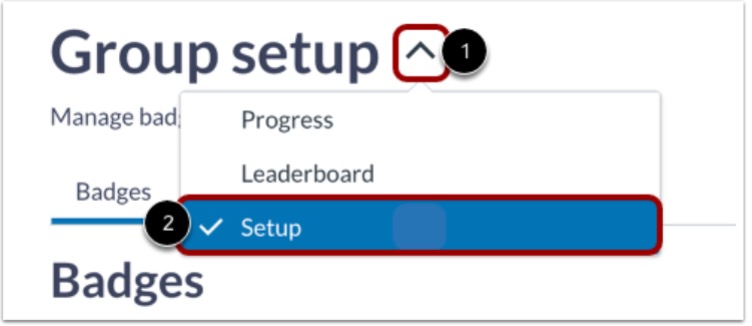
- If you need to change any triggers in the future, you can always navigate back to set up using the drop-down in the upper left.
Monitor Progress
Parchment will load on the Progress page once triggers have been set. This will show you one tab for Badge progress and a second for Learner progress. This gives a quick look at requirements, progress, and earned date. Students can also monitor their own progress by accessing the Parchment Badges link from the course menu. Note: If a student thinks they have met the requirements for an unearned badge, suggest they open the Parchment Badge tool. This refreshes their progress in the tool and can trigger a missed award.